
Your aunt in Ilam gets married next month. How will you find out? Long ago, someone would walk for days to bring the news. Today the invitation card reaches your mother’s phone in a second.
That is the power of information and communication technology (ICT): the tools we use to find, keep and share information. In this unit you will see where information comes from and how it travels. You will look inside a computer. Then you will learn to type with all ten fingers, write with a word processor and draw in a paint program.
Information and communication technology
Today, news from any part of the world reaches us in moments. A football match in Spain, a flood in the Terai, a new invention in Japan: we can know about them almost as they happen.
The tools we use to get and share information are called means of communication. A radio, a phone and a newspaper are means of communication. A computer joined to the internet is the most modern one. It has changed every part of our lives: schools, hospitals, farming, shops and banks.
With a computer, we can:
- write letters, stories and reports;
- draw pictures and edit photos;
- do sums and keep accounts;
- send what we make to other people by email.
With the internet, we can do even more from home:
- pay bills for electricity, water and the phone;
- send and receive money through a bank;
- look up information about anything, and buy things online;
- find books, videos and lessons for learning.
So every one of us needs to know how to use a computer.
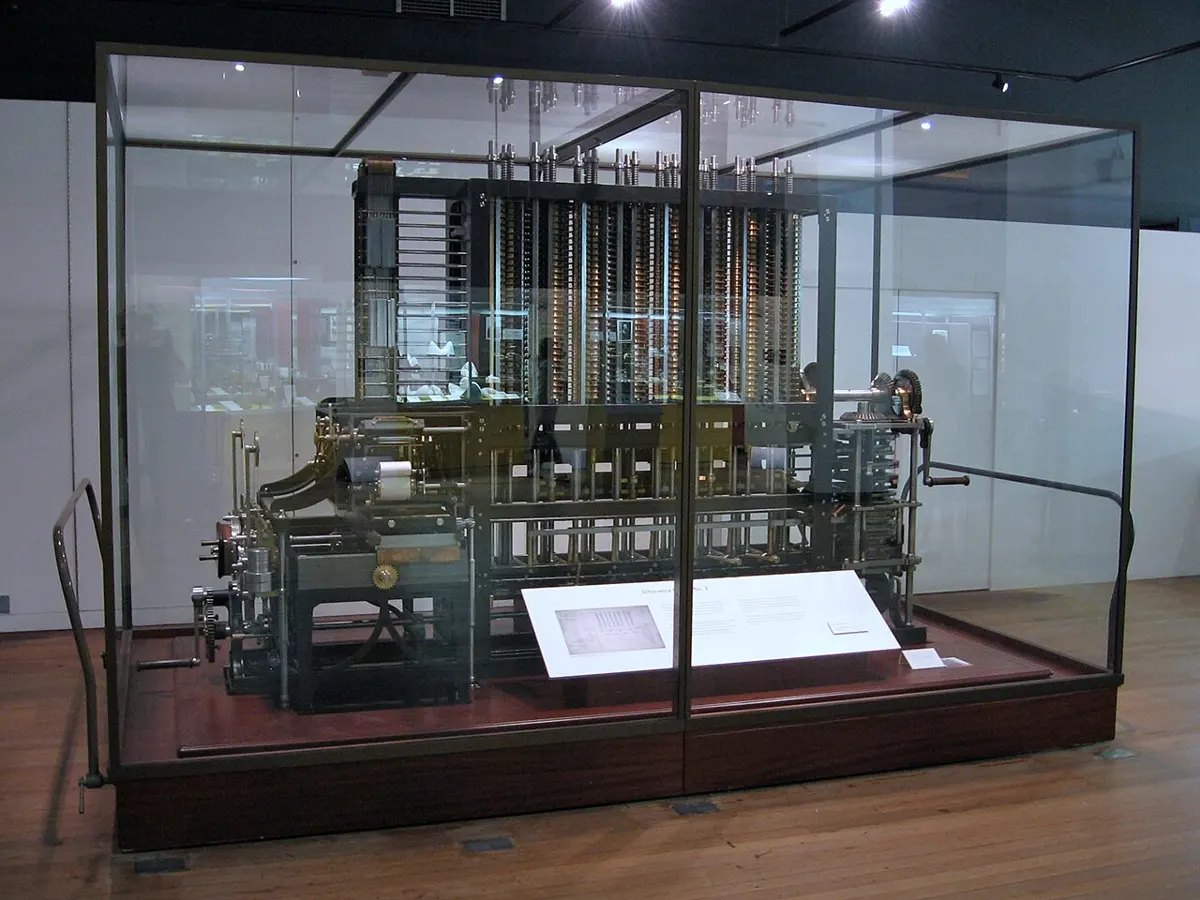
Which of these is a modern means of communication?
Pick an answer to see why.
Sources of information
What is information?
Every day, we learn about people, things, places and events. These facts and data are called information.
Where does information come from? There are two kinds of sources of information.
- Primary sources: we see, hear or feel something ourselves. This is called direct observation. You see dark clouds and know rain is coming. You taste the dal and know it needs salt.
- Other sources (secondary sources): someone else collects the information and passes it to us. Newspapers, radio, television, books, the internet, online magazines, mobile phones and computers are sources like this. They are also called media. They carry information from one place to another.
Bimala sees smoke rising from a field. What kind of source of information is this?
Pick an answer to see why.
One phone, many jobs
A mobile phone is an easy and handy source of information. With the internet, a phone or a computer can also bring us the newspaper, the radio and much more.
Communication and its types
Sending information from one place or person to another is called communication. The tools that carry the information are called means of communication, or communication tools. Newspapers, radio, television, books, computers and telephones are all means of communication.
New means of communication are being invented very fast. News from anywhere now reaches the whole world at once. So people say the whole world has become like one village.
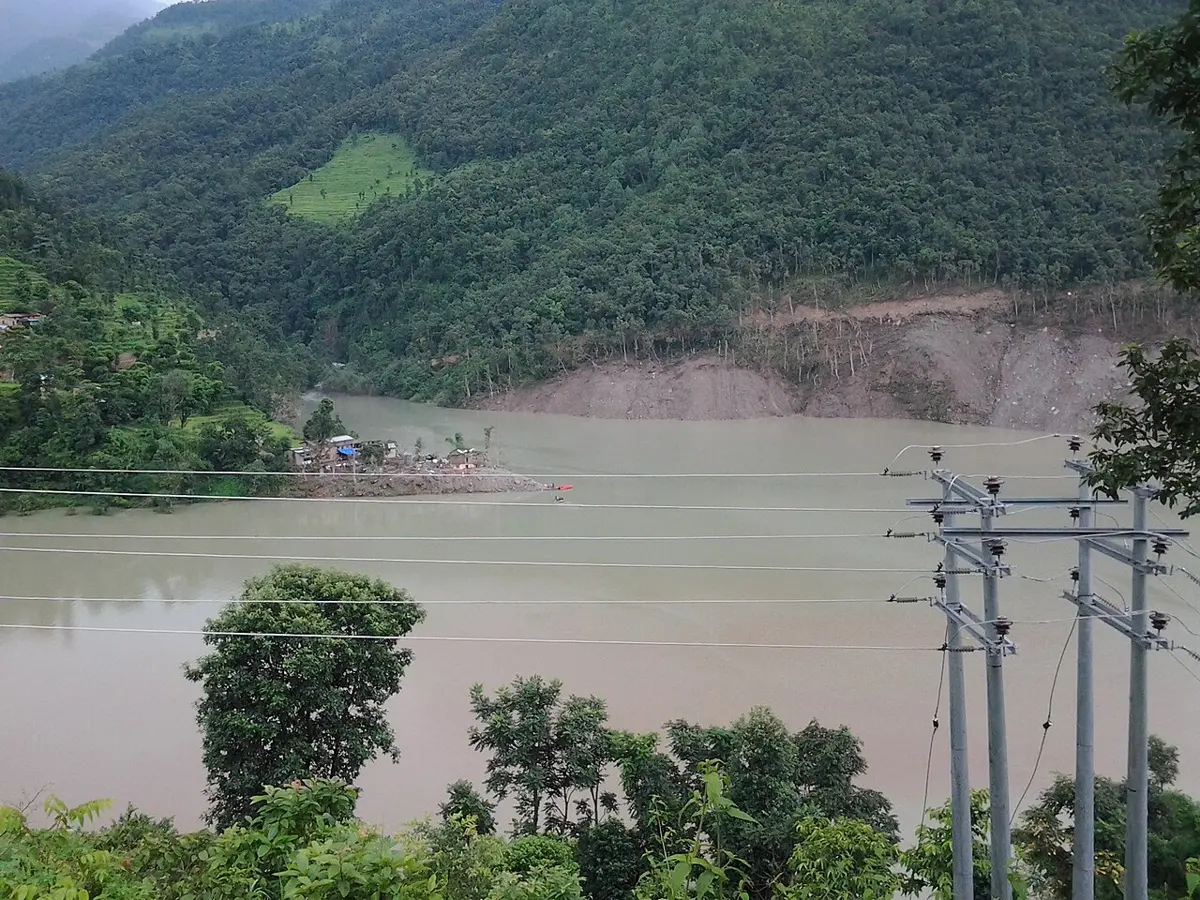
Three kinds of communication
In Pemba’s story, the information went to three kinds of “listener”: Pemba’s own mind, a few people, and the whole public. So communication is of three kinds.
a. Intrapersonal communication
Intra means “inside”. Intrapersonal communication happens inside one person’s own mind. We think, compare, ask ourselves questions, tell right from wrong, and decide. We learn a lot this way.
Pemba saw the lake. His eyes sent that information to his brain. He thought it over and decided: “The others must be told.” That was intrapersonal communication. It is also called internal or personal communication.
b. Interpersonal communication
Inter means “between”. Interpersonal communication goes from one person to another person, or to a small group. The information flows both ways: each one can speak and answer. Talking face to face, talking on the phone and a class discussion are all interpersonal communication.
Pemba telling the shepherds was interpersonal. So was the Ward Chairperson’s phone call to the FM station.
c. Mass communication
Mass means “a very large number”. Radio, television, newspapers and online magazines carry the same information to a huge number of people in many places at the same time. This is mass communication. The information flows one way: listeners can’t answer back through it.
The FM radio’s warning to all the villages at once was mass communication.
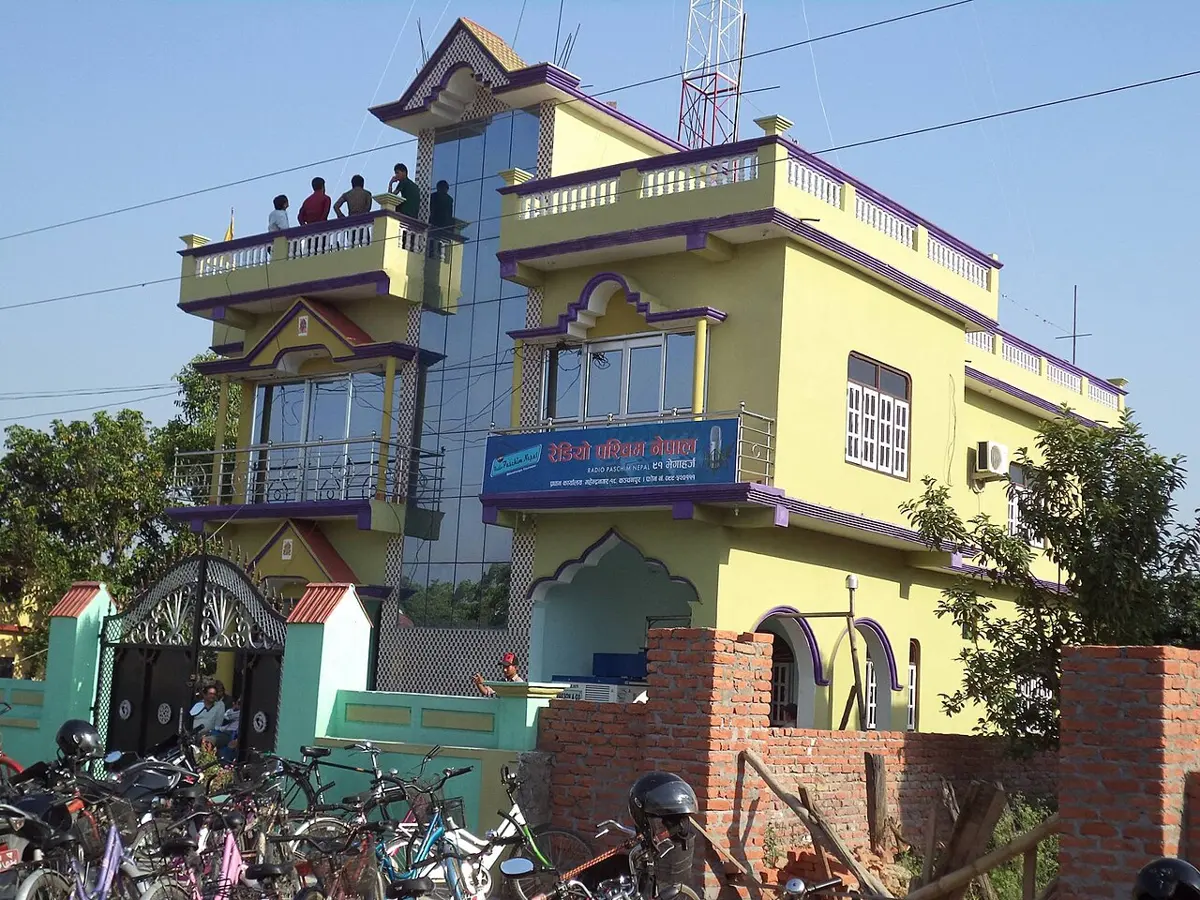
Your teacher discusses a story with your class, and everyone asks questions. Which kind of communication is this?
Pick an answer to see why.
Forms of communication
Information can be shared in four forms.
- Non-verbal (symbolic): with signs, actions and symbols, without words. A nod, a wave, a traffic light, a zebra crossing.
- Verbal (oral): with spoken words. Talking, a phone call, a speech.
- Written: with written words. A letter, a notice, a book, a text message.
- Audio-visual: with sound and pictures together. A film, the TV news, a video call.

A referee shows a player a yellow card. What form of communication is this?
Pick an answer to see why.
Exercise (Communication)
1. Choose the correct answer
a. Which kind of communication takes place when friends talk to each other?
Pick an answer to see why.
b. Which of these is a means of mass communication used in daily life?
Pick an answer to see why.
c. Which of these is one-way communication?
Pick an answer to see why.
d. A football referee shows a red or yellow card. What type of communication is this?
Pick an answer to see why.
e. Binu is reading a book. Bibek is making tea in the kitchen and talking to his friend on the phone. Father and Mother are listening to the news on the radio. Which of these is interpersonal communication?
Pick an answer to see why.
2. Is it correct (✓) or wrong (✗)?
a. Sending information from one place to another is called communication.
Pick an answer to see why.
b. The telephone is a means of mass communication.
Pick an answer to see why.
c. Our own observation is a source of information.
Pick an answer to see why.
d. Clapping is symbolic communication.
Pick an answer to see why.
e. Communication through newspapers is interpersonal communication.
Pick an answer to see why.
3. Fill in the blanks
communication, symbolic, mind, personal, mass, two-way
Deciding where to cross the road by looking at the zebra crossing is ______ communication.
Answer
Deciding where to cross the road by looking at the zebra crossing is symbolic communication.
A tool used to carry information is called a ______ tool.
Answer
A tool used to carry information is called a communication tool.
Interpersonal communication is a ______ flow of information.
Answer
Interpersonal communication is a two-way flow of information.
Information we get through our senses goes to the ______.
Answer
Information we get through our senses goes to the mind (the brain).
Television is a means of ______ communication.
Answer
Television is a means of mass communication. (“Personal” is not needed.)
Computer as a means of communication
A computer is an electronic machine that can do many different jobs. It is also a modern means of communication. It takes in data and instructions, works on them, and gives us the result. It solves hard problems quickly. If its program is right, it makes no mistakes. It can also keep (store) what we put in.
How a computer works
A computer does its work in four steps.
- Input: we give the computer data or commands. Example: pressing a key on the keyboard.
- Processing: the computer works on the data, following the instructions of its programs. This is done by the CPU. Example: the CPU works out which letter you pressed.
- Output: the computer shows us the result. Example: the letter appears on the monitor.
- Storage: the computer keeps the data to use again later. Example: saving a file on a drive.
Hardware and software
A computer has parts we can see and touch, outside and inside. The keyboard, mouse, monitor, printer, speakers, and the parts inside the box are its hardware. Hardware is the computer’s body.
A computer also needs programs to do each job. A program is a set of instructions that tells the hardware what to do. Programs and apps are called software. A word processor, a typing program, a presentation program, a spreadsheet and a web browser are all software. We can’t touch software, but without it the hardware can do nothing.
Input, processing, output and storage devices
- Input devices give data and instructions to the computer: the keyboard and the mouse, and also a microphone, a scanner and a camera.
- The CPU turns this raw data into useful results. This is processing.
- Output devices show us, print or play the results: the monitor shows them, the printer prints them on paper, and the speakers (sound box) play them.
- Storage devices keep our work safely: the hard disk, the SSD (solid-state drive) and the pen drive. Our documents, photos, songs and videos are stored on them.
Which part of a computer does the processing?
Pick an answer to see why.
Our body and the computer
Our body works a little like a computer.
- Our sense organs (eyes, ears, nose, tongue and skin) take in information. We also take in food and oxygen. These organs are like the input devices of a computer.
- Food and oxygen reach the cells of our body, and react there to give us energy. Our brain works on the information from our senses. The brain and the organs that do this work are like the computer’s CPU.
- The energy we get, and our growth, are like the output. Our mouth speaks, and our hands write and draw.
- Our brain remembers things, like a computer’s storage.
So the brain is like the CPU, the eye like a camera, the ear like a microphone, and the mouth like a speaker.
Humans and computers are different
A computer is like us in some ways. But it is a machine, made by people. Here is how humans and computers differ.
| No. | Human | Computer |
|---|---|---|
| 1. | People can have different opinions about the same thing. | Given the same input and program, a computer gives the same result every time. |
| 2. | We feel and show sadness, happiness and pain. | A computer has no feelings. |
| 3. | We have our own new ideas. We can write poems, stories and essays. | A computer has no ideas of its own. It can only follow its programs. |
| 4. | We need much more time to work on a lot of data. | With the right program, a computer works on a lot of data in seconds. |
| 5. | We can make our own decisions, and judge what is right and kind. | A computer decides only by the rules in its program. |
Which of these can a human do, but a computer can’t?
Pick an answer to see why.
Exercise (Computer)
1. Choose the correct answer
a. What do we call the parts of a computer we can see and touch?
Pick an answer to see why.
b. What kind of device is a pen drive?
Pick an answer to see why.
c. Which of these is an input device?
Pick an answer to see why.
d. Which of these can a human do, but a computer can’t?
Pick an answer to see why.
e. You made some pictures on a computer and saved them. Where are they kept?
Pick an answer to see why.
2. Is it correct (✓) or wrong (✗)?
a. A computer stores the data we put into it.
Pick an answer to see why.
b. The monitor is an output device of a computer.
Pick an answer to see why.
c. Humans can work on data faster than computers.
Pick an answer to see why.
d. Drives such as an SSD are the processing devices of a computer.
Pick an answer to see why.
e. When a computer gets angry, it makes more mistakes.
Pick an answer to see why.
3. Fill in the blanks
results, input, storage, processing, output
The human brain does the work of ______, like the hard drive of a computer.
Answer
The human brain does the work of storage, like the hard drive of a computer.
The printer of a computer is an ______ device.
Answer
The printer of a computer is an output device.
The ______ from all computers are the same for the same command.
Answer
The results from all computers are the same for the same command.
Data and instructions are given to the computer through an ______ device.
Answer
Data and instructions are given to the computer through an input device. (“Processing” is not needed.)
Typing software
Offices, schools, hospitals, bakeries and shops now type their letters and accounts on computers, and keep them there. A typed document can be sent to other people over the internet as an electronic copy. It can also be printed on paper as a hard copy.
Typing programs help us learn to type quickly and easily. Typeshala, Typing Master and Typing Tutor are some of them. Typeshala is used all over Nepal. It teaches typing in Nepali as well as English.
Ten fingers, not two
A keyboard has keys for letters, numbers and commands. To type fast, use all the fingers of both hands. Each finger has its own keys.
Rest your fingers on the middle row of letters. This row is called the home row. Your left fingers rest on A S D F, and your right fingers on J K L ;. Your thumbs rest on the space bar. Each finger reaches up or down for its other keys, and then comes back home.
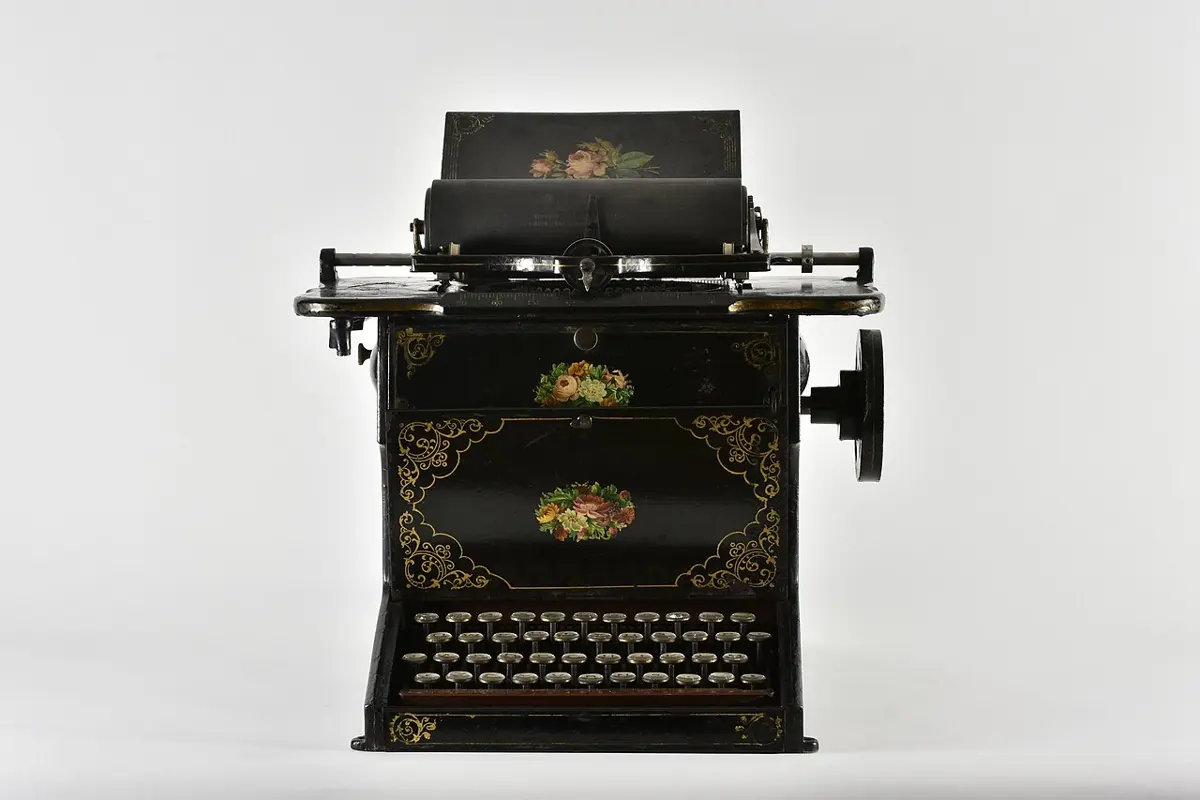
On which keys do your fingers rest when you type?
Pick an answer to see why.
Introduction to the keyboard
The keyboard is the main input device of a computer. Its keys are in groups, by the work they do.
a. Number and letter keys
These type numbers, letters and symbols. They are also called the typing keys.
b. Function keys
The keys F1 to F12 in the top row do special jobs. The job can change from program to program. In most programs:
- F1 opens the help.
- F2 renames a file or folder that you have selected.
- F3 searches for something in the open program.
- Alt + F4 closes the open window. On an empty desktop, it opens the box for turning the computer off.
- F5 refreshes the screen: a web page loads again, or a folder shows its newest files.
- F12 opens Save As, in Microsoft Word.
c. Navigation keys
These move you around in a file or a page.
- Home takes the cursor to the start of the line. In a web page, or when you are reading a document, it takes you to the very top.
- End takes the cursor to the end of the line. In a web page, it takes you to the very bottom.
- Page Up moves up one screen.
- Page Down moves down one screen.
- The arrow keys move the cursor one step in the direction of the arrow.
d. Special keys
- Delete removes the letter to the right of the cursor.
- Backspace removes the letter to the left of the cursor.
- Caps Lock makes every letter a capital, until you press it again.
- Shift, held down with a letter, makes one capital letter: Shift + a = A. Held down with a number key, it makes the symbol on that key: Shift + 5 = %.
- The space bar moves the cursor, and any text after it, one space forward.
- Enter moves the cursor, and any text after it, to the next line.
The Ctrl key works together with other keys. These are called shortcuts.
| Shortcut | What it does |
|---|---|
| Ctrl + C | copies what you selected |
| Ctrl + X | cuts what you selected |
| Ctrl + V | pastes what you cut or copied |
| Ctrl + A | selects the whole document |
| Ctrl + S | saves the document |
| Ctrl + P | prints the document |
| Ctrl + Z | goes back one step (undo) |
Which key removes the letter to the left of the cursor?
Pick an answer to see why.
Which shortcut saves your document?
Pick an answer to see why.
Word processor
A word processor is a computer program for writing. With it we can type (input) a text, change it (edit), make it look good (format), and print it. Microsoft Word, Google Docs and LibreOffice Writer are word processors. Notepad and WordPad (on older Windows computers) are simpler ones: Notepad types plain text only, with no bold or color.
Opening a word processor
One way:
- Click the Start button at the bottom left of the screen.
- A list of all the programs appears above it. (Or simply type Word.)
- Find Microsoft Office, and click it to open its group.
- Double-click the Microsoft Word icon with the left mouse button.
Another way:
- Right-click on an empty part of the desktop.
- A list appears. Put the pointer on New. Another list opens.
- Click Microsoft Word Document. A new Word file appears on the desktop. Type a name for it and press Enter.
- Right-click the file and click Open (or double-click it). The Word file opens.
At the top of Word is a strip of buttons called the Ribbon. It has tabs: File, Home, Insert and more. The Home tab has the font buttons. The Insert tab adds a table, a picture or a shape.
The Font group
To change some words, first select them. Put the cursor at the start of the words. Hold down Shift and keep pressing the right arrow key (→). Or press the left mouse button and drag over the words. The selected words are highlighted.
In a word processor, which tab do you click to make a table?
Pick an answer to see why.
Paint software
There are programs for drawing and coloring pictures on a computer. MacPaint (on early Apple computers), Tux Paint (free, and made for children) and Microsoft Paint are some of them.
Microsoft Paint
Microsoft Paint comes free with Windows. With it you can draw pictures, fill them with color, and change other pictures.
A. Opening Paint
- Click the Windows icon (Start) at the bottom left of the screen. A list of programs appears.
- Find Paint in the list. (In some versions, it is inside the Windows Accessories group. Or just type Paint.)
- Click Paint to open it. You can also right-click it and click Open, or drag it to the desktop to make a shortcut.
At the top left of Paint are three tabs: File, Home and View. To draw, use the Home tab. It has the groups Clipboard, Image, Tools, Brushes, Shapes, Size and Colors. You draw in the white area below them, called the canvas. You can make the canvas bigger or smaller.
B. Drawing and filling color
- Click the pencil tool.
- Choose a color in Colors. Color 1 is the color the pencil, brush and fill tool use. Color 2 is the background color.
- Hold down the left mouse button and move the mouse to draw an outline on the canvas.
- Color your picture with a brush. Click the small arrow under Brushes to choose a kind of brush: an oil brush, a watercolor brush, an airbrush and others.
- Or use the fill with color tool (a tipping bucket). Click inside a shape you drew, and it fills with color. The shape must be closed all round, or the color leaks out.
- Use the eraser to rub out the parts you don’t want. The eraser paints with Color 2, the background color.
- Change how thick the pencil, brush or eraser is with the Size button.
You click the fill tool inside a circle, but the whole picture turns red. Why?
Pick an answer to see why.
C. Drawing a shape and filling color
- Choose a shape in Shapes: a rectangle, an oval, a triangle, a star and more. Hold down the left mouse button and drag on the canvas to draw it.
- Choose a color in Colors. Fill the shape with the fill with color tool.
- Change the color of a shape’s line with Outline, and the color inside it with Shape fill.
D. Adding text
- Click the Text tool (A). Then click where you want the words on the canvas. A box appears for typing.
- Choose the font and its size.
- Choose a color, and type your words or numbers in the box.
E. Selecting part of a picture
Click Select. Choose a kind of selection: a rectangle, free-form (any shape you draw), or Select all. Then hold down the left mouse button and drag over the part you want. Now you can cut, copy, crop, resize or rotate that part.
F. Saving the picture
- Click the File tab.
- Click Save.
- Where it says “Untitled”, type a name for your picture. Choose the place on the computer to keep it. Click the Save button.
- Now you can open, look at and change the picture again whenever you like.
Exercise (Typing, word processor and Paint)
1. Choose the correct answer
a. Which of these is the icon for Microsoft Paint?
Pick an answer to see why.
b. What is the name of the tool in the picture above?
Pick an answer to see why.
c. Which of the tools above is used to rub out part of a picture?
Pick an answer to see why.
d. Which shapes would you use to draw a traffic light (a box on a pole, with three lights)?
Pick an answer to see why.
e. What is the row of letters between the top row and the bottom row of a keyboard called?
Pick an answer to see why.
f. Which key removes the letter to the right of the cursor?
Pick an answer to see why.
g. Which shortcut saves a document?
Pick an answer to see why.
h. Which tab do you click to make a table in a word processor?
Pick an answer to see why.
2. Is it correct (✓) or wrong (✗)?
a. To fill color with the fill tool, the shape must be closed.
Pick an answer to see why.
b. Paint is in the Windows Accessories group of the computer’s programs.
Pick an answer to see why.
c. In Paint, you can paste pictures from the computer and color them as you like.
Pick an answer to see why.
d. A picture saved in Paint can’t be opened, viewed or changed again.
Pick an answer to see why.
e. In Paint, the eraser’s color is different from the background color.
Pick an answer to see why.
f. Any text can be edited on a computer with a word processor.
Pick an answer to see why.
g. The space bar moves the cursor, and the text after it, one space forward.
Pick an answer to see why.
h. F3 is used to rename a file or folder.
Pick an answer to see why.
i. Only the middle finger should be used to type on a keyboard.
Pick an answer to see why.
j. Google Sheets is a word processor.
Pick an answer to see why.
3. Fill in the blanks
select, text, file, size, save
The ______ tab must be clicked to save a picture you made.
Answer
The File tab must be clicked to save a picture you made.
The ______ tool is used to write words in Paint.
Answer
The Text tool is used to write words in Paint.
To change how thick the pencil, eraser or brush is, the ______ command is used.
Answer
To change how thick the pencil, eraser or brush is, the Size command is used.
To cut, copy, crop, resize or rotate part of a picture, we must first ______ that part.
Answer
To cut, copy, crop, resize or rotate part of a picture, we must first select that part. (“Save” is not needed.)
4. Match the pairs
Match each tool icon above (i. to iv.) with its name: brush tool, pencil tool, text tool, shape fill tool, color fill tool, select tool.
Answer
- i. (the letter A) → text tool
- ii. (a shape filled with color) → shape fill tool
- iii. (a tipping bucket) → color fill tool (fill with color)
- iv. (a pencil) → pencil tool
The brush tool and the select tool are not needed.
Match each shortcut key with its job.
| Shortcut key | Job |
|---|---|
| Ctrl + Z | copies what you selected |
| Ctrl + P | cuts what you selected |
| Ctrl + X | pastes what you cut or copied |
| Ctrl + S | selects the whole document |
| Ctrl + C | saves the document |
| Ctrl + A | goes back one step (undo) |
| prints the document |
Answer
| Shortcut key | Job |
|---|---|
| Ctrl + Z | goes back one step (undo) |
| Ctrl + P | prints the document |
| Ctrl + X | cuts what you selected |
| Ctrl + S | saves the document |
| Ctrl + C | copies what you selected |
| Ctrl + A | selects the whole document |
“Pastes what you cut or copied” is not needed. That is Ctrl + V.
5. Answer these questions
What is the difference between information and communication? Explain with examples.
Answer
- Information is the facts and data we get about people, things, places and events. Example: “The SEE results come out next week.”
- Communication is sending that information from one place or person to another. Example: the news of the results is told on the radio, or a friend tells you on the phone.
- So information is what we share. Communication is how we share it.
What are the sources of information? Sort them, with examples.
Answer
Sources of information are where we get information from. They are of two kinds.
- Primary sources: what we observe ourselves, with our own senses. Examples: seeing dark clouds, hearing thunder, tasting food.
- Other (secondary) sources, or media: someone else collects the information and passes it on to us. Examples: newspapers, radio, television, books, the internet, mobile phones and computers.
What are the kinds of communication? Describe each one in short.
Answer
- Intrapersonal communication: it happens inside one person’s own mind. We think, compare and decide. Example: Pemba thinking that the lake could burst.
- Interpersonal communication: information goes from one person to another, or to a small group. It is two-way. Examples: talking face to face, a phone call, a class discussion.
- Mass communication: information goes from one source to a huge number of people at the same time. It is one-way. Examples: radio, television, newspapers.
Name the main parts of a computer. How are input, output, processing and storage devices different?
Answer
The main parts are the keyboard, mouse, CPU (inside the system unit), monitor, printer, speakers, and the hard disk or SSD.
- Input devices give data and commands to the computer: keyboard, mouse, microphone.
- Processing device: the CPU works on the data and turns it into results.
- Output devices show, print or play the results: monitor, printer, speakers.
- Storage devices keep data to use again later: hard disk, SSD, pen drive.
Write three ways humans and computers are alike, and three ways they are different.
Answer
Alike:
- Both take in information: we use our senses, a computer uses input devices.
- Both work on information: we use our brain, a computer uses its CPU.
- Both give out results and remember things: we speak and write, a computer shows and prints; our brain remembers, a computer stores.
Different:
- Humans have feelings. A computer has none.
- Humans have new ideas of their own. A computer only follows its programs.
- A computer works on a lot of data much faster than a human.
Worksheet: ICT: information, communication and the computer (PDF, 3 pages)
Worksheet: ICT: typing, word processor and Paint (PDF, 3 pages)
Practice every question in the book, and keep track of the ones you miss →