
Think of a day in your home. Someone cooks rice. Someone irons a school shirt. Someone sends a message to a relative far away. Each job uses a tool. Some tools are very old, like the janto your grandmother turned by hand. Some are very new, like the phone in your pocket.
In this unit you will meet both kinds: the local technology that people in Nepal have used for hundreds of years, and the modern technology of machines, mobile phones and computers. Then you will learn to use a computer for real work: typing, making tables, giving a presentation and keeping marks in a spreadsheet.
2.1 Technology
Every day we cook, farm, carry things and clean. Make a list of the jobs done in your home and your neighborhood. Which tools are used for each job? Could all these jobs be done without any tools at all?
Hardly any. People have always made tools to make work easier. The knowledge and skill used to make and use tools is called technology.
Local technology
Look around a village in Nepal. A woman cuts grass with a sickle (hasiya). A man chops firewood with an axe. Spices are crushed with a mortar and pestle (khal). Vegetables are cut on a chulesi. A farmer plows a field with a plow (halo) pulled by oxen. Roti is rolled with a belna on a chauki.
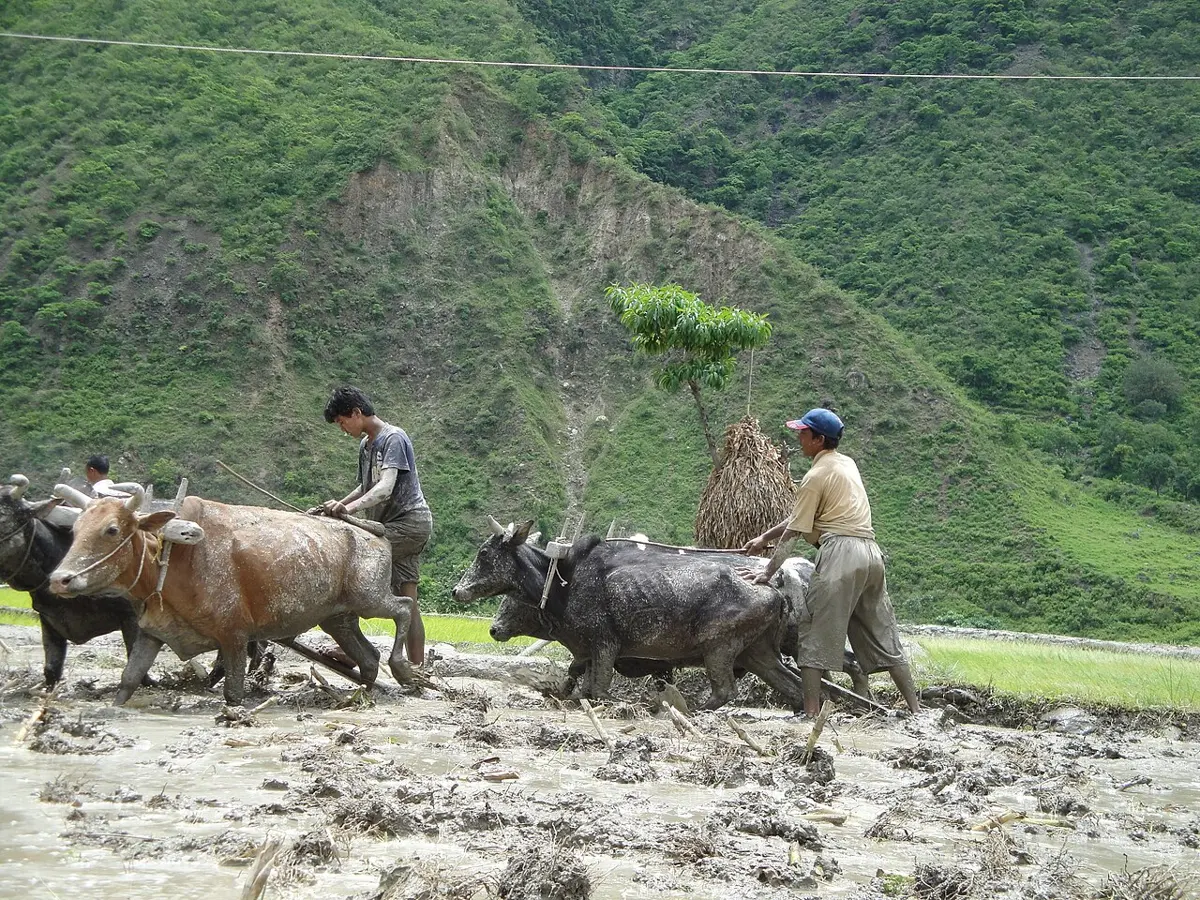
These tools are made by local people from local materials: wood, bamboo, stone, clay and iron. The skill to make them is passed from parents to children.
The traditional knowledge and skill used to make and use such tools is called local technology. The tools made with it are local tools. Local technology makes our daily work faster, easier and more comfortable.
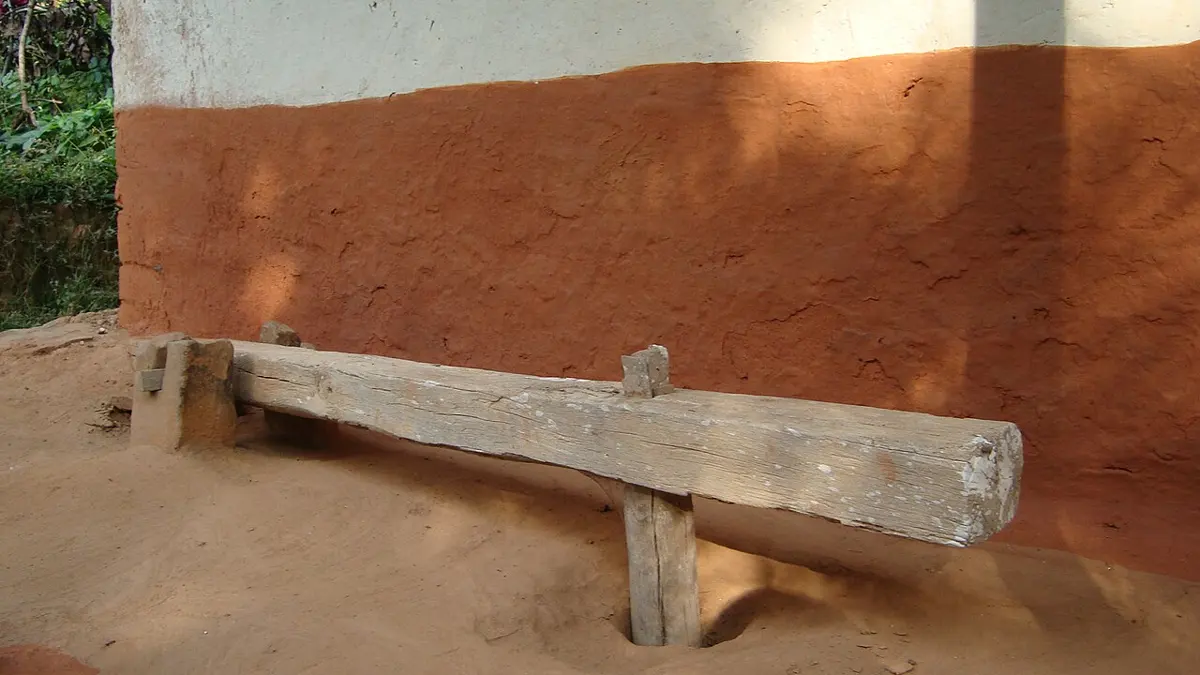
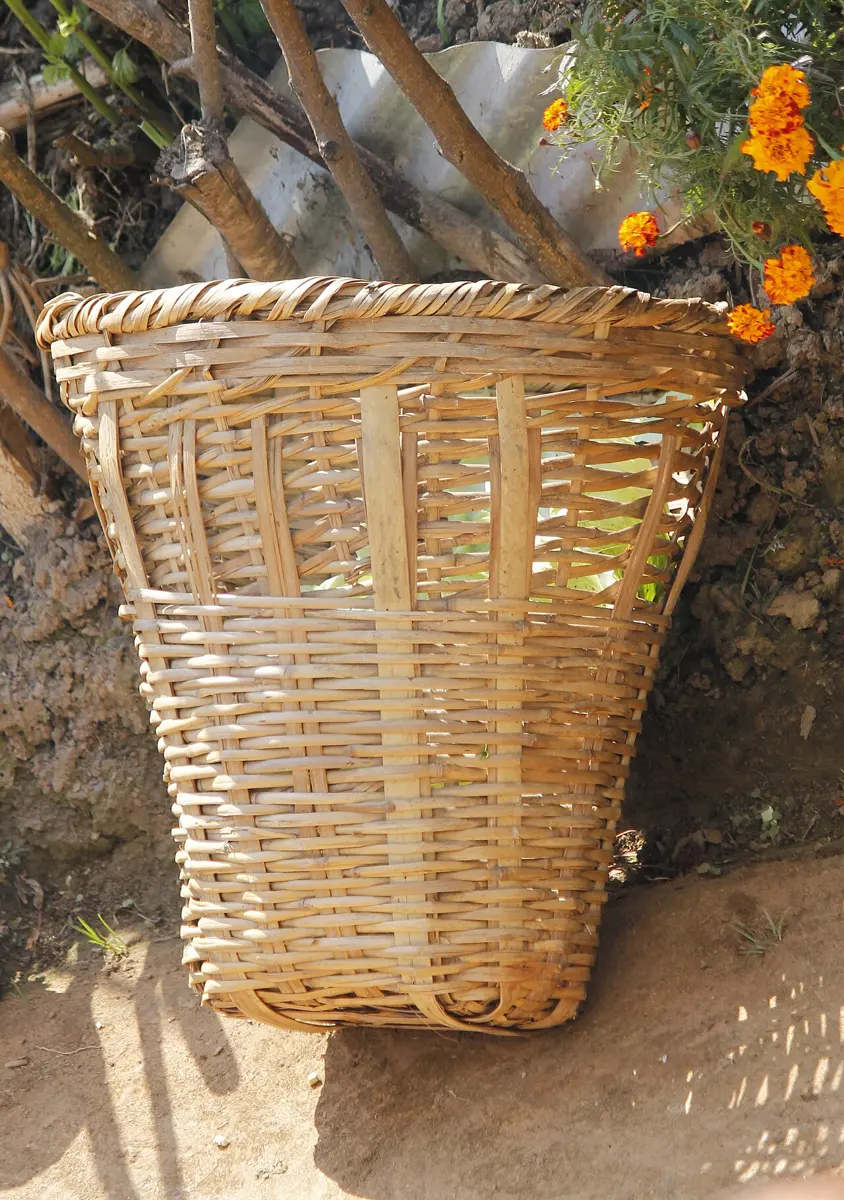
Nepal is rich in traditional skills. Its land changes from the hot Terai to the cold Himalaya, and many communities live here, each with its own ways. So local technology in Nepal is very varied. It is used in farming and keeping animals, in making food and drinks, in spinning yarn and weaving cloth, in making energy (the pani ghatta), in managing water (stone taps, the dhunge dhara), in building houses and temples, and in making bridges and paths.
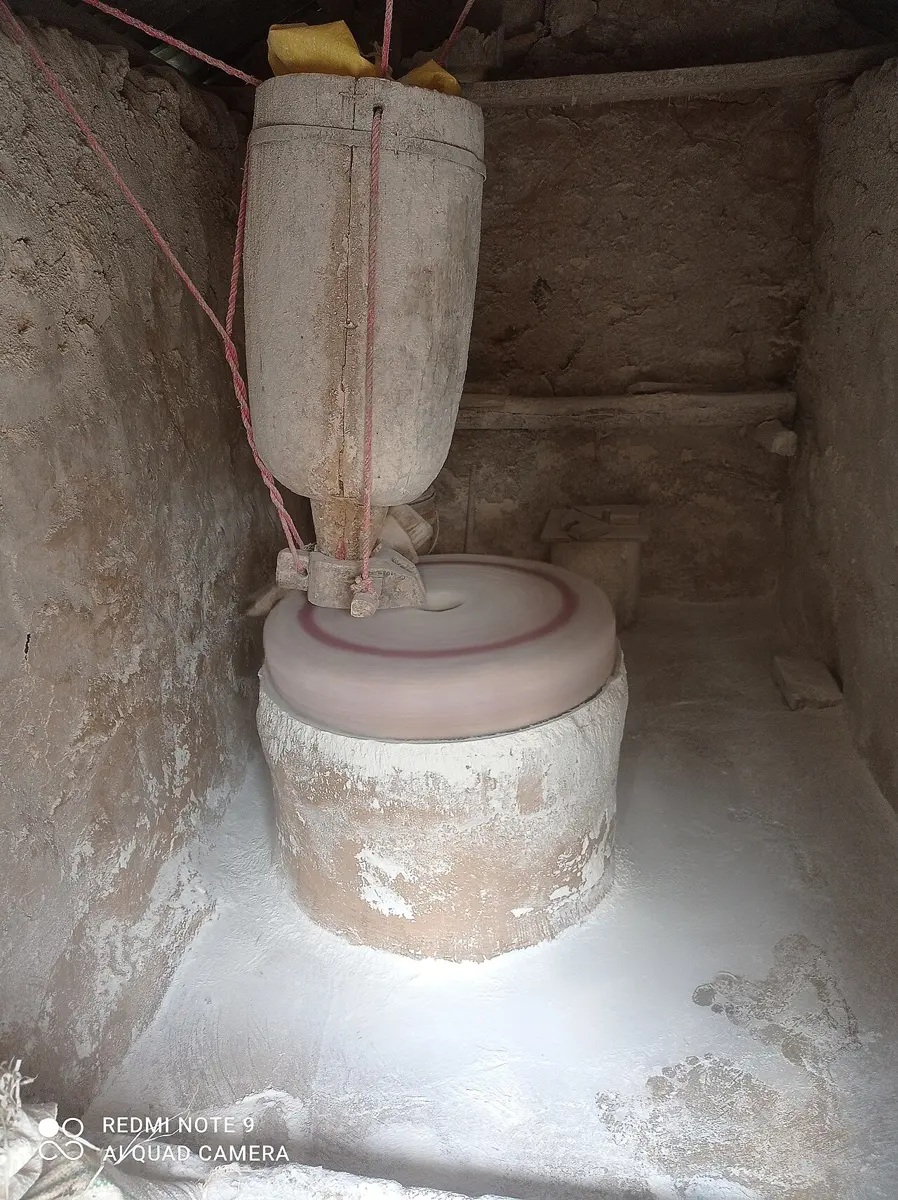
Which of these is a tool of local technology?
Pick an answer to see why.
Modern technology
Now look at the machines in a town. A room heater or an air conditioner keeps a room warm or cool. A refrigerator keeps vegetables and fruit fresh. Smartphones and computers share information. Scooters, cars, buses, trains and planes carry people and goods. An induction cooker, an electric iron, a mixer and a tractor do work that once took a lot of time and effort.
All of these are made and used with scientific knowledge and skill, often in big factories. Such technology is called modern technology.
With modern technology:
- work is done quickly;
- many good-quality things can be made at a time (mass production);
- some machines run on mechanical power (an engine, like a tractor’s), others on electrical power (a refrigerator, a computer).
Modern technology grew out of local technology, with new scientific knowledge added. The electric iron does the same job as the coal iron; the flour mill does the same job as the janto.
Local and modern technology in farming
On a hillside farm, a farmer digs with a kuto and a kodalo and plows with oxen. On a big flat field in the Terai, a tractor plows in a few hours what oxen would plow in days. Kuto, kodalo and the plow are local technology. Tractors, threshing machines and lawn mowers are modern technology.
Local and modern technology in grinding and threshing
The dhiki, the janto, the okhal (a big wooden or stone mortar), the pani ghatta and the kol for lemons and mustard are local technology for pounding, grinding and pressing. Rice mills, flour mills and oil mills are modern technology for the same jobs.
Local skills and tools have been used for a very long time. Modern technology grew from them, as they were improved. Today, the computer is used in most modern technology: many automatic machines are run by small computers inside them, like a washing machine or a lift.
Modern technology usually makes work faster, more accurate and easier, and when a lot of work is done, it costs less for each job. In cities, modern technology is used more. In many places in Nepal, local technology is still part of daily life.
2.2 Use of mobile phone and computer in our daily life
Mobile phones and computers are no longer new. They are used in education, health, security, entertainment and business. A family in Nepal can talk face to face, on a screen, with a son working in Qatar. Because news and messages travel round the world in seconds, people say the world has become a global village.
Use of smartphones in daily life
A few years ago, a mobile phone could only make calls and send short text messages. It had a keypad with buttons, a speaker and perhaps a small torch.
Then technology improved, and people wanted more. Today’s smartphone has a camera, the internet and many programs (apps). It is really a small computer that also makes phone calls.
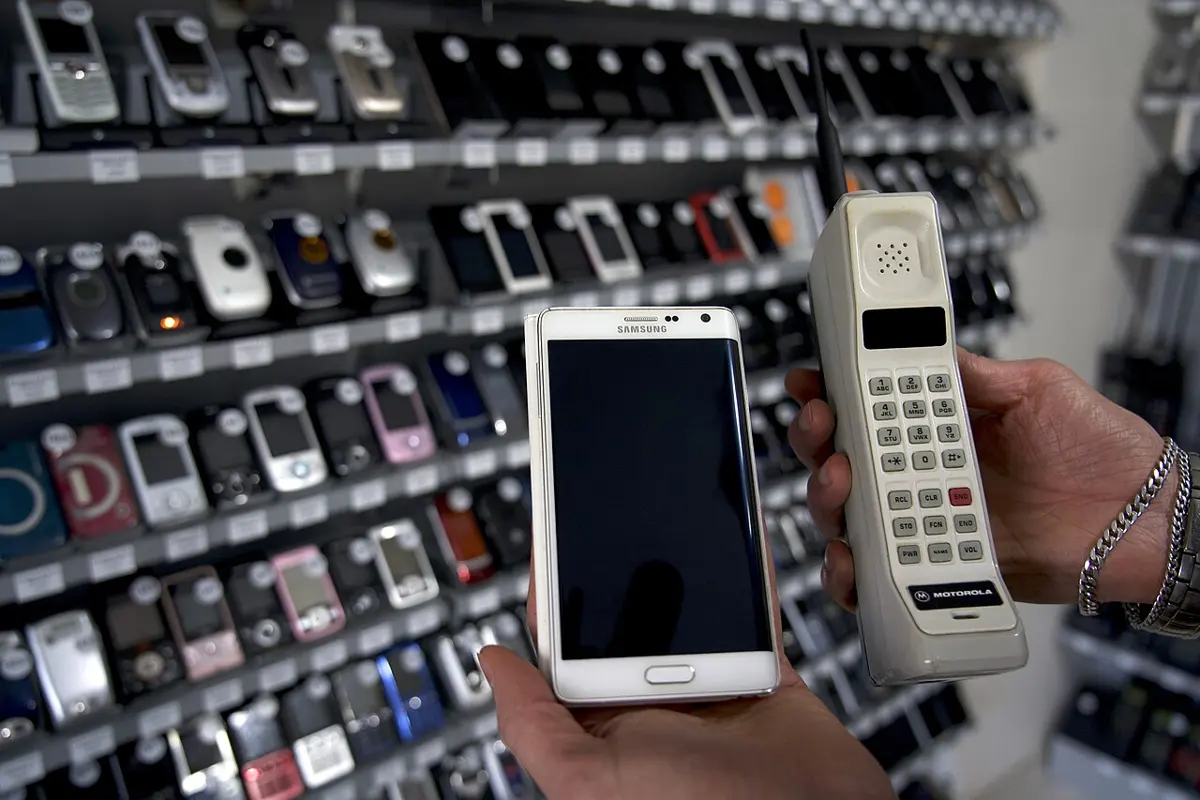
We use smartphones to:
- talk, and send messages and emails;
- calculate, and take photos and videos;
- use social networks like Facebook, Messenger, Viber, Imo and WhatsApp;
- shop online and use mobile banking: send money, and pay bills for electricity, water and the internet, without going to the bank.
Use of computers in daily life
A computer does work quickly and without mistakes, again and again. So computers are used in homes, schools, offices, banks, hospitals, the police and army, and in TV and radio. There is hardly any field where they are not used.
Computers are changing education too. Students can learn online, watch science videos, and read books like this one on a screen.
Things to remember while using smartphones and computers
Smartphones and computers are very useful. But used too much, or in the wrong way, they can harm us. Using them for a long time can cause:
- headaches, and dry, red, tired eyes;
- poor sleep (insomnia) and getting angry easily (irritability);
- pain in the neck, back and fingers;
- burns, if a phone or charger gets too hot.
So:
- Take breaks. Follow the 20-20-20 rule: every 20 minutes, look at something about 20 feet (6 meters) away for 20 seconds.
- Don’t use a phone at bedtime, while eating, or while it is charging.
- Don’t work on a small screen, in dim light, or with tiny letters: make the letters bigger and the room bright.
- Sit up straight, with the screen at the height of your eyes.
- Spend time playing outside, with friends and family. Too much screen time can harm a child’s growth of body and mind.
Which habit is the best for your eyes when you study on a screen?
Pick an answer to see why.
Computer
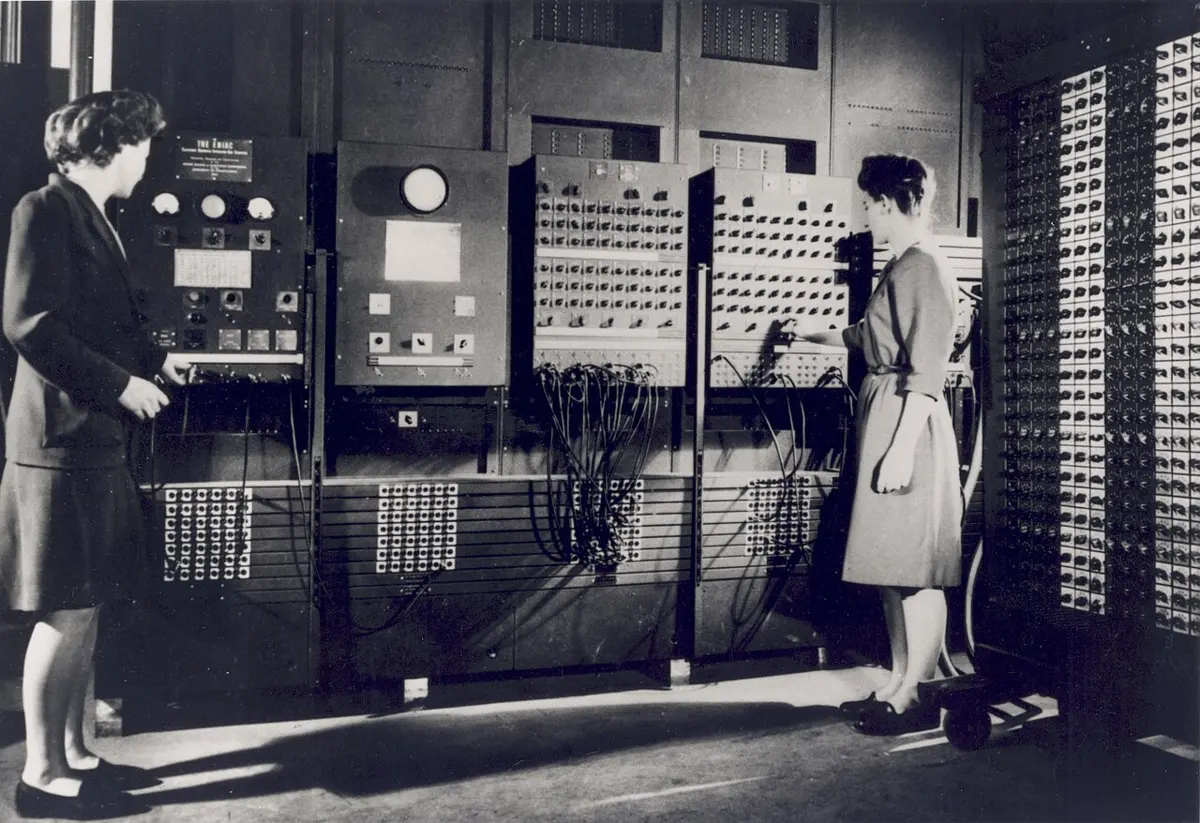
The word computer comes from the Latin word computare, which means “to calculate” or “to count”. The first computers were built to do huge sums quickly.
Today, a computer is an electronic machine that takes in data and instructions from the user, processes the data with the help of its programs, and gives useful results.
Components of a computer
A computer has two basic parts: hardware and software.
- Hardware: the parts you can see and touch, like the keyboard, mouse, monitor, printer, and the parts inside the box.
- Software: the programs. A program is a set of instructions that tells the hardware what to do. Hardware alone can do nothing; software makes it work. Examples: the Windows operating system, Microsoft Word, and media players.
How a computer works
A computer works in three steps, called IPO: input, processing and output.
A. Input. Giving data or instructions to the computer is called input. Devices used for it are input devices: the keyboard, mouse, microphone and scanner.
B. Processing. The data is worked on, or processed, in the Central Processing Unit (CPU).
C. Output. The results come to the user through output devices: the monitor, speaker and printer.
Storage devices
What you make on a computer, or bring into it, can be kept and used again later. Keeping useful work safely is called storage. The devices that keep it are storage devices.
- The hard disk, inside the computer, keeps your files and programs.
- A pen drive is small enough to carry in a pocket.
- Optical discs: CDs, DVDs and Blu-ray discs.
- Cloud storage: files kept on big computers far away and reached through the internet. Photos, emails and videos on YouTube, Facebook or email are kept in the cloud.
Types of computers
A few years ago, most computers were desktop computers, which stay on a table. Now computers are made small enough to carry from place to place. These portable computers have different names: laptops, notebooks, tablets, iPads and smartphones.
All of them work on the same principle as a computer: input, processing, output, and storage, run by an operating system. So all of them are computers. They differ in their size, design and the programs they use.
Your phone has a touchscreen, a chip that runs apps, and memory that keeps your photos. Is it a computer?
Pick an answer to see why.
Using a word processor
A word processor is software for writing, changing (editing) and printing documents: letters, notes, stories and reports. Documents can be saved on the hard disk and shown on the screen. Popular word processors are Microsoft Word, LibreOffice Writer (free) and Google Docs (free, online).
Opening Microsoft Word
- Turn on the computer. Click the Start button at the bottom left of the screen, or press the Windows key on the keyboard.
- Type Word. The icon of Microsoft Word appears. Click it once with the left mouse button.
- Word opens with a set of templates. Click Blank document. A blank page appears. Type what you want to write.
Saving a file
- To keep your file on the hard disk, click File at the top left. Then click Save As, and then Browse (in some versions, Computer and then Browse).
- A new window opens. On its left is a list of places to save the file. Choose Desktop, so the file is easy to find.
- At the bottom of the window is a small box for the file’s name. Type a name, such as MyFile, and click Save.
Now a file named MyFile is on the desktop. Double-click it, and it opens so that you can work on it again.
Changing the font, size and alignment
You can change the font (the shape of the letters) and the size of the letters, to make your document look better.
- First select the word, sentence or paragraph to change: click at its beginning, hold the mouse button down and drag to its end. The selected part is highlighted with a colored background.
- Release the mouse button. A small box appears next to it. Choose a font, a size and a color. You can also make the letters bold, italic or underlined.
The same buttons are on the Ribbon, the strip of buttons across the top of the window. It has tabs: File, Home, Insert, Design, Layout and more. The font buttons are on the Home tab. Alignment buttons there put a line on the left, in the center, on the right, or spread evenly across the page (justify).
Cut, copy and paste
Sometimes a word or a sentence is in the wrong place. The quickest way to move it is cut and paste:
- Select the part to move.
- Click Cut on the Home tab of the Ribbon, or press Ctrl + X. The part disappears from the page; the computer holds it in the clipboard.
- Click where it should go.
- Click Paste on the Home tab, or press Ctrl + V.
To put the same words in two places, use copy and paste. Select the words, click Copy or press Ctrl + C, click the new place, and paste with Ctrl + V. Now the words are in both the old place and the new one.
After Copy and Paste, where is the copied word?
Pick an answer to see why.
Tables in Microsoft Word
- Make a new Word file.
- Click the Insert tab on the Ribbon.
- Click Table. A grid of small empty boxes appears. Put the mouse pointer on the top-left box, and move it right and down over as many boxes as your table needs. Click. A table with equal-sized boxes appears on the page.
In a table:
- a line of boxes going down is a column;
- a line of boxes going across is a row;
- each box, where a row and a column cross, is a cell.
Type your data into the cells. To move from cell to cell, use the arrow keys or the Tab key, or click a cell.
Selecting a table, row, column or cell
- Whole table: point at the table. A small box with a four-headed arrow appears at its top-left corner. Click it to select the whole table. Drag it to move the table.
- A row: move the pointer just to the left of the row, outside the table. The pointer becomes an arrow pointing up and to the right. Click to select the whole row.
- A column: move the pointer just above the column. It becomes a small black arrow pointing down. Click to select the whole column.
- A cell: move the pointer to the left edge, just inside the cell. It becomes a small black arrow slanting up. Click to select the cell.
Table tools
- Design: click inside a table, then the Table Design tab. Many ready-made table styles appear: click one.
- Layout: click inside the table, then the Layout tab.
- Cell Margins make the space round the words in each cell bigger or smaller.
- Alignment buttons put the words at the top, middle or bottom of a cell, and to its left, center or right.
- Split Cells: select a cell and click Split Cells. In the window that opens, choose 2 columns and 1 row. The cell becomes two.
- Merge Cells: drag across two cells to select them, and click Merge Cells. The two become one.
- Adding rows and columns: click where the new row should go, then click Insert Above or Insert Below. For a column, click Insert Left or Insert Right.
Multimedia
Think of an advertisement on TV. Words, pictures, music, moving drawings and video come together, and you understand the message quickly. A combination of words (text), pictures (images), sounds (audio), animation and video is called multimedia. It is used to share ideas clearly and in an interesting way.
Multimedia is used a lot in education, entertainment and business. In the lower classes, letters, numbers, stories, poems and songs are shown as multimedia, and children learn them easily. In your science class, your teacher may show a video with a computer, a projector and speakers.
To make multimedia, we need software that adds movement to words and pictures and joins sound and video. For a class, a multimedia presentation can be made in Microsoft PowerPoint, or online in Google Slides.
Table 2.8 Some multimedia software and their uses
| Software | Use | Free software for the same job |
|---|---|---|
| Adobe Illustrator, Adobe Photoshop | Making graphics (drawings and pictures) | Inkscape, GIMP |
| Autodesk 3ds Max (3D Studio Max) | Making 3D animation | Blender |
| Microsoft PowerPoint | Making presentations | LibreOffice Impress, Google Slides |
| Macromedia Director (later Adobe Director) | Putting text, pictures, sound and video together into one interactive program (authoring) | No longer made (stopped in 2017); Scratch is a free way to make interactive stories and games |
| Sound Forge | Editing sound | Audacity |
| Adobe Premiere | Editing video | Shotcut, Kdenlive |
Making a PowerPoint presentation
Microsoft PowerPoint is software for making multimedia presentations as slides. Before you start, keep the words, pictures, sounds and videos you need ready on your computer.
- Turn on the computer and open PowerPoint (press Start and type PowerPoint).
- Click Blank Presentation. A new file named Presentation1 opens. Save it with your own name.
- On the Home tab, click Layout to choose a slide’s layout. The first is the Title Slide. Click its title box and type the title of your topic. Type your content in the text box below the title.
- Click the Design tab, and choose a theme you like for the slides.
- Click the Insert tab to add a new slide, pictures, audio and video. Browse to where each file is kept on the computer.
- The Transitions tab sets how one slide changes to the next. For example, with the Push transition, the next slide comes up from the bottom and pushes the old one off the top. Transitions make a presentation lively, but use only a few.
- Save your file. To present, click the Slide Show tab and then From Beginning. Click the mouse (or press the right arrow key) for the next slide.
Press F5 to start the show in full screen, on a computer or a projector. Press Esc to stop the show and come back to your work.
Which key starts a PowerPoint slide show in full screen?
Pick an answer to see why.
Using a spreadsheet
Schools keep their students’ details and marks on computers, in a spreadsheet. A spreadsheet is a computer file made of many rows and columns. It holds a lot of data neatly, and it can quickly add, subtract, multiply and work out percentages.
A spreadsheet is also called a worksheet or a sheet. A worksheet is one page; a file with many worksheets is a workbook.
Spreadsheets are used to keep accounts in banks, students’ results in schools, patients’ details in hospitals, and customers’ details in phone companies. Spreadsheet programs include Microsoft Excel, Google Sheets, Apple Numbers and LibreOffice Calc.
When Excel opens, a new file named Book1 appears. You can save it with any name. Just like a table in Word, a spreadsheet is divided into rows, columns and cells:
- rows are numbered 1, 2, 3, 4… down the left side;
- columns are lettered A, B, C, D… across the top;
- a cell is the box where a column and a row cross. Data is typed into cells.
Every cell has an address: the column’s letter, then the row’s number. The cell in column F and row 8 is F8.
Filling in data
- Click once on the cell where you want to type, for example B3.
- Type words or numbers. Double-click a cell to change what is already in it.
- Press Tab to move to the next cell on the right. Press Enter to move to the cell below.
- Use the arrow keys to move left, right, up or down, or click a cell with the mouse.
- A long word may not fit in its cell. If the cell on its right has data, part of the word is hidden: for example, a long name in A2 is covered by B2. Move the pointer to the line between the column letters A and B at the top. It becomes a double-headed arrow. Double-click, and column A becomes just wide enough. You can also drag the line. The height of a row can be changed the same way.
Autofill
Sometimes the same data must be typed again and again in a column or row. You don’t need to type it each time.
- Type Yes in one cell. Look at the small square at the cell’s bottom-right corner: the fill handle. Point at it, and the pointer becomes a thin plus sign (+). Hold the mouse button down and drag down the column (or across the row). Let go where the filling should end. Every cell you dragged over now says Yes.
- To fill numbers that go up (1, 2, 3… 10), type 1 in the first cell and 2 in the next. Select both cells, then drag the fill handle down. Excel sees the pattern and continues it: 3, 4, 5… Or type only 1, hold down Ctrl, and drag the fill handle: a small extra plus sign appears, and Excel counts up by one.
Sorting data
Data is easier to read in order. In a spreadsheet, names can be sorted in alphabetical order, and numbers in increasing or decreasing order.
- Select the data to sort. Click a column’s letter at the top to select the whole column, or drag over the cells.
- Click the Data tab on the Ribbon. Click A to Z (Sort A to Z) to put the data in increasing order, or Z to A for decreasing order. For numbers, these buttons put the smallest first or the largest first.
Exercise
A. Technology
1. Fill in the blanks
Use these words: modern, affordable, older, local, comfortable, new.
The plow is a tool of ……… technology.
Answer
local
The refrigerator is a device of ……… technology.
Answer
modern
Local technology is ……… than modern technology.
Answer
older
Modern technology is more ……… and more ……… than local technology.
Answer
comfortable and affordable (when a lot of work is done, each job costs less with modern technology, even though the machine itself is expensive)
2. Choose the correct option
i. Which of these is an example of modern technology?
Pick an answer to see why.
ii. Air conditioners, induction cookers and refrigerators are examples of modern technology because:
Pick an answer to see why.
iii. To which kind of technology do the sickle, chulesi, plow, and mortar and pestle belong?
Pick an answer to see why.
iv. Why is the kuto called local technology? Read the statements: (i) it works in the traditional way; (ii) it is made by heating iron; (iii) it has a simple structure; (iv) it is easy to handle.
Pick an answer to see why.
3. Differentiate between
Local technology and modern technology
Answer
| Local technology | Modern technology |
|---|---|
| Made with traditional knowledge and skill, passed down. | Made with scientific knowledge and skill. |
| Made by local people from local materials (wood, bamboo, clay, stone). | Usually made in factories, from metals, plastics and electronics. |
| Simple in structure. | Complex in structure. |
| Worked by people, animals, water or wind. | Usually run by engines or electricity. |
| Slower; makes a little at a time. | Faster; can make a lot at a time (mass production). |
| Examples: plow, janto, dhiki, doko. | Examples: tractor, flour mill, refrigerator, computer. |
Coal iron and electric iron
Answer
| Coal iron | Electric iron |
|---|---|
| Heated by burning charcoal placed inside it. | Heated by an electric current through a wire inside it. |
| Local (older) technology. | Modern technology. |
| Its heat can’t be controlled well; it cools as the coal burns out. | A thermostat keeps it at the right heat for each cloth. |
| Makes smoke and ash, which can dirty the clothes. | Clean: no smoke or ash. |
| Works without electricity. | Needs electricity. |
4. Answer the following questions
What is technology? Why is it used?
Answer
Technology is the knowledge and skill used to make and use tools and machines. It is used to make our work faster, easier and more comfortable, to do work with less effort, and to make more and better things. For example, a tractor plows a field much faster than a plow.
Write the names of any four tools of local technology and four of modern technology.
Answer
Local technology: plow, janto, dhiki, doko (also sickle, ghaito, madani, pani ghatta).
Modern technology: tractor, refrigerator, electric iron, computer (also mobile phone, flour mill, induction cooker, washing machine).
Compare the use of local and modern technology in farming.
Answer
| In farming | Local technology | Modern technology |
|---|---|---|
| Tools | kuto, kodalo, hasiya, plow, nanglo | tractor, power tiller, thresher, harvester, water pump |
| Power | people and oxen | engines and electricity |
| Speed | slow: a pair of oxen plows only a few ropani in a day | fast: a tractor plows that much in an hour or two |
| Cost | cheap to buy and repair in the village | costly to buy and to run (fuel), but cheaper for each job on big farms |
| Where useful | small terraces on steep hills | big, flat fields, as in the Terai |
Look at the pictures. Write the name, use and kind of technology of each.
Answer
| No. | Name | Use | Technology |
|---|---|---|---|
| 1 | Axe (bancharo) | to chop firewood and cut trees | local |
| 2 | Sickle (hasiya) | to cut grass and crops | local |
| 3 | Kodalo (hoe) | to dig the soil | local |
| 4 | Doko | to carry grass, firewood and goods on the back | local |
| 5 | Ghaito | to carry and store water, and keep it cool | local |
| 6 | Tractor with a trailer | to plow fields and carry goods | modern |
| 7 | Wooden boat (dunga) | to cross a river | local |
The plow and the tractor are used for the same work. The plow was already there, so why was the tractor developed? Give reasons.
Answer
- A tractor plows much faster: a big field in hours instead of days.
- It plows deeper and more evenly.
- It needs fewer people and no oxen, which must be fed and cared for all year.
- It can do other jobs too: pull a trailer of goods, run a thresher or a pump.
- More food must be grown for more people, on big farms. So, though the plow works, the tractor was developed to do more work with less effort.
Look at the picture and answer the questions.
- a.Name the devices in the picture.
- b.With which technology is each made?
- c.How are they alike in their use?
- d.Describe how these devices developed, one after another.
- e.What might people have used before these devices? Give your reasons.
- f.“Local technologies are important even in modern times.” Justify this.
Answer
- a.1 is a janto (hand mill), 2 is a pani ghatta (water mill), 3 is an electric flour mill.
- b.The janto and the pani ghatta are local technology; the electric mill is modern technology.
- c.All three grind grain into flour: wheat, maize, millet, barley and buckwheat.
- d.First, people ground grain by hand on the janto, turning the stone with their arm. Then they used the force of flowing water to turn the same kind of stones in the pani ghatta, which grinds more with no human work. Then came electric mills, where a motor turns the grinder: they grind fastest and most, wherever there is electricity.
- e.Before the janto, people probably crushed grain between two stones by hand, or pounded it in a stone or wooden mortar (okhal), or ate grain whole, roasted or boiled. Very old grinding stones like this have been found at ancient sites.
- f.Local technologies need no electricity or fuel, so they work in places with no power and cause no pollution. They are cheap, made from local materials, and can be repaired by local people. They suit Nepal’s steep hills, where machines can’t reach. They give work to local craftspeople, and they keep our culture and skills alive. For example, flour from a pani ghatta is still popular, and the ghatta needs only a stream.
B. Mobile phone and computer
1. Fill in the blanks
Use these words: hardware, computare, row, column, software, cell.
The word computer comes from the Latin word ……… .
Answer
computare
The parts of a computer that we can touch and see are called ……… .
Answer
hardware
A collection of programs is called ……… .
Answer
software
A spreadsheet is a program made up of many ……… and ……… .
Answer
rows and columns (where they cross are cells)
2. Write true or false
The keyboard is an input device.
Answer
True.
The monitor is an input device.
Answer
False. The monitor is an output device: it shows the results.
A computer works on the IPO principle.
Answer
True. Input, processing, output.
PowerPoint is also called a worksheet.
Answer
False. A spreadsheet is also called a worksheet. PowerPoint makes presentations.
3. Choose the correct option
i. Which part of the body is most affected by long use of a smartphone?
Pick an answer to see why.
ii. In which order does a computer work?
Pick an answer to see why.
iii. What is B5 in Microsoft Excel?
Pick an answer to see why.
iv. What is another name for a spreadsheet?
Pick an answer to see why.
4. Look at the picture and answer the questions
Name the devices in the picture.
Answer
1 is a desktop computer, 2 is a laptop, 3 is a tablet, and 4 is a smartphone.
What is the common name for all these devices?
Answer
Computers. All of them take input, process it, give output and store data.
What should be done to avoid the harm of using these devices too much?
Answer
Take a break every 20 minutes and look far away for 20 seconds; limit screen time and play outside; use them in good light with big enough letters; keep the screen at eye level and not too close; sit up straight; and don’t use them at bedtime, while eating or while charging.
5. Answer the following questions
Discuss the precautions to take while using smartphones and computers.
Answer
- Take short breaks often (the 20-20-20 rule), and don’t use them for hours at a time.
- Don’t use a phone at bedtime, while eating, or while it is charging.
- Don’t work on a small screen, in dim light or with tiny letters.
- Keep the screen at eye level and about an arm’s length away; sit up straight.
- Spend time playing outside and with family, not only on screens.
- Online: never share your password, address or photos with strangers, and tell a grown-up if something online worries you.
In which fields are computers used?
Answer
In education (online classes, results, presentations), health (patients’ records, test machines), banking (accounts, ATMs, mobile banking), offices (letters, records), business (bills, accounts, online shopping), communication (email, video calls), entertainment (films, music, games), security (police and army records, CCTV), transport (tickets, traffic lights), and science (weather forecasts, space research). There is hardly any field where they are not used.
Are laptops, desktops, tablets, iPads and smartphones all computers? Why?
Answer
Yes. All of them work on the same principle as a computer: they take input (from a keyboard, mouse or touchscreen), process it in a CPU, give output (on a screen or speaker), and store data, all run by an operating system. They differ only in size, design and the programs they use.
Describe how a computer works.
Answer
A computer works on the IPO principle: input, processing and output.
- Input: the user gives data and instructions through input devices like the keyboard and mouse.
- Processing: the CPU works on the data, following the program’s instructions.
- Output: the result is shown to the user through output devices like the monitor, speaker or printer.
The work can also be kept in storage (such as the hard disk) to use again later. For example, when you type 2 + 3 and press Enter in a spreadsheet, the keyboard gives the input, the CPU adds the numbers, and the monitor shows 5.
Explain the input, processing, output and storage devices of a computer, with examples.
Answer
- Input devices give data and instructions to the computer. Examples: keyboard, mouse, microphone, scanner, webcam.
- Processing device: the CPU (Central Processing Unit), a chip inside the system unit, which works on the data.
- Output devices give the results to the user. Examples: monitor, speaker, printer, projector.
- Storage devices keep data and programs for later use. Examples: hard disk, pen drive, CD, DVD, Blu-ray disc, cloud storage.
A friend is typing the names of all your classmates on a computer in alphabetical order, searching for each next name by hand. How would you teach your friend to do this in a short, easy way? Write the steps.
Answer
- Open a spreadsheet program, such as Microsoft Excel.
- Type all the names down one column, in any order (press Enter after each).
- Select the column of names (click its letter at the top).
- Click the Data tab, then Sort A to Z.
- The names are now in alphabetical order. Save the file. (If there are other columns, such as roll numbers or marks, select the whole table first, so that each row stays together.)
Your teacher asks you to make a presentation about your school. Which computer program would you use? Write the steps.
Answer
I would use Microsoft PowerPoint (or Google Slides).
- Collect the photos and information about the school, and keep them on the computer.
- Open PowerPoint and click Blank Presentation. Save it with a name, such as “Our School”.
- On the title slide, type the school’s name and your name.
- Add new slides (Insert or Home → New Slide) on its history, teachers, buildings, results and activities.
- Add photos with Insert → Pictures.
- Choose a theme on the Design tab, and a simple transition on the Transitions tab.
- Save the file again. Press F5 to present, and Esc to end.
Which computer program would you use to record your classmates’ marks? How would you work on that file?
Answer
A spreadsheet program, such as Microsoft Excel.
- Open Excel. Type the headings in row 1: Roll no., Name, and the subjects.
- Type 1 and 2 in the first two cells of the Roll no. column, select them and drag the fill handle to number the rest.
- Type each student’s name and marks in their row. Press Tab to move right and Enter to move down.
- Make columns wider by double-clicking the line between the column letters.
- To put them in order, select the whole table and use Data → Sort: by name A to Z, or by marks.
- Save the file with a clear name, such as “Class 6 marks”.
Complete the chart by writing the right thing in each empty box.
Answer
| Box | Answer |
|---|---|
| 1.Hardware: definition | The parts of a computer that can be seen and touched. |
| 2.Hardware: example | Keyboard, mouse, monitor, printer |
| 3.Computer: definition | An electronic machine that takes in data, processes it with the help of programs, and gives useful results. |
| 4.Computer: uses | In schools, offices, banks, hospitals, business and communication |
| 5.Software: uses | It tells the hardware what to do; it lets us type, calculate, draw and play. |
| 6.Software: definition | A collection of programs that instruct the hardware to work. |
| 7.Software: example | Windows, Microsoft Word, Excel, PowerPoint, a media player |
6. Differentiate between
Input devices and output devices
Answer
| Input devices | Output devices |
|---|---|
| Give data and instructions to the computer. | Give the results of processing to the user. |
| Data goes into the computer through them. | Data comes out of the computer through them. |
| Examples: keyboard, mouse, microphone, scanner. | Examples: monitor, speaker, printer, projector. |
Hardware and software
Answer
| Hardware | Software |
|---|---|
| The parts of a computer we can see and touch. | The programs, which we can’t touch. |
| Can do nothing without software. | Needs hardware to run on. |
| Can be damaged by knocks, water or heat. | Can be damaged by viruses, but not by a knock. |
| Examples: keyboard, mouse, monitor, CPU. | Examples: Windows, Microsoft Word, a media player. |
Worksheet: Information and Communication Technology: local and modern technology (PDF, 4 pages)
Worksheet: Information and Communication Technology: mobile phones and computers (PDF, 4 pages)
Practice every question in the book, and keep track of the ones you miss →