
This morning, before you even reached school, you probably used half a dozen machines that store, send or show information: a phone, a TV with its set-top box, maybe a Wi-Fi router blinking in a corner. Someone in your family may have taken money from an ATM, photocopied a citizenship card, or paid a bill online. Each of these machines does something clever that most people never think about. How does an ATM know it’s you? How can a photocopier copy a page using only light, powder and electric charge? Where do your photos go when they are saved “in the cloud”?
This unit opens up those machines. Then it goes online: search engines, websites, social media and blogs, and the crimes and laws of the internet, with the habits that keep you safe. It ends with the newest tools of all: robots, virtual reality, artificial intelligence and cloud computing.
ICT around us
Information and communication technology (ICT) means all the tools we use to create, store, show, send and share information. Radio, television, newspapers, telephones, computers and projectors are all ICT tools. So are newer ones: the CC camera (closed-circuit camera) that watches a shop, the digital camera, the ATM, the photocopier, the scanner, the printer, the router and Wi-Fi.
ICT has changed almost every part of life. Banks, offices, hospitals, schools and businesses now depend on computers joined in networks, and its use grows every year in education, business, management and entertainment. New technologies keep arriving too: artificial intelligence (AI), virtual reality (VR), robotics and cloud computing. Using them well also means using them responsibly, so this unit covers the computer code of conduct, cyber law and internet security as well.
2.1 Tools of information and communication technology
Look at the devices around you. Some are for computing (a desktop PC, a laptop), some carry data (a router, a flash drive), some take information in (a flatbed scanner, a webcam, a digital camera, a microphone) and some give it out (a screen, a printer, earphones). A device that takes information into a machine is an input device; one that gives information out of it is an output device.
Automated teller machine (ATM)
ATM stands for automated teller machine (also called an automatic teller machine). A teller is the bank worker at the counter who hands out and takes in money. An ATM is an electromechanical machine (electronic parts and moving mechanical parts working together) that does a teller’s job automatically, so that a customer can use the bank without going to a branch.
With a debit card or a credit card and a secret PIN, an ATM lets you:
- withdraw cash, at any hour of the day or night;
- deposit cash (in many machines);
- check your balance and get a short statement of your account;
- pay bills and transfer money from one account to another;
- change your PIN.
The parts of an ATM
An ATM is built from input devices, which take your information in, and output devices, which give you the result. Figure 2.1 shows where they are.
Input devices
- Card reader. Your card stores your account details in a magnetic stripe on the back (and, on newer cards, in a small gold chip). The card reader reads them and sends them to the bank’s computer, the server. When the server approves, the cash dispenser is told to pay out.
- Keypad. Ten number keys (0–9) and a few function keys, such as Cancel, Clear and Enter (some machines also have a key to choose the language). You type your PIN (personal identification number) on it, which proves the card is yours, and then the amount you want.
Output devices
- Display screen. Every ATM has one. It shows the instructions, your choices, your balance and whether the transaction worked.
- Speaker. Many ATMs speak their instructions aloud, and some have a socket for earphones, so that people who can’t see the screen can use them. It also beeps to confirm a step.
- Receipt printer. It prints a slip with the amount taken out or put in, the balance left, and the date and time.
- Cash dispenser. At the end, it counts out exactly the notes you asked for. Sensors check every note, so two stuck together aren’t paid out as one.
Using an ATM safely
- Keep your card and PIN safe. Never tell anyone your PIN, not even someone who says they are from the bank: a real bank never asks for it.
- Change your PIN from time to time.
- Cover the keypad with your other hand while you type the PIN, in case a hidden camera or a person is watching.
- Don’t accept “help” from strangers at an ATM.
- If the card slot looks loose, bulky or odd, don’t use the machine: criminals fit fake card readers, called skimmers, over the real slot to copy cards.
- Take your card, cash and receipt before you leave, and tell the bank at once if a card is lost or the machine keeps it.
Which part of an ATM is an input device?
Pick an answer to see why.
A man at an ATM says he works for the bank and needs your PIN to fix your card. What should you do?
Pick an answer to see why.
Photocopy machine
A photocopy machine (photocopier) makes copies of documents and pictures on paper, in seconds. Offices, schools, government offices and the small photocopy shops in every bazaar use them every day. Modern ones are often a scanner, printer and photocopier in one, joined to a computer network.
Most photocopiers work by xerography, a dry process: no ink or liquid is used. (For years people simply called photocopying “xeroxing”, after the company that made the first machines.) The trick is that the copy is first made of electric charge, which light shapes; a black powder, toner, sticks to the charge; and heat and pressure fix the powder onto paper. So a photocopier needs light, heat, pressure, a chemical (the toner) and electrostatic charge to work. Step through it here:
The parts of a photocopier
- Lid and glass (the platen): the document lies face down on the glass, under the lid.
- Control panel: buttons or a touchscreen to choose the number of copies, paper size, darkness, and color or black-and-white.
- Lamp, mirrors and lens: light the page and carry its image to the drum.
- Drum: a cylinder whose coating holds charge only in the dark.
- Charger (corona wire): gives the drum its charge.
- Toner cartridge: holds the fine black (or colored) powder.
- Paper tray: holds the blank paper.
- Fuser: hot rollers that melt the toner into the paper.
- Output tray: where the copies come out.
How to use a photocopier
- Turn it on. Check that the plug is in the socket and switch the machine on (the switch is usually on top or at the side). If nothing happens, it may be in sleep mode: press any button. Check that the paper tray, usually at the front, has paper; if not, fill it.
- Place the document. Lift the lid and lay the page face down on the glass, lined up with the guide marks so it is straight. Close the lid.
- Choose the paper size and type, such as A4, to suit the document.
- Set the copy: the number of copies, darker or lighter, and color or black-and-white (many machines do only black-and-white).
- Press Start. The machine scans the page and makes the copies.
- Collect the copies from the output tray and check that they are clear before you go.
Why does the toner stick only to the letters, and not to the white parts of the copy?
Pick an answer to see why.
Scanner
A scanner is an input device that turns a picture or text printed on paper into a digital picture stored in a computer. We say it digitizes the page: the paper copy (the hard copy) becomes a computer file (a soft copy) that can be saved, edited, emailed or printed. Scanners are used for photographs, posters, magazine pages, certificates and documents; many photocopiers can scan too.
Most scanners are flatbed scanners: the page lies on a flat sheet of glass, as in Figure 2.2. A scanning head under the glass carries a lamp and a row of tiny light sensors. The head moves slowly along the page. At each step, the light reflected from one thin line of the page reaches the sensors, which turn bright and dark into strong and weak electric signals. The computer’s scanning software builds the picture line by line, and can resize, crop or improve it. Then it can be printed, if a printer is connected, or stored in digital form.
A scanned page of text is only a picture of the letters: you can’t yet edit the words. Optical character recognition (OCR) software looks at the picture and recognizes each letter, turning it into text you can edit and search.
These days, a smartphone scanner app does the same job with the phone’s camera: it finds the edges of the page, straightens it, and often runs OCR too.
Printer
A printer takes digital data stored in a computer or another device and puts it on paper, as a hard copy. That is why it is called a hard-copy output device. It is the most popular device attached to computers, used to print text and photos. Some printers print only black-and-white; others print in many colors.
A printer’s speed is measured in:
- characters per second (CPS), for slow printers that print one letter at a time;
- lines per minute (LPM);
- pages per minute (PPM), for most printers today.
Printers work in different ways:
- A dot-matrix printer strikes an inked ribbon with tiny pins, making letters out of dots. It is noisy but cheap to run, and can print on several carbon copies at once.
- An inkjet printer sprays tiny drops of liquid ink onto the paper. Good for color photos.
- A laser printer works like a photocopier: a laser draws the page on a charged drum, toner sticks to it, and a fuser melts it in. Fast and sharp.
How to print a document
- Check the printer. Make sure it is connected to the computer or phone (by cable or Wi-Fi) and switched on, with paper in the tray and enough ink or toner.
- Open the file you want to print: a document, a picture or another kind of file.
- Choose the printer, if more than one is connected.
- Choose the settings: the number of copies, orientation (portrait or landscape), paper size and print quality. Some printers can also print on both sides or without margins.
- Preview the print (“Print preview”), to see that it looks as you want.
- Print. Click the Print button.
- Collect the printout from the output tray, and check its quality.
- Turn off the printer when you have finished, and disconnect it if needed.
The exact steps differ a little from one printer to another, so the printer’s user manual is the place to check.
Which of these turns a soft copy into a hard copy?
Pick an answer to see why.
Router
A router is a networking device that connects networks and passes data from one to another. Your home network (your phone, laptop and TV) is one network; your internet service provider’s is another; the router joins them. Every device on a network has an IP address (Internet Protocol address), a number like 192.168.1.5, and the router uses these addresses to send each piece of data the right way, like a post office sorting letters by address.
Routers are of two main types, wired (devices plug into it by cable) and wireless (devices connect by Wi-Fi); most home routers are both. The common ones in Nepal today are optical fiber routers (the internet arrives as light in a thin glass fiber) and older DSL routers (the internet arrives along a telephone line).
Uses of a router
- It connects computers, printers and other hardware, and servers far away, to a network.
- It exchanges data at high speed, so it is used in both wired and wireless communication.
- Internet service providers use routers to carry emails, websites, voice and video from where they come from to where they are going, across the whole world, using the IP address of the destination.
- A wireless router lets the devices in a home or office share one internet connection, files, printers and other resources. It can also be set up to make a virtual private network (VPN), a protected connection to another network across the internet.
Wi-Fi
Wi-Fi is a way of making a computer network without wires. Devices exchange information, documents, pictures and films with each other and with the internet using radio waves. It was made for computers and laptops, and is now in phones, televisions, digital cameras, printers and even refrigerators. A network made this way, in a home, school or office, is a wireless local area network (WLAN), so Wi-Fi is also called wireless LAN.
Wi-Fi reaches your devices in three steps, as in Figure 2.3:
- The base station network (Ethernet connection). A cable, today usually an optical fiber, brings the internet service provider’s network to your house and into the router.
- The access point (router). This is the bridge between the wired network and the wireless one. It takes the data arriving by cable and sends it out all around as radio waves, and picks up the radio waves your devices send back.
- The devices. Phones, computers and TVs with Wi-Fi send and receive those radio waves, and so use the internet without a cable.
Set-top box
A set-top box (STB) is a small hardware device that receives a digital signal, decodes it (turns the code back into pictures and sound), and displays the channels on a television. Its name comes from the old days, when it sat on top of the TV set.
The signal can come by cable, optical fiber, satellite dish or telephone line, and it can be a television signal or internet data. In the past, set-top boxes were used mainly for cable and satellite TV. Today, many internet service providers give set-top boxes that bring TV over the internet (IPTV), so you can also watch programs from the provider over the internet, pause them, record them and watch later.
Which of these does a set-top box not do?
Pick an answer to see why.
2.2 Introduction to a search engine, website and ISP
Search engine
There are billions of web pages on the internet. To find the ones about, say, the life cycle of a butterfly, you don’t need to know where they are: you type a few keywords into a search engine and it lists the pages that match, best first, in under a second.
A search engine is a software system that searches the information on the internet and shows the user the web pages most useful for what they typed. It saves time, gives more exact results, and finds websites whose names or addresses you don’t know. With a careful search, you can also find official sources, and material that is free to use rather than copyrighted.
How does it answer so fast? It doesn’t search the internet when you press Enter. Long before, its programs (called crawlers) have visited billions of pages, following link after link, and noted which words are on which page in a huge index, like the index at the back of a book. Your search is looked up in that index, and the pages are ranked, most useful first.
The most used search engine in the world is Google: so much so that searching for something is often called “googling” it. Google also offers other services, such as email (Gmail) and translation from one language to another (Google Translate). Some other search engines:
- Google (www.google.com)
- Bing (www.bing.com)
- Yahoo! (www.yahoo.com)
- DuckDuckGo (www.duckduckgo.com), which doesn’t keep a record of what you search
- Ask (www.ask.com)
One of the first big search engines, AltaVista (1995), closed in 2013, when almost everyone had moved to Google.
Website
A website is a collection of related web pages kept together under one address, holding the information of a person or an organization. Any government office, organization, business or person can make one, and millions of organizations keep their information on the internet this way. The sites together make up the World Wide Web (WWW), which is why so many web addresses begin with www.
Every website has its own address, and no two websites in the world have the same one. It is called the web address or URL (Uniform Resource Locator). For example, the Curriculum Development Centre’s website is www.moecdc.gov.np, which has many educational resources. To open a website, you need a web browser on a computer or phone, such as Google Chrome, Microsoft Edge, Safari or Mozilla Firefox.
Parts of a website
- Web hosting. A website’s files must be kept on a computer that is always on and connected to the internet, called a web server. A web hosting company rents space on its servers for this, so that anyone on the internet can reach the website through its domain name.
- Web address (URL). The unique address of a website, or of one page of it, that you type into a browser to get there. It has parts, shown in Figure 2.4: the protocol (https://), the domain name (www.moecdc.gov.np) and the path to one page (/textbooks).
- Homepage. The first page you see when you open a website, and the most important. It sets the look of the whole site and has links to its other pages.
- Digital content. What the web pages contain: text, pictures, videos, sound, files to download. Good content is what makes a website useful and attractive.
- Navigation structure. How the pages and sections of the site are arranged and linked (menus, buttons, links), so that a visitor can easily find what they are looking for.
In the address https://www.moecdc.gov.np, what does .np tell you?
Pick an answer to see why.
Internet service provider (ISP)
An internet service provider (ISP) is a company that gives people, businesses and offices access to the internet. Through it, its customers search the web, shop online, do business and keep in touch with family and friends. In Nepal, Nepal Telecom, WorldLink, Vianet and Subisu are some of them. ISPs are also called internet access providers or online service providers. Many also offer other services: email, domain registration and web hosting.
Customers pay the ISP according to their package: the speed they get, or the amount of data they use in a month.
At first, the internet was used only by some government agencies and universities. Towards the end of the 1980s, internet service began to be sold to ordinary people, and in the early 1990s the World Wide Web made it easy to use. Telenet, a company set up in the USA in 1974, is often called the world’s first internet service provider. In Nepal, Mercantile started the first commercial internet service, email, in 1994, and full access to the web followed in 1995. (Mercantile also looks after Nepal’s .np addresses.)
Features of an ISP
- It provides a high-speed internet connection.
- Most ISPs give their customers email addresses.
- Most protect their customers against dangers such as phishing and malware (both explained in 2.4).
- Some also provide web hosting.
What is the difference between a search engine and a website?
Pick an answer to see why.
2.3 Social networking sites
“Technology is a useful servant but a dangerous master,” said the Norwegian historian Christian Lous Lange in 1921. Nowhere is that truer than on social media.
Social networking sites, also called social networks or social media, are online platforms where people interact as communities, share content (posts, photos, videos) and work together. Facebook, Messenger, YouTube, X (Twitter), Instagram, TikTok and blogs are examples. The number of people in Nepal using them grows every year.
Every user has responsibilities: to be honest, polite and respectful, and to follow each platform’s rules. Used well, social media has many benefits; misused, it has many dangers. Both are below.
Blog
A blog (short for weblog) is an online journal or information website where a writer, or a group of writers, posts their thoughts, experiences or knowledge on a subject. The newest post appears at the top. Blogs began as personal online diaries; today there are hundreds of millions of them, about cooking, travel, science, farming, sport, anything. Businesses, politicians and organizations use them too: a business blog connects the company’s knowledge with its customers, and a good one makes the business more credible (believable).
A person who writes and runs a blog is a blogger, and the process of writing and posting is blogging. A blog must be updated often to keep its readers. An ordinary website, by comparison, is more static: its pages stay the same for long periods.
How to make a blog
- Choose a platform, the software that runs the blog. There are free and paid ones, such as WordPress, Blogger and Squarespace. WordPress is the most popular: about four in every ten websites in the world run on it (as of 2025).
- Choose a domain name: your blog’s address. It should be easy to remember and match what the blog is about.
- Choose a hosting provider, which stores the blog and makes it available on the internet. Blogger.com and WordPress.com host blogs for free; Bluehost and SiteGround are paid hosts.
- Choose a theme: the design that decides how the blog looks and feels. Most platforms offer many; a designer can also make one.
- Start writing. Write good, interesting posts that your readers care about, and add pictures and videos.
- Promote your blog. Share your posts on social media, join online groups about your subject, and reply to your readers’ comments.
A successful blog takes time and effort, but with a plan and patience it can be very rewarding.
Benefits of social media
Social media has spread information and communication across the world, to villages and cities alike. Used correctly, it is a powerful tool.
- A strong medium. It isn’t only for sharing personal joys and sorrows; it is also a place for discussion and debate. Election campaigns use it, and it can bring an issue to everyone’s attention. It gives every person a voice.
- Brand development. Customers can learn about a business through social media, and many businesses advertise there. This helps them succeed.
- Customer interaction. A business can hear directly from its customers. Good reviews encourage other customers; bad ones show the business its weaknesses and how to improve.
- Learning and keeping in touch. Lessons, lectures and science videos are shared freely, and families spread across Nepal and abroad can stay in touch every day.
Dangers of social media
Every technology can be a blessing or a curse, and social media is no different. As it has grown, so have its dangers.
- Health problems. People who use social media too much are at greater risk of depression, anxiety and insomnia (not being able to sleep). Screens give out a lot of blue light, which holds back the body’s making of melatonin, the hormone that makes us feel sleepy at night as part of our body clock. So scrolling late at night keeps us awake, and too little sleep harms our health, our mood and our marks.
- Fake accounts. Some people make fake accounts in another person’s name, send friend requests to many people, and misuse the trust they get. Fake accounts also spread spam (unwanted messages) and malware (harmful programs).
- Leaks of confidential information. People sometimes post things they shouldn’t: an employee shares a company’s technical secrets, or a student posts a photo that shows their home address or a friend’s private life.
- Targeted phishing. A message made to look as if it comes from a friend, a bank or a company tricks a person into giving away money, passwords or private information.
- Cyberbullying. Bullies can follow a victim home through their phone, with cruel messages, rumors and embarrassing photos. (More in 2.4.)
2.4 General introduction to cybercrime, computer code of conduct, cyber law and internet security
Cybercrime
A cybercrime is a crime done through computers, phones, networks and the internet, which harms a person, a group or a government: their money, their reputation, or their mind. It is also called computer crime. Stealing someone’s ideas or work (intellectual property), stealing their identity and invading their privacy are all cybercrimes. Banks and financial institutions, government websites and famous people are common targets. Cybercrime is a serious crime, punished by law.
Common forms of cybercrime
- Identity theft: using someone’s personal information (name, date of birth, citizenship number, passwords, card details) to pretend to be them: to get into their bank account, take loans in their name, or steal their money.
- Cyber terrorism: attacks through computers on a person, group or government to cause serious harm or fear, or to force them to pay money (extortion). An attack that shuts down a country’s power supply or hospitals would be cyber terrorism.
- Cyberbullying: using social media, messages or other electronic means to threaten, frighten, harass or humiliate someone, or to torture them mentally in any other way.
- Hacking: getting into a computer, website or network without permission, by unethical means, to steal, change or destroy data, or to shut it down.
- Defamation: everyone has the right to speak on the internet, but posting false statements that harm a person’s or organization’s reputation is defamation, and a cybercrime.
Spreading obscene content, harassing or abusing people online, spreading hatred, encouraging terrorism, and online crimes against children are also cybercrimes.
Someone makes a fake account with your photo and name, and uses it to ask your friends for money. What is this?
Pick an answer to see why.
A group of students keeps posting cruel jokes and edited photos about a classmate in a group chat. What is this?
Pick an answer to see why.
Computer code of conduct
A computer code of conduct, also called a code of computer ethics, is a set of guidelines for how people should behave, honestly and responsibly, when they use computers and technology. It keeps users from doing wrong, and from being cheated or drawn into wrongdoing. Everyone who uses ICT, from users to programmers and operators, should follow it. No one should use a computer, phone or tablet to steal information, software, files or records, to harm or spoil others’ work, or to spread viruses. It is everyone’s responsibility.
Some guidelines of the code:
- Respect intellectual property. Don’t copy, share or use copyrighted material (software, films, music, books, pictures) without permission.
- Security. Protect your data and systems from people who shouldn’t get in, from viruses and from other threats.
- Professionalism. Behave properly online: nothing offensive, and no harassing anyone.
- Accuracy. Make sure what you post or publish is accurate and true.
- Obey the law. Follow all the laws and rules about using computers and technology.
- Report wrongdoing. Tell the right people (a teacher, the school, the police) when someone breaks the code.
Concept of cyber law
Cyber law, also called internet law, digital law or the “law of the internet”, is the system of laws for the use of the internet, computers and related technology. It protects people’s access to information, their privacy, their communication, their intellectual property and their freedom of speech when they use the internet, websites, email, computers, phones, software and hardware. Put simply, cyber law is the legal system that fights computer crime and harassment, with strict punishments for cyber criminals.
Cyber law also makes digital signatures and electronic documents legally valid, so that they can be used for online banking, shopping and e-commerce, and it sets the rules for how computer crimes are judged. Its main areas include computer crimes such as hacking and identity theft, digital signatures, and the Internet of Things (IoT) (everyday objects, like cameras and meters, connected to the internet).
In the USA, the Computer Fraud and Abuse Act was passed in 1986 to deal with hacking. In Nepal, the government brought in the Electronic Transaction and Digital Signature Ordinance, popularly called the “cyber law”, on 30 Bhadra 2061 BS (15 September 2004). It was followed by the Electronic Transactions Act, 2063 and the Electronic Transactions Rules, 2064.
Cyber law in Nepal
As cybercrime grew in Nepal, a separate law became necessary. The Electronic Transactions Act, 2063 (2008 AD) deals with many kinds of cybercrime. Its main punishments:
| Crime | Punishment (up to) |
|---|---|
| Knowingly stealing, destroying or changing a computer’s source code (its programs) | 3 years in prison, a fine of Rs 2 lakh, or both |
| Getting into a computer system without authority | 3 years in prison, a fine of Rs 2 lakh, or both |
| Knowingly damaging the data in a computer system | 3 years in prison, a fine of Rs 2 lakh, or both |
| Publishing illegal material through electronic means | 5 years in prison, a fine of Rs 1 lakh, or both |
| Computer fraud | 2 years in prison, a fine of Rs 1 lakh, or both |
Other laws protect people online too:
- The Act Relating to Children, 2075 forbids taking indecent pictures of children, and publishing or spreading pictures of children that harm them.
- The Copyright Act, 2059 protects the copyright of creative work, including computer programs: nobody may copy, change or use the original work for their own gain.
- The Privacy Act, 2075 makes public organizations responsible for protecting people’s personal data. They may not pass it to anyone without the owner’s consent. Anyone who breaks someone’s privacy by passing on their data without consent can be punished with up to three years in prison, a fine of up to Rs 30,000, or both.
Even these laws are not yet enough. Nepal still needs to close the gaps in them, encourage people to report cybercrime, and make complete laws for e-commerce, social media and cyber terrorism. Cybercrime in Nepal is reported to the Cyber Bureau of Nepal Police.
What is the difference between a computer code of conduct and cyber law?
Pick an answer to see why.
Internet security
So much of life now happens online: talking, learning, shopping, banking, entertainment. That means a huge amount of personal and sensitive information is always flowing across the internet. The internet is usually private and safe, but it can be an unsafe channel, and criminals are always looking for a way in. Using software, hackers can steal personal data such as bank account details and card numbers.
Internet security is the protection of the information and activities we carry out over the internet from such attacks: the data we type into web forms, our accounts, and everything sent over the internet. It is a branch of computer security, and includes browser security, website security and network security. It matters to every person and every office.
Dangers to internet security
- Malware (malicious software): programs made to harm a computer or take advantage of it. Its kinds include viruses (which hide in other files and spread when those files are copied or opened), worms (which spread by themselves across networks), Trojan horses (which pretend to be useful programs) and spyware (which secretly watches what you do). Malware can steal personal information, damage files, and even take control of a computer.
- Phishing: tricking people into giving away their personal information, such as passwords, PINs or card numbers. It usually comes as an email, a text message or a pop-up window that seems to be from someone you trust, like a bank or a friend. It is a kind of social engineering: fooling the person, rather than breaking the computer.
- Identity theft: stealing someone’s personal information (name, date of birth, citizenship or other ID number, card details) to cheat in their name, for example by opening accounts or taking loans as them.
- Hacking: getting into a computer system or network without permission. Hackers may steal sensitive information, put in malware, or take control of the system.
- Botnets: a bot is a computer secretly taken over by malware; a botnet is a network of thousands or millions of them, controlled by one criminal without their owners knowing. Botnets are used for huge attacks that can shut down important services, steal sensitive information and cause great financial loss. Protection takes several layers together: good security software, keeping systems up to date, and teaching users to stay safe.
Measures for internet security
- Use strong passwords: long, hard to guess, and different for every account.
- Turn on two-factor authentication (2FA): besides the password, the account asks for a second proof, such as a code sent to your phone. A thief who learns your password still can’t get in.
- Keep software up to date. Updates to the operating system and apps fix the weaknesses that attackers already know about.
- Use trusted antivirus and security software, to find and remove malware.
- Use a firewall, which blocks connections that shouldn’t get into a computer or network.
- Back up important data regularly, onto another drive or the cloud, so it can be restored after an attack or an accident.
- Learn and teach safe habits: don’t open strange emails, attachments or links, and help your family learn this too.
You get an SMS: “Your bank account will be blocked today. Click here and enter your PIN to keep it open.” What kind of attack is this?
Pick an answer to see why.
2.5 Introduction to robotics and virtual reality
Robotics
Robotics is the branch of science and engineering that designs, builds, operates and uses robots. It brings together mechanical engineering (the moving body), electrical engineering (motors, sensors and power), computer engineering (the robot’s “brain” and program) and mathematics. Its aim is to make machines that help humans, and that can copy human actions.
A robot has two main parts:
- Hardware: the physical body, which can be touched: the frame, motors, wheels or arms, sensors, and the computer inside. Some robots look like humans (humanoid robots), but most look like machines: an arm in a factory, a vacuum cleaner, a rover on Mars.
- Software: the program, a list of instructions written by people, that tells the hardware what to do. Computer programming is what lets a robot do its tasks automatically. A robot does exactly what its program says, which you can try here:
Robots are especially useful for jobs that are dangerous, dirty, dull or impossible for people: working in space, getting rid of bombs, working deep under the sea, and working where there is dangerous radiation. There are even “robots” made only of software: robotic process automation (RPA) programs copy the clicks and typing a person would do on a computer, such as filling in thousands of forms.
Where robots are used
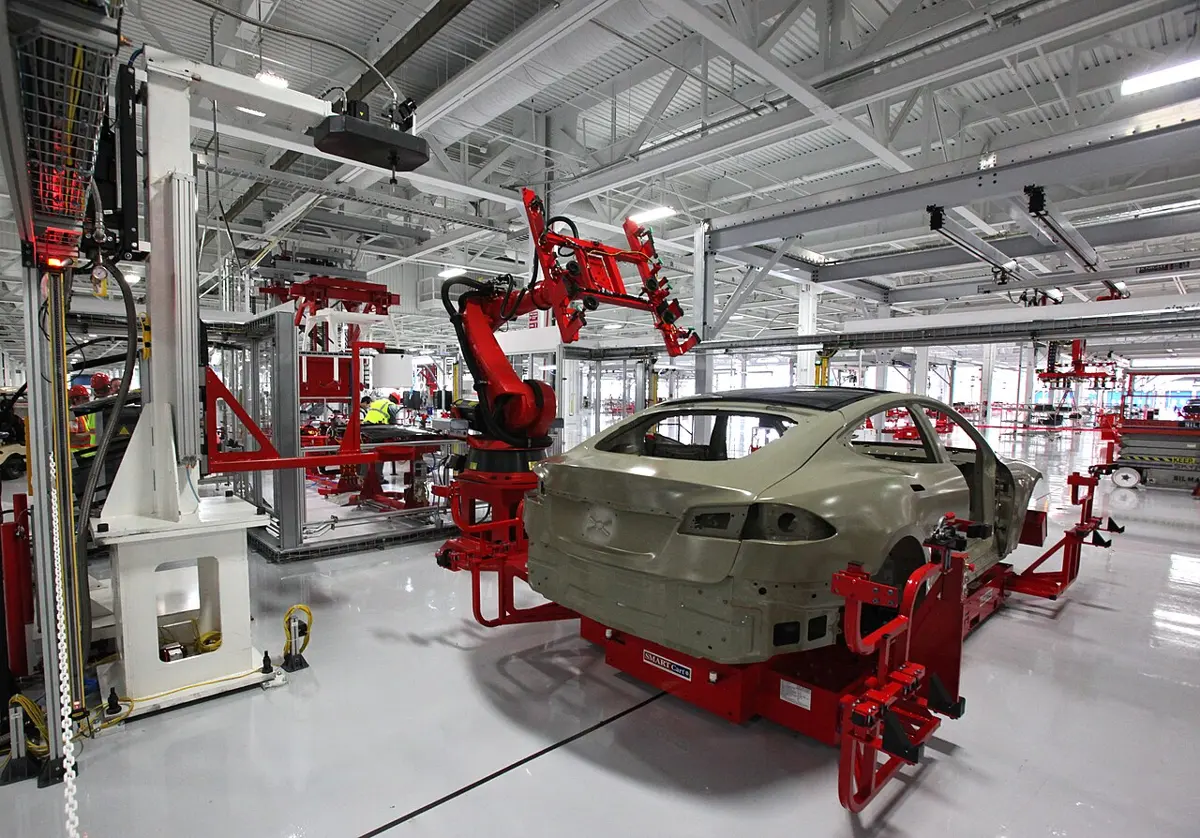
- Manufacturing: robot arms in factories weld, paint and put together machines and cars, doing the same dangerous or boring job thousands of times a day.
- Health care: robots help surgeons with very precise operations, deliver medicines in hospitals, and help patients with physiotherapy.
- Agriculture: robots plant, harvest and check crops, so farms produce more with less effort.
- Logistics: in big warehouses, robots pack, sort and carry goods, which cuts costs.
- Exploration: robots collect data and samples in space and deep in the sea, where it is dangerous or impossible for people to go.
- Education: students learn robotics and programming by building and programming robots.
- Entertainment: robots perform in theme parks and films.
- Security: robots watch and patrol areas, find and defuse bombs and other dangerous devices, fight fires and help in rescues.

Virtual reality
Virtual reality (VR) is a computer-made, three-dimensional world that you can look around and act in, as if you were really there, using special electronic equipment. It creates an artificial place that makes you feel present in it, and lets you handle the objects and spaces in it as if they were real.
A VR system usually has:
- a headset worn over the eyes, with a small screen in front of each eye. Each eye is shown a slightly different picture, just as your two eyes see the world from slightly different places, and your brain combines them into a 3D (stereoscopic) view;
- headphones or speakers for sound that seems to come from all around;
- motion sensors that follow the movements of your head and hands, so that when you turn your head, the view turns too, and you can reach out and pick things up naturally.

Where VR is used
- Military: armies train soldiers in dangerous situations, and pilots fly in war zones, without any real danger. VR is also used to treat soldiers who suffer from post-traumatic stress disorder (PTSD) after war, in virtual reality exposure therapy (VRET).
- Education: students go on virtual field trips: to a museum, around the solar system, or back in time to another age. Virtual classrooms are used more and more.
- Sports: players and coaches go through game situations again and again in VR to improve. Viewers can watch live games in VR, from anywhere in the world, sometimes with virtual tickets far cheaper than a seat in the stadium.
- Mental health: in VRET, people with anxiety or a phobia (such as a fear of heights or spiders) face what they fear a little at a time, in a safe and controlled place; others use VR to relax and learn to cope with stress.
- Medical training: medical and dental students practice surgery in VR, where a mistake harms no one. It improves training and makes it cheaper.
- Fashion: shops show clothes and plan their shop layouts in VR, and famous brands use it in advertising.
- Architecture: architects let people walk through a building before it is built, to check its design, size and safety, and to avoid differences from the final design.
VR is also used in research, health and safety, heritage and archaeology (walking through an old palace as it once was), art, marketing, music and concerts. Its uses are growing all the time.
2.6 Introduction and application of artificial intelligence and cloud computing
Artificial intelligence
Artificial intelligence (AI) means computer programs or machines that can do tasks that normally need human intelligence: understanding language, recognizing faces and objects, making decisions and solving problems. It is a fast-growing technology. At first the aim was to copy human intelligence; now AI is developing in many directions, and it is making work faster, people better connected and businesses more productive. It also helps scientists make discoveries.
Instead of following a list of fixed rules written by a programmer, most AI today learns from examples. Shown millions of photos labeled “cat” or “dog”, it finds for itself the patterns that tell them apart. This is called machine learning.
By what it can do, AI is put in three groups:
- Narrow (weak) AI: made for one particular task, such as recognizing speech, translating, sorting photos or playing chess. It can’t do anything outside that task. All the AI in use today is narrow AI.
- General (strong) AI: would be as intelligent as a human, able to do any intellectual task a person can. Nobody has built it yet (as of 2026), and scientists disagree about how close we are.
- Artificial superintelligence (ASI): an imagined level of AI that would be more intelligent than humans in every way, and could solve problems beyond human understanding. It exists only as an idea.
AI can do several things that resemble the human mind: it can talk with people, recognize signs of emotion in a face or a voice, and take part in a conversation. Well-known examples are self-driving cars, robots and chatbots, programs that chat with you in ordinary language.
Uses of artificial intelligence
- Astronomy: AI searches through enormous amounts of telescope data, finding new planets around other stars and helping us understand how the universe works and began.
- Health care: AI helps doctors find diseases in X-rays and scans, sometimes faster than humans, and can warn when a patient is getting worse, so help arrives in time.
- Games: AI plays strategy games such as chess, thinking through huge numbers of possible moves.
- Finance: banks use AI for chatbots, to spot fraud, and in automatic trading.
- Data security: cyber-attacks grow quickly; AI spots unusual activity and helps keep data safe.
- Social media: sites such as Facebook and Instagram have billions of users. AI organizes this huge amount of data, finds the latest trends and hashtags, and decides what each user sees.
- Travel and transport: AI suggests the best routes, hotels and flights, and AI chatbots answer customers quickly.
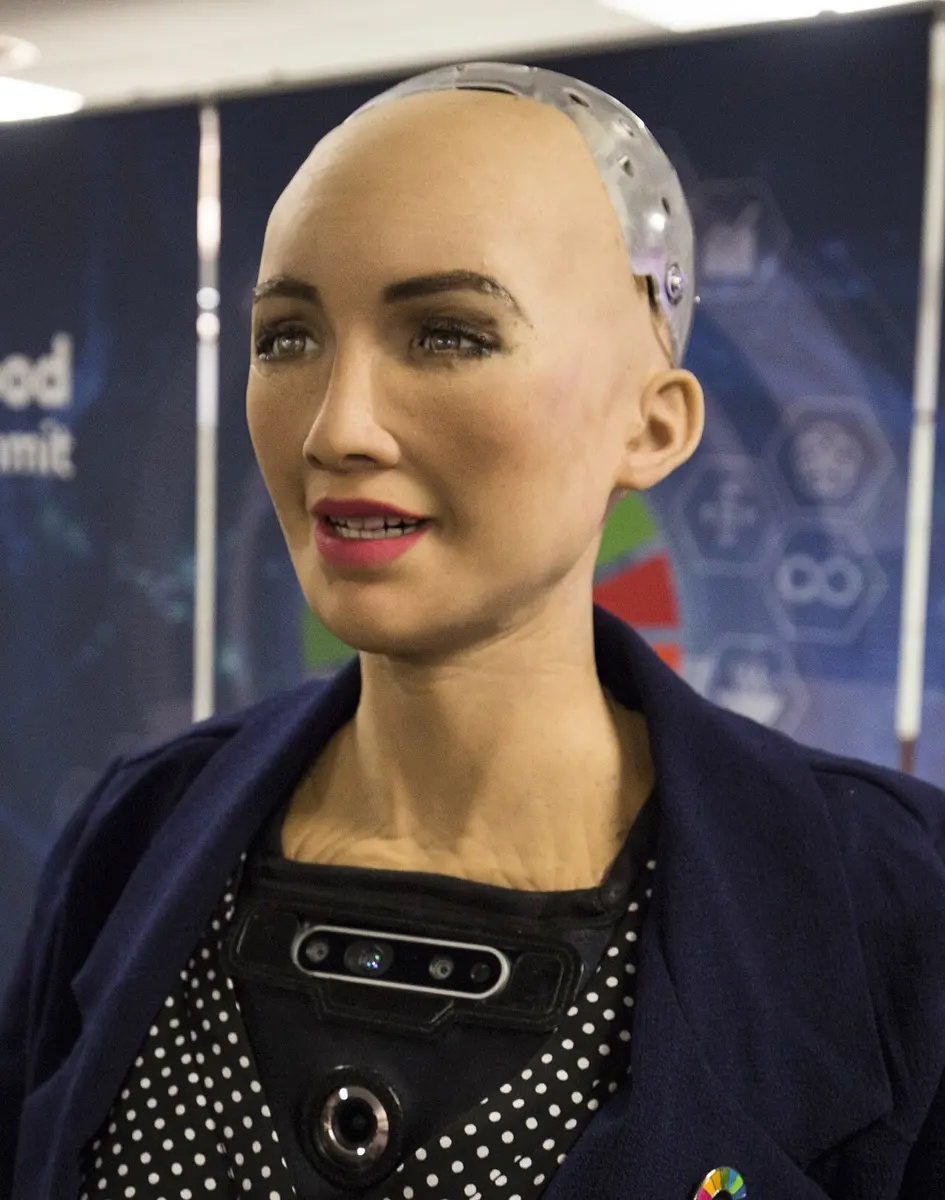
- Robotics: ordinary robots repeat the tasks they were programmed for; with AI, robots can learn from experience and handle new situations. Humanoid robots such as Erica (Japan) and Sophia talk and behave rather like humans.
- Agriculture: AI is used in farm robots, in watching crops for disease from photos, and in predicting harvests, which helps farmers.
- Education: AI chatbots can act as teaching assistants, and in future may work as a personal tutor for every student, at any time and anywhere.
A phone app recognizes a plant from a photo of its leaf, but can’t do anything else. What kind of AI is it?
Pick an answer to see why.
Cloud computing
Where are the photos in your Google Photos, or the emails in your Gmail? Not on your phone: they are stored on huge computers in buildings far away, and your phone shows them to you over the internet. That is cloud computing.
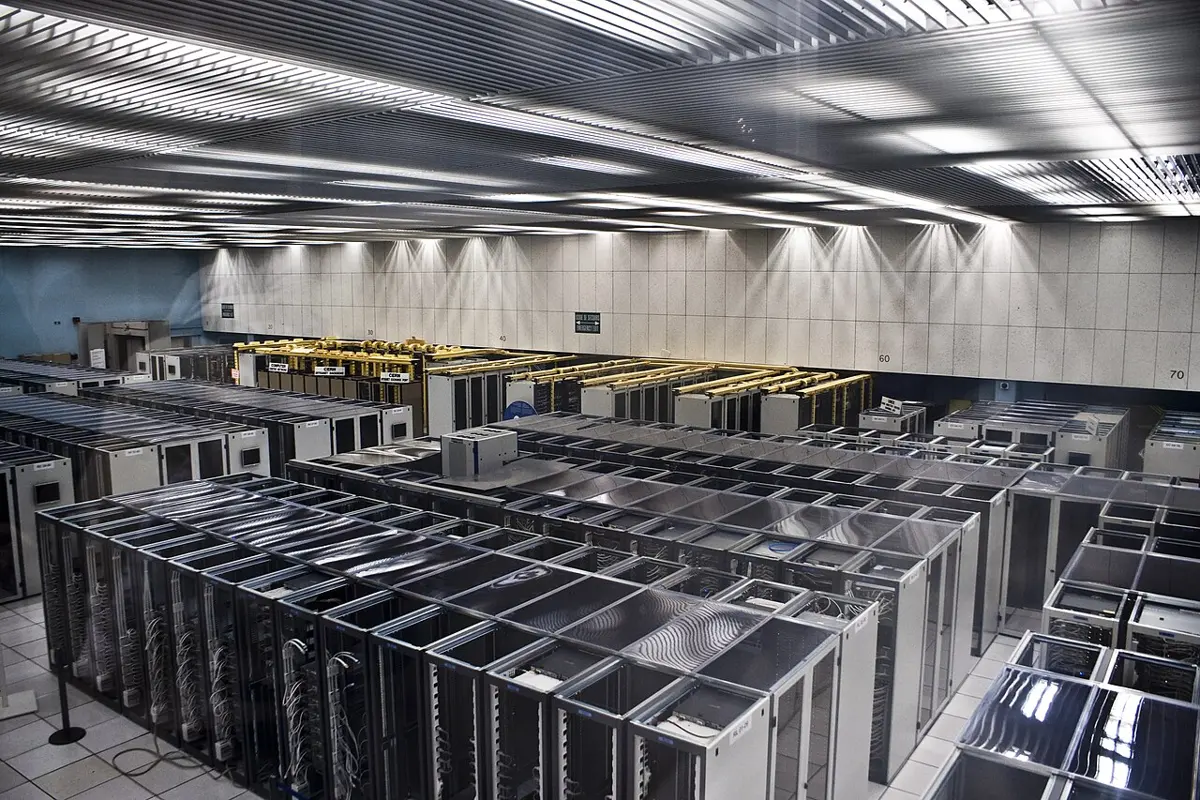
Cloud computing means using remote servers (powerful computers in faraway buildings called data centers) reached over the internet to store, manage and process data and programs, instead of using only your own computer or phone. Instead of keeping files on your own hard disk or memory card, you keep them in a database far away, and as long as your device can reach the internet, your data and programs are there, from anywhere, as Figure 2.10 shows. Google Drive, Gmail, OneDrive, iCloud and Google Docs are cloud services you may already use.
People choose the cloud for its low cost, the way it grows with their needs, its speed and its security. The companies that provide it are cloud service providers, and there are some in Nepal too. Cloud services can be:
- public, offered over the internet to anyone who signs up, usually charging by how much is used;
- private, run for only one organization or a limited number of people.
Advantages of cloud computing
- Cost-effectiveness: a business doesn’t need to buy and look after its own expensive computers and equipment. It pays only for what it uses.
- Accessibility: data and programs can be reached from anywhere in the world, on any device with an internet connection.
- Reliability: cloud providers keep extra copies of everything (backups) on several machines, so data is not lost if one machine breaks.
- Security: cloud providers can usually afford better security than most businesses can for themselves, so data is often safer in the cloud than on an office computer.
- Global scale: a website or app in the cloud can serve a handful of users or millions, anywhere in the world, simply by using more servers when it needs them.
It has drawbacks too: without the internet you can’t reach your files, and your data is in the hands of another company, so choose a trusted one and use a strong password.
Which of these is a cloud service?
Pick an answer to see why.
Exercise
1. Choose the best answer
a. What does a set-top box (STB) do?
Pick an answer to see why.
b. What is the unique address of a website called?
Pick an answer to see why.
c. Which type of cybercrime means threatening, humiliating or mentally torturing someone through electronic means such as social media?
Pick an answer to see why.
d. Which technology uses machines to copy human intelligence and abilities?
Pick an answer to see why.
e. In which group of internet security measures do digital signatures fall?
Pick an answer to see why.
f. Which of these is an advantage of cloud computing?
Pick an answer to see why.
2. Differentiate between
Printer and scanner
Answer
| Printer | Scanner |
|---|---|
| An output device. | An input device. |
| Turns a soft copy (file) into a hard copy on paper. | Turns a hard copy on paper into a soft copy (file). |
| Takes data out of the computer. | Puts data into the computer. |
| Uses ink or toner. | Uses a lamp and light sensors. |
| Speed in PPM, LPM or CPS. | Quality in dots per inch (how fine the picture is). |
Search engine and website
Answer
| Search engine | Website |
|---|---|
| A software system that finds information on the internet. | A collection of related web pages under one address. |
| Searches an index of pages on billions of websites. | Holds the information of one person or organization. |
| Used when we don’t know where the information is. | Used when we know its address (URL). |
| e.g. Google, Bing | e.g. www.moecdc.gov.np |
Virtual reality (VR) and artificial intelligence (AI)
Answer
| Virtual reality | Artificial intelligence |
|---|---|
| A computer-made 3D world that a person sees and acts in. | Computer programs or machines that do tasks needing human intelligence. |
| Its aim is to make the user feel present in another place. | Its aim is to make machines think, learn and decide. |
| Needs special equipment: a headset, headphones, motion sensors. | Can run on an ordinary computer or phone, or in a robot. |
| e.g. a virtual field trip, a flight simulator | e.g. a chatbot, a self-driving car, face recognition |
Computer code of conduct and cyber law
Answer
| Computer code of conduct | Cyber law |
|---|---|
| A set of ethical guidelines for using computers well. | Laws made by the government for the use of computers and the internet. |
| Says what is right and wrong. | Says what is legal and illegal. |
| Breaking it is wrong, but not always punished by law. | Breaking it is punished by courts with prison or fines. |
| e.g. respect others’ work, be accurate | e.g. Electronic Transactions Act, 2063 |
Humanoid robots and humans
Answer
| Humanoid robot | Human |
|---|---|
| A machine made by people, of metal, plastic and electronics. | A living being, made of cells. |
| Works by a program (software) and electricity. | Lives on food and oxygen, and has a brain and feelings. |
| Can copy human expressions and speech, but has no real feelings. | Has real feelings, imagination and understanding. |
| Does only what it was programmed or trained to do. | Can learn and do almost anything, and decide for itself. |
| Doesn’t tire, and can work in dangerous places. | Gets tired, and needs rest; is harmed by danger. |
| e.g. Sophia, Erica | e.g. you |
3. Answer these questions
What kind of technology is an ATM? Write its important functions.
Answer
An ATM (automated teller machine) is an electromechanical machine, a computer-controlled device with moving parts, that gives automated banking services without a bank teller. It is connected to the bank’s server and works with input devices (card reader, keypad) and output devices (screen, speaker, receipt printer, cash dispenser).
Its functions: withdrawing cash, depositing cash, checking the account balance, giving a short account statement, paying bills, transferring money between accounts, and changing the PIN, at any time of day or night.
List the main parts of a photocopy machine.
Answer
- Glass (platen) and lid: where the document is placed face down.
- Control panel: to choose the number of copies, size, darkness and color.
- Lamp, mirrors and lens: light the document and carry its image to the drum.
- Drum: a light-sensitive cylinder that holds the image as electric charge.
- Charger (corona wire): gives the drum its charge.
- Toner cartridge: holds the toner powder.
- Paper tray: holds blank paper.
- Fuser: hot rollers that melt the toner into the paper.
- Output tray: where the copies come out.
What is a printer? Write its function in brief.
Answer
A printer is a hard-copy output device that puts text and pictures stored in a computer or another device onto paper.
Its function: it takes digital data (a document or photo file) from the computer or phone and prints it as a hard copy, in black-and-white or color. Dot-matrix printers strike an inked ribbon, inkjet printers spray drops of ink, and laser printers use a laser, a drum and toner. Its speed is measured in characters per second (CPS), lines per minute (LPM) or pages per minute (PPM).
What is a search engine? Explain the need for search engines with examples.
Answer
A search engine is a software system that searches the information on the internet and shows the web pages most useful for the keywords the user types. Examples: Google, Bing, Yahoo, DuckDuckGo.
We need them because:
- There are billions of web pages, and we usually don’t know which website has the information we need, or its address. Typing a few keywords is enough.
- They save time: results come in under a second.
- They give more exact results, best first, and help us find official sources.
For example, to find the Curriculum Development Centre’s textbooks without knowing its address, we search “Curriculum Development Centre” on Google and choose moecdc.gov.np from the results.
Write the main features of an ISP.
Answer
An ISP (internet service provider) is a company that gives people and organizations access to the internet. Its main features:
- It provides a high-speed internet connection, by optical fiber, cable, telephone line or wireless.
- Most ISPs give their customers email addresses.
- Most protect their customers against phishing, malware and other dangers.
- Some also provide web hosting and domain registration.
- Customers pay according to their package (speed or amount of data).
Examples in Nepal: Nepal Telecom, WorldLink, Vianet.
Mention the opportunities and benefits of social media.
Answer
- A strong medium: people can share their joys and sorrows, discuss and debate ideas, and raise issues; it is used in election campaigns. Everyone gets a voice.
- Brand development: businesses can introduce and advertise their products, and customers can learn about them.
- Customer interaction: businesses hear directly from customers; good reviews attract others, and bad ones show what to improve.
- Learning: lessons, virtual classes (such as NCED Virtual) and science videos are freely shared.
- Keeping in touch: families and friends far apart can talk and share news every day, cheaply.
- Quick news and help: news, warnings and appeals (for example after a flood or earthquake) spread within minutes.
What is cybercrime? What are its forms?
Answer
Cybercrime is any crime committed through computers, phones, networks or the internet that harms a person, group or government, for example their money, reputation or mental health. It is also called computer crime.
Its forms:
- Identity theft: using someone’s personal information to pretend to be them and steal from them.
- Cyber terrorism: attacks through computers to cause serious harm or fear, or to extort money.
- Cyberbullying: threatening, harassing or humiliating someone through electronic means.
- Hacking: getting into or shutting down a computer, website or network without permission.
- Defamation: posting false statements that harm someone’s reputation.
- Others: spreading obscene content, online harassment, spreading hatred, encouraging terrorism, and crimes against children.
Mention the dangers to internet security, and ways to avoid them.
Answer
Dangers:
- Malware (viruses, worms, Trojan horses, spyware) that steals information, damages files or takes control of a computer.
- Phishing: fake messages that trick people into giving away passwords, PINs or card numbers.
- Identity theft: stealing personal information to cheat in someone’s name.
- Hacking: getting into a computer or network without permission.
- Botnets: networks of hijacked computers used for large attacks.
Ways to avoid them:
- Use strong, different passwords, and turn on two-factor authentication.
- Keep the operating system and apps up to date.
- Use trusted antivirus software and a firewall.
- Back up important data regularly.
- Don’t open suspicious emails, links or attachments, and never share a PIN or OTP.
What is computer ethics?
Answer
Computer ethics (the computer code of conduct) is a set of guidelines for behaving honestly and responsibly when using computers and technology. It asks users to respect others’ intellectual property, keep data and systems secure, behave properly online without harassing anyone, publish only accurate information, obey the laws about computer use, and report anyone who breaks the code. It stops people from using computers to steal, cheat, or harm others.
What is artificial intelligence? What is its main objective?
Answer
Artificial intelligence (AI) is the making of computer programs or machines that can do tasks that normally need human intelligence, such as understanding language, recognizing objects, making decisions and solving problems. Most AI today learns from examples (machine learning).
Its main objective is to make machines that can think, learn and solve problems like humans, so that they can help people do work faster, better and more safely, for example in health care, education, agriculture and transport.
What is robotics? Mention some important tasks performed by robots.
Answer
Robotics is the branch of science and engineering that designs, builds, operates and uses robots. It combines mechanical, electrical and computer engineering with mathematics, to make machines that help humans and can copy human actions.
Important tasks done by robots:
- welding, painting and assembling in factories;
- helping surgeons in precise operations, and delivering medicines;
- planting, harvesting and watching crops;
- packing, sorting and carrying goods in warehouses;
- exploring space (such as the Mars rovers) and the deep sea;
- finding and defusing bombs, fighting fires and rescuing people;
- working where there is dangerous radiation.
What is virtual reality? Write the different fields in which it is used.
Answer
Virtual reality (VR) is a computer-made, three-dimensional world that a person can look around and act in as if it were real, using special equipment: a headset with a screen for each eye, headphones, and sensors that follow the movement of the head and hands.
It is used in:
- the military, for training soldiers and pilots, and treating PTSD;
- education, for virtual field trips and classrooms;
- sports, for training players and watching live games;
- mental health, for treating anxiety and phobias (VRET);
- medical training, for practicing surgery safely;
- fashion, for showing products and planning shops;
- architecture, for walking through buildings before they are built;
- and also research, heritage and archaeology, art, games, music and concerts.
What is cloud computing? Write any two services provided by cloud computing.
Answer
Cloud computing is the use of remote servers in data centers, reached over the internet, to store, manage and process data and programs, instead of keeping them only on your own computer. The data can then be used from anywhere, on any device with an internet connection.
Two services it provides:
- Storage: keeping files, photos and backups online (for example Google Drive, OneDrive, iCloud).
- Software over the internet: using programs without installing them, such as email (Gmail) and office programs (Google Docs).
Which device is used to convert a hard copy into a soft copy?
Answer
A scanner. It digitizes a page printed on paper (hard copy) into a file in the computer (soft copy).
What is the name for the online communication channels dedicated to community-based interaction, content sharing and collaboration?
Answer
Social media (social networking sites), such as Facebook, YouTube, Instagram and TikTok.
What is the act of getting into, shutting down or misusing a website or computer network by unethical means called?
Answer
Hacking.
What is a harmful program that copies itself from one computer to another called?
Answer
A computer virus. (A virus spreads when infected files are copied or opened; one that spreads by itself across a network is called a worm. Both are kinds of malware.)
What is the legal framework that fights cybercrime and harassment called?
Answer
Cyber law. In Nepal, the main one is the Electronic Transactions Act, 2063.
Write the full forms of these terms.
- i.ATM
- ii.WWW
- iii.URL
- iv.Wi-Fi
- v.ISP
- vi.AI
- vii.VR
Answer
- i.ATM: automated teller machine (also called automatic teller machine)
- ii.WWW: World Wide Web
- iii.URL: Uniform Resource Locator
- iv.Wi-Fi: wireless fidelity
- v.ISP: internet service provider
- vi.AI: artificial intelligence
- vii.VR: virtual reality
Practice every question in the book, and keep track of the ones you miss →