
At a bank counter in Butwal, a clerk types an account number. In under a second the screen shows the balance, the printer beside her clatters the new line into the passbook, and the money is counted. At that moment the same bank’s computers are doing the same thing at a hundred other counters, never tired, never adding a rupee wrong. A computer in a hospital is reading a heartbeat, one in a weather office is working out tomorrow’s rain, and the one in your pocket is waiting for your thumb.
They look different, but inside they are the same few parts doing the same four jobs: taking data in, working on it, giving results out, and keeping what matters for later. This unit opens the box. You will meet the parts of a computer and what each does, the difference between memory and storage, the ports where things plug in, and the software that turns a box of chips into a tool.
1.1 Introduction to computer systems
The word computer comes from the Latin computare, “to calculate”. The first computers were built to do sums: to work out tables of numbers for gunners and ships, or to count a census. They are still very good at that, fast and without mistakes. But today the same machine writes documents, edits videos, plays music, runs games, makes presentations and connects you with the world.
A computer is an electronic device that accepts data (input), processes it according to a set of instructions stored in its memory, gives out the result as useful information (output), and stores data and information for later use. Because the instructions can be changed, a computer is programmable: the same machine does whatever job its program describes, at very high speed.
Two words come up again and again:
- Data is raw facts and figures, not yet organized: the marks 72, 65 and 88.
- Information is data processed into something meaningful: “Pemba’s average mark is 75.”
Features of a computer
i. Automatic. Once it has its program and data, a computer carries out the whole task by itself, step by step, without a person pressing anything in between. It can also control machines attached to it: a computer in a factory runs the robots, and the one in a washing machine runs the motor and the water.
ii. Speed. Inside a computer, everything is electrical signals that are either low or high, written as the binary digits 0 and 1. Its circuits switch between them billions of times a second, and the signals in its wires travel at a good fraction of the speed of light. So a sum that takes you a minute takes it a few billionths of a second. A weather office feeds in millions of readings of temperature, humidity and pressure from all over the region, and its computers work out the forecast in minutes; by hand it would take years. A modern processor carries out billions of instructions every second.
A processor keeps in step with a clock that ticks billions of times a second. Its speed is given in hertz (Hz), ticks per second: 1 MHz (megahertz) is a million ticks a second, and 1 GHz (gigahertz) is a thousand million. A 3 GHz processor ticks 3,000,000,000 times every second.
Because a computer is so fast, we measure the time it takes in tiny parts of a second:
| Unit of time | Part of a second | Power of 10 | In words |
|---|---|---|---|
| millisecond (ms) | 1/1,000 | 10⁻³ | one thousandth |
| microsecond (µs) | 1/1,000,000 | 10⁻⁶ | one millionth |
| nanosecond (ns) | 1/1,000,000,000 | 10⁻⁹ | one billionth |
| picosecond (ps) | 1/1,000,000,000,000 | 10⁻¹² | one trillionth |
| femtosecond (fs) | 1/1,000,000,000,000,000 | 10⁻¹⁵ | one quadrillionth |
Each unit is a thousand times smaller than the one above it.
iii. Accuracy. A computer carries out every instruction exactly, so its calculations are correct to the last digit. When a computer gives a wrong answer, the cause is almost always a person’s: wrong data or a wrong program. Wrong input gives wrong output; computer people call this GIGO, Garbage In, Garbage Out. A mistake in a program, or a fault in the hardware, is called a bug.
iv. Storage. A computer can keep huge amounts of data, information and programs as files on storage devices such as hard disks, SSDs, pen drives, optical discs and Blu-ray discs, for as long as you like, and find any of it again in a moment. Storage is measured in bytes: one byte holds one character, such as the letter A. The units, from smallest to largest:
| 1 bit = a 0 or a 1 | 4 bits = 1 nibble | 8 bits = 1 byte |
| 1024 bytes = 1 kilobyte (KB) | 1024 KB = 1 megabyte (MB) | 1024 MB = 1 gigabyte (GB) |
| 1024 GB = 1 terabyte (TB) | 1024 TB = 1 petabyte (PB) | 1024 PB = 1 exabyte (EB) |
| 1024 EB = 1 zettabyte (ZB) | 1024 ZB = 1 yottabyte (YB) |
You will use these units again in 1.5.
v. Diligence. A computer can do the same task again and again, for hours, days or years, without getting tired, bored or careless, and without losing speed or accuracy. This is called diligence, and a computer is called a diligent machine. It is why computers check the quality of every bottle on a factory line and control machines that must run day and night.
vi. Versatility. One computer can do many different kinds of work: calculate, write documents, design, do research, play films, send email and messages, and move files to another computer anywhere in the world. This is versatility. A computer is versatile because it is programmable: give it a different program, and it does a different job.
A computer works through 10,000 exam forms, one after another, overnight, making no more mistakes in the last form than in the first. Which feature is this?
Pick an answer to see why.
A shopkeeper types a price of Rs 5,000 instead of Rs 500, and the bill comes out wrong. This is an example of:
Pick an answer to see why.
Kinds of computers by how they work
Computers are also grouped by how they handle data, their working principle:
- An analog computer works with quantities that change smoothly, such as a voltage, a pressure or the turn of a wheel, and measures rather than counts. The tide-predicting machines of the 1800s, made of gears and pulleys, and the slide rule are examples. Analog computers are fast for their one job but not very exact.
- A digital computer works with data as separate digits, 0s and 1s, and counts. Laptops, phones, calculators and nearly every computer today are digital. They are exact, store data easily and can be programmed for any task.
- A hybrid computer joins the two: an analog part measures something that changes smoothly, and a digital part turns it into numbers and works on them. The examples usually given are a patient monitor in a hospital’s intensive care unit, which measures the heartbeat as a smooth signal and shows it as numbers, and a petrol pump, which measures the fuel flowing and works out the price.
Functions of a computer: Input, Process, Output, Storage (IPOS)
Every computer, from a calculator to a supercomputer, does four jobs, called IPOS:
- Input: data and instructions go in, through input devices such as the keyboard.
- Process: the CPU works on the data, following the program, to produce information.
- Output: the information comes out, on the screen, on paper or as sound.
- Storage: data, programs and information are kept, so they can be used again.
The drawing of these four jobs, with a box for each and arrows for the data, is the computer’s block diagram.
Application areas of computer systems
Because computers are versatile, they are used in nearly every field. They let people work faster, more correctly and more systematically, and they free people’s time for other work. Beyond documents, spreadsheets, presentations and graphics, we use them for messaging, video calls, email, online games, shopping, booking tickets, banking and the news.
Education. Students learn from websites, videos and interactive books like this one; teachers prepare and present lessons with multimedia; schools keep students’ records, make fee bills and work out exam results by computer. Online classes kept many schools in Nepal teaching during the COVID-19 lockdowns.
Communication. Computers send and receive information over the internet: email, video meetings, internet phone calls, chat, and social media such as Facebook, X (formerly Twitter) and Instagram. A family in Nepal can see and talk to a son or daughter working abroad every day, for almost nothing.
Banking. Computers keep every account, update customers’ records, print statements and run the ATMs. Online and mobile banking, digital wallets and QR payments let people pay and send money from a phone; banks use data analysis and AI to spot fraud. All of this means less paperwork, lower costs, more security and better service.
Medicine. Computers build the pictures in CT scans and ultrasound, monitor the heart with an ECG, keep patients’ records and medicines, and even help in surgery. In research, they analyze huge sets of data to develop new treatments, and surgeons train on computer simulations before operating.
Entertainment. Games, music, films and videos, streamed to phones and televisions; virtual reality with powerful graphics; digital art and design. Streaming services and social media are huge computer systems.
Scientific research. Scientists share and find the latest research over the internet, forecast the weather, explore space and run simulations (computer models) of things too big, small, slow or dangerous to test for real, from a glacier lake bursting to a new medicine.
Agriculture. Computers help farmers with precision farming: GPS-guided machines, drones that photograph crops, IoT sensors that measure the soil’s moisture, and AI that spots a disease on a leaf. Farmers in Nepal get weather and market prices on their phones.
Other fields use them too: offices, shops (billing and stock), transport (tickets, traffic, air traffic control), government (citizenship, passports, the census, tax), law and the police, factories and the media.
Exercise: Introduction to computer systems
1. Write the full forms of the following abbreviations
i. ECG ii. MHz iii. GHz iv. ms v. ns vi. ps vii. fs viii. GIGO ix. RAM x. IPOS xi. ATM xii. CT (scan)
Answer
2. Choose the correct answer
a. Which fraction of a second is one millionth of a second?
Pick an answer to see why.
b. Incorrect input results in incorrect output. This is called:
Pick an answer to see why.
c. How many kilobytes are there in one megabyte?
Pick an answer to see why.
d. A computer’s ability to work repeatedly without tiring or losing accuracy is called:
Pick an answer to see why.
e. What is the main function of the CPU in a computer system?
Pick an answer to see why.
3. Write short answers to these questions
Define a computer.
Answer
How does IPOS work?
Answer
What is GIGO?
Answer
List any four features of a computer.
Answer
Why is a computer called a diligent machine?
Answer
List four uses of computers.
Answer
Name the units of computer storage.
Answer
4. Write long answers to these questions
Explain the working principle of a computer with a block diagram.
Answer
Describe the use of computers in education.
Answer
1.2 Input devices
Input devices are the devices we use to enter raw data and instructions into a computer. Each one turns something from the world (a key press, a movement, a sound, a picture, a touch) into the electrical signals the computer works with.
Mouse
A mouse is a handheld pointing device: as you slide it on the desk, a sensor underneath (a small light and camera in today’s optical mice) measures the movement, and the pointer on the screen moves the same way. A typical mouse has a left button, a right button and a scroll wheel (which is also a button). With them you:
- click (press and release the left button) to select;
- double-click to open a file or program;
- right-click to open a menu of choices for the thing under the pointer;
- drag (hold the left button down while moving) to move things or select text;
- scroll with the wheel to move up and down a page.
A mouse is used for pointing at things, giving commands, and drawing and painting.
Keyboard
The keyboard is the main device for typing text and numbers into a computer. Most keyboards use the QWERTY layout, named after the first six letters of the top row of letters. A standard keyboard has 104 keys; a multimedia keyboard adds more keys, for volume, music and the web. The keys are grouped into five kinds, colored in Figure 1.2:
- a.Alphabet keys: A to Z and the punctuation marks, for typing text.
- b.Numeric keys: 0 to 9 and the mathematical symbols (+ − * / =), on the top row and on the numeric keypad at the right, which is quicker for typing many numbers.
- c.Cursor-movement keys: the four arrow keys (←, ↑, →, ↓), which move the cursor (the blinking line where typing goes) in that direction.
- d.Function keys: F1 to F12 along the top, which give commands; what each does depends on the program (F1 often opens help, F5 refreshes a web page, F2 renames a file).
- e.Special purpose keys: keys with their own job: the Space bar, Enter, Backspace, Caps Lock, Esc, Ctrl, Alt, Shift, Tab, Delete, Home, End, Insert, Page Up and Page Down.
Joystick
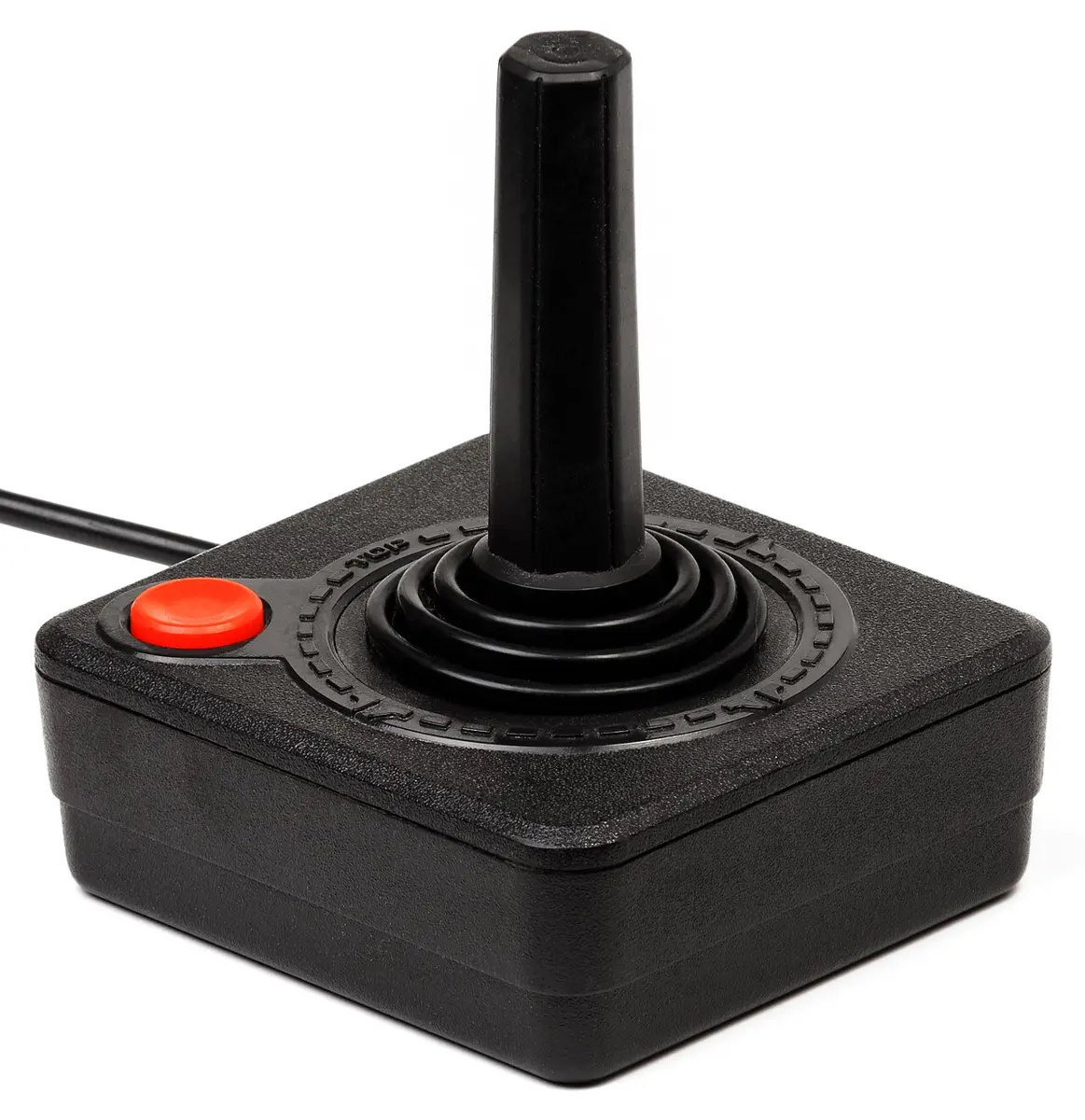
A joystick is an input device used mostly for playing video games and in flight simulators. It has a stick that tilts in any direction, and buttons for actions such as firing or jumping. A joystick also controls real machines: cranes, wheelchairs, drones and some aircraft are steered with one. Game controllers come in many shapes for different kinds of games.
Microphone
A microphone captures sound and turns it into an electrical signal, which the computer turns into digital data. It is used for voice and video calls (on apps such as Messenger, Viber and Zoom), recording, voice messages, and speaking commands to a voice assistant or typing by voice.
Scanner
A scanner turns a paper document, a photo or a drawing into a digital picture that the computer can store, show and send. In a flatbed scanner, a bright light and a row of sensors move under the glass and read the page a line at a time. With OCR (optical character recognition) software, the text in a scanned page can be turned into text you can edit. A phone’s camera with a scanning app does the same job.
Webcam
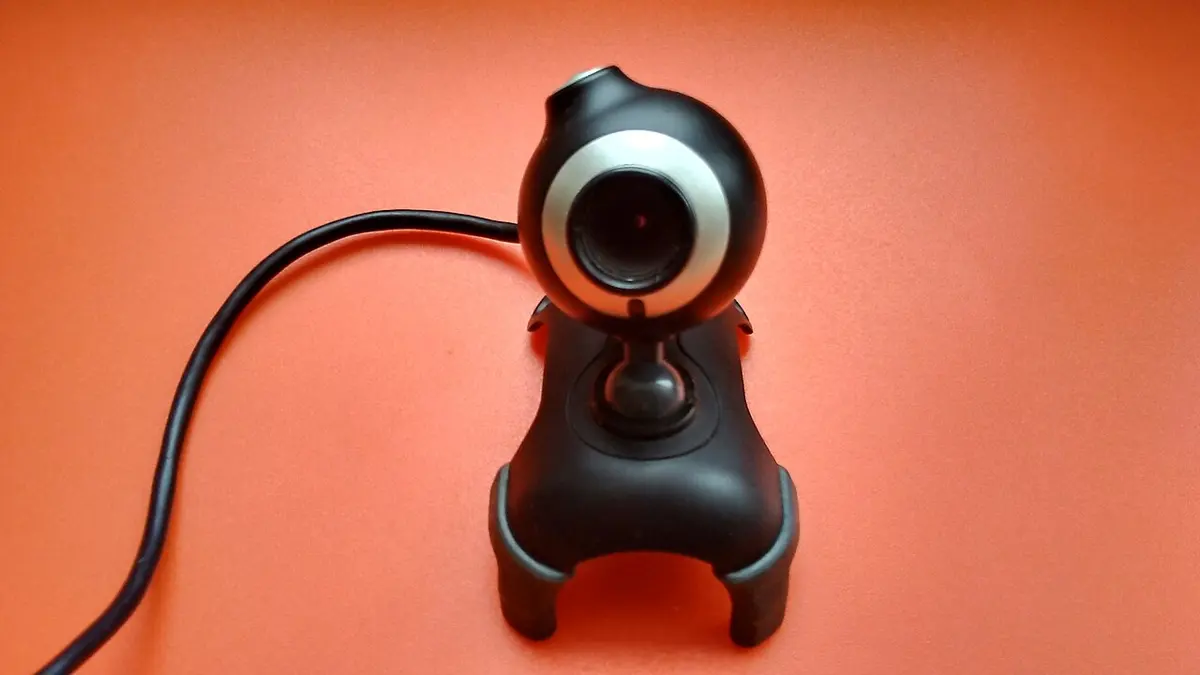
A webcam is a small digital camera that captures live video, usually with a microphone for sound, and sends it to the computer. It is used for video meetings, online classes, live streaming, making videos and working from home. Most laptops have one built in above the screen.
Touchscreen
A touchscreen is a display that senses where it is touched. Tap to select, swipe to scroll, pinch to zoom. Touchscreens became common with smartphones and are now on tablets, laptops, ATMs, ticket machines and some desktop computers. A touchscreen is an input device (it senses your finger) and an output device (it shows the picture) at the same time.
Touchpad
A touchpad (also called a trackpad or glide pad) is the flat, touch-sensitive pad below a laptop’s keyboard. Sliding a finger on it moves the pointer, as a mouse does; it has left and right buttons, or the pad itself clicks, and two fingers scroll.
Which input device would you use to put a printed photo into the computer?
Pick an answer to see why.
1.3 Central Processing Unit (CPU)
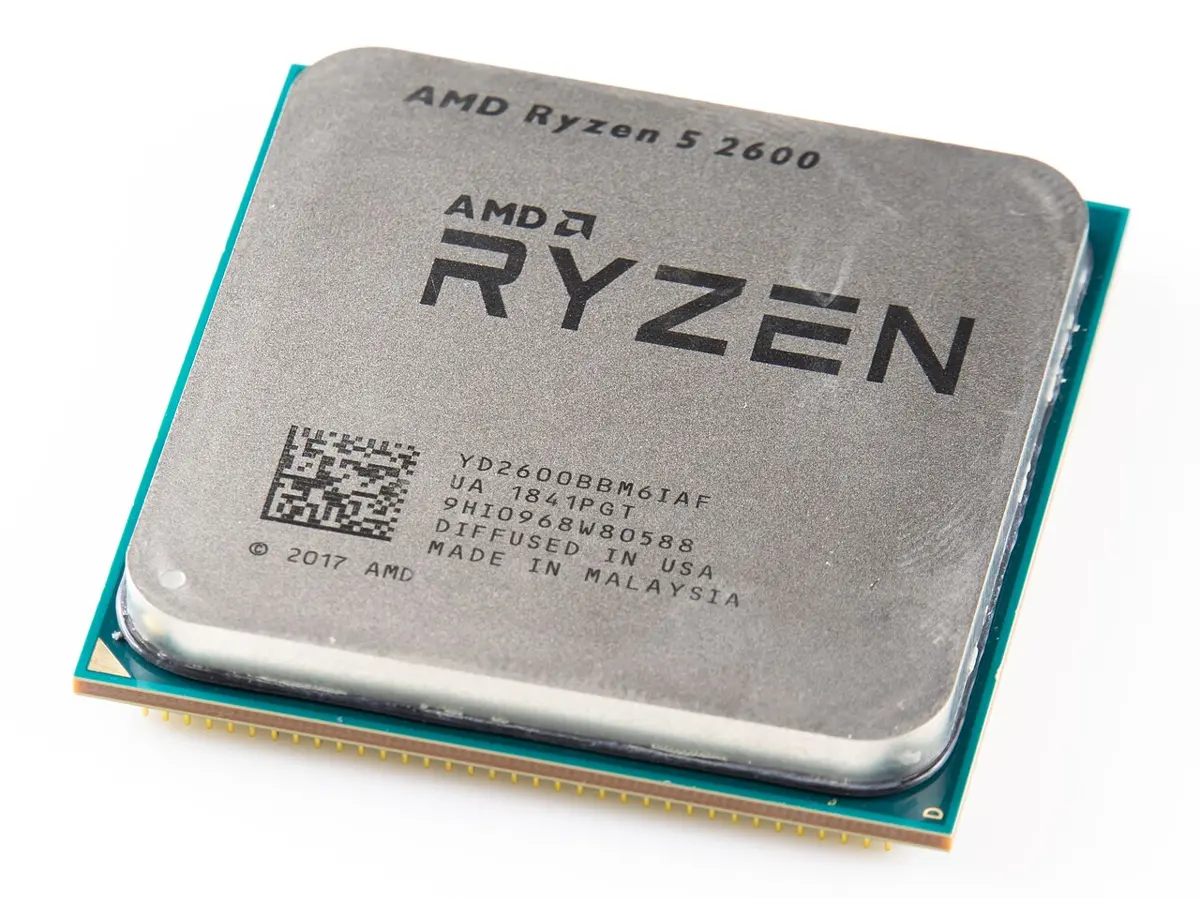
The Central Processing Unit (CPU), also called the processor, is where processing happens. It receives data from the input devices and memory, carries out the program’s instructions on it, and sends the results to memory or the output devices. It is often called the computer’s brain, though unlike a brain it only follows instructions. In a modern computer the whole CPU is one chip, a microprocessor, about the size of a postage stamp. Well-known CPUs are made by Intel and AMD (in most laptops and desktops), Apple (in its computers and phones) and companies that design ARM processors (in nearly every phone).
Functions of the CPU
The CPU does the same few steps over and over, billions of times a second:
- i.Fetching: it gets the next instruction (and the data it needs) from memory (RAM).
- ii.Decoding: it works out what the instruction means: add? compare? move?
- iii.Executing: it carries out the instruction: a calculation, moving data, or working an input or output device.
- iv.Storing: it writes the result back into memory or a register, or sends it to an output device.
- v.Managing interrupts: when a device needs attention (a key is pressed, a file has finished loading), it sends an interrupt. The CPU pauses, deals with it, and goes back to what it was doing, so nothing is missed and nothing waits long.
The first three steps, fetch, decode and execute, are the machine cycle (or instruction cycle).
Components of the CPU: CU, ALU and registers (MU)
The CPU has three main parts, which work together to process data:
a. Control Unit (CU). The control unit controls the working of every part of the computer. It fetches and decodes instructions, then sends signals that make the other parts do their part, in the right order: it moves data between the registers and the ALU inside the CPU, and between the CPU and memory, input, output and storage devices. It is like a traffic police officer at a busy crossing: it doesn’t carry anything itself, but nothing moves without its signal.
b. Arithmetic Logic Unit (ALU). The ALU does all the arithmetic (addition, subtraction, multiplication, division) and all the logical operations: comparisons such as greater than, less than, equal to and not equal to, and decisions with AND, OR and NOT. Every “if” in a program is a comparison done here.
c. Registers. Registers are tiny, extremely fast memory places inside the CPU. They hold the instruction being carried out, the data being worked on and the results just made. Together with the CPU’s cache, they are sometimes called its memory unit (MU), the third part of the CPU in many books.
Which part of the CPU decides whether 65 is greater than 40?
Pick an answer to see why.
1.4 Motherboard and data bus
Motherboard
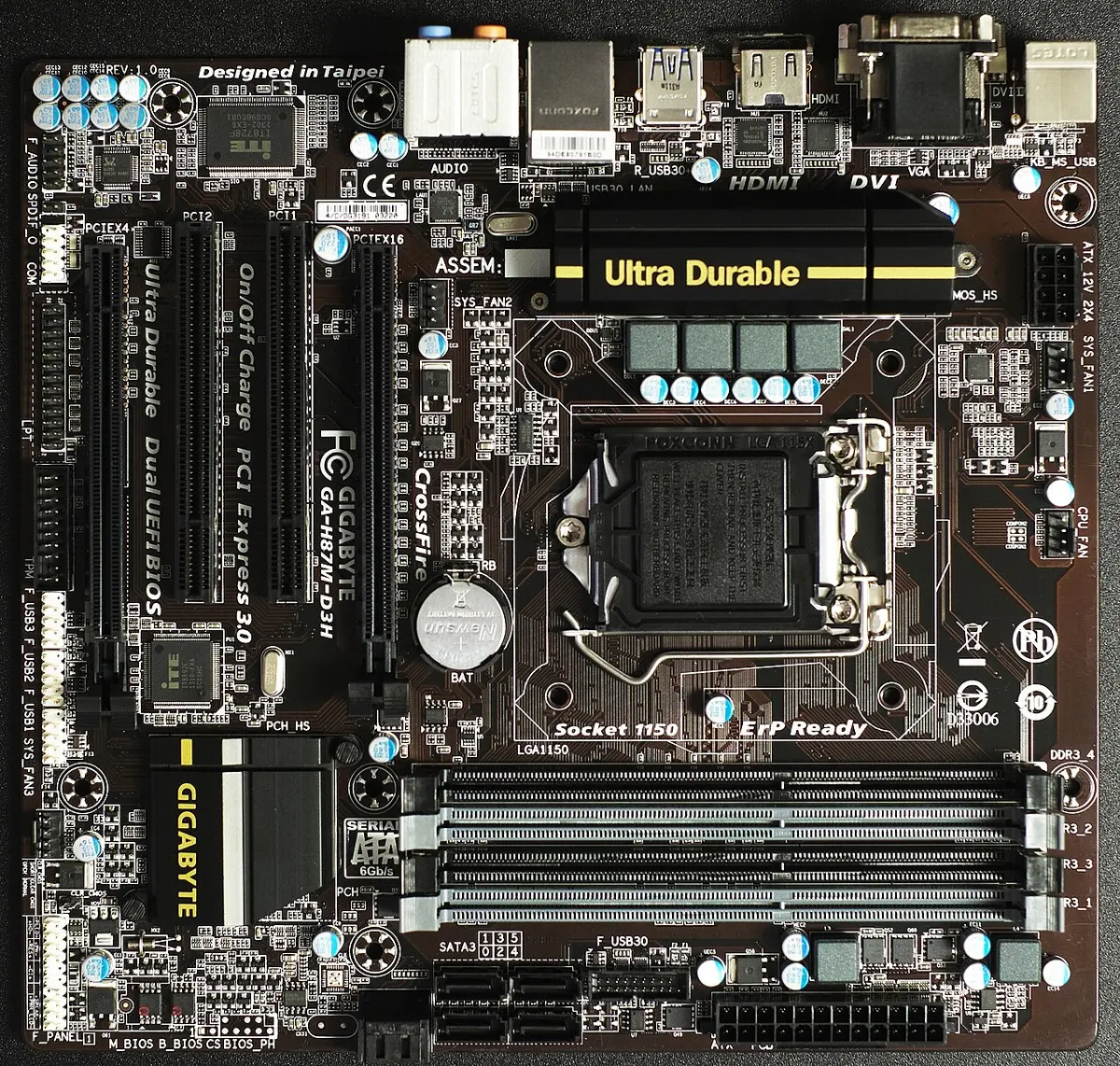
The motherboard (also called the system board or main board) is the large printed circuit board (PCB) that every other part of a computer plugs into. It is the computer’s backbone: it holds the microprocessor, the memory, the slots, the ports and many small chips (such as the BIOS chip, the network chip and the sound chip), and connects them all so they can work together. It is the central hub where every part meets, in three ways:
- i.Physical connections: sockets hold the CPU and the RAM firmly; expansion slots take extra cards such as a graphics card or a network card; ports join outside devices such as the monitor, keyboard and printer.
- ii.Electrical connections: power from the PSU (power supply unit) reaches every part through the board’s circuits and its voltage regulators, which give each part the exact voltage it needs. Data travels as electrical signals along thin copper tracks printed in the board’s layers.
- iii.Communication hub: the chipset manages the traffic between the parts. In older computers it was two chips: the northbridge, joining the CPU to the fast parts (RAM and graphics), and the southbridge, joining the slower peripherals; in today’s computers the CPU talks to RAM and graphics directly, and one chipset handles the rest. Fast pathways called buses, such as PCIe (for graphics cards and fast SSDs) and SATA (for hard disks and SSDs), carry data between the parts.
Data bus
A bus is a set of parallel wires, or electrical pathways, that carries signals between the parts of a computer: inside the microprocessor chip, and across the motherboard between the CPU, memory and the other devices. There are three kinds:
- The data bus carries the data itself between the CPU, memory and the devices, in both directions.
- The address bus carries the address: which memory place, or which device, the data is going to or coming from. It goes one way, out from the CPU.
- The control bus carries the control signals: “read”, “write”, “I’m ready”, the clock’s ticks and interrupts.
The data bus is the main highway of a computer. Its wires are parallel: an 8-bit data bus has 8 wires and carries 8 bits at once; a 64-bit bus carries 64 bits at once. So the width of the data bus, in bits, decides how much data moves in one go, and a wider bus gives faster communication and a faster computer.
The data bus:
- i.transfers data between the CPU, RAM, the storage drives and the peripherals;
- ii.handles different kinds of data at different speeds: computers have several buses, each made for its own job, from the fast memory bus to the slower USB.
Which bus carries the place in memory that the CPU wants to read?
Pick an answer to see why.
1.5 Computer memory
Memory is the part of a computer that stores data, information and programs. There are several kinds, because no single kind is fast, large, cheap and permanent all at once: some keep data only for a while and some permanently; some talk to the CPU directly and some only through other parts. Memory is of two main types:
- a.primary memory, and
- b.secondary memory.
Primary memory
Primary memory, also called main memory or internal memory, is the memory the CPU can reach directly. It holds the programs and data the computer is using right now. It is fast but small compared with secondary memory. When the computer starts, the operating system, the screen you see and the programs running in the background are loaded into primary memory; whenever you open a program, it too is loaded into primary memory, where the CPU can work on it. Primary memory is of two kinds, one temporary and one permanent:
- RAM (Random Access Memory), and
- ROM (Read Only Memory).
RAM (Random Access Memory)
RAM is the computer’s short-term memory, its work table. It holds the programs and data in use while they are being processed. The CPU can both read from RAM and write to it, so RAM is called read/write (R/W) memory. It is called random access because the CPU can reach any place in it directly, as fast as any other, without going through the places before it (as you can open a book at any page, but must wind a cassette tape through).
RAM is volatile: everything in it is lost the moment the power goes off. That is why you must save your work to secondary storage, such as the hard disk, to keep it. When the computer is switched on, the operating system’s files are copied from the disk into RAM.
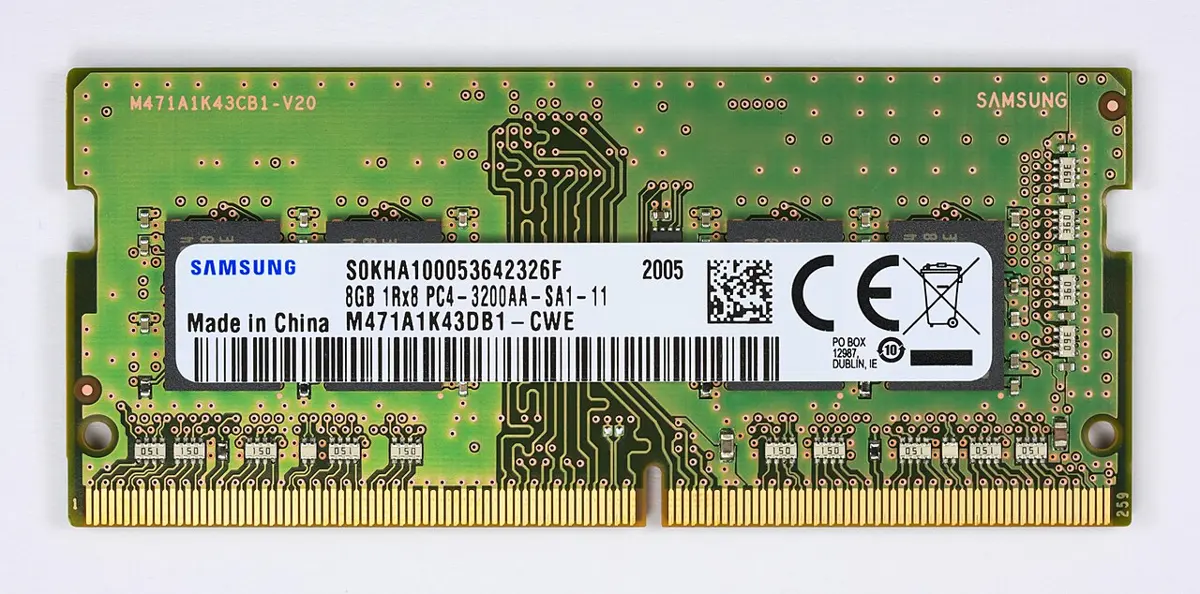
There are two main types of RAM:
i. SRAM (Static RAM) keeps its data as long as power is supplied, with no need to refresh it. Each bit is held by a small circuit of transistors (usually six) that stays in one state or the other. SRAM is faster but costlier, and it takes more space for each bit, so it is used in small amounts, as cache memory. It uses little power while it is idle.
ii. DRAM (Dynamic RAM) keeps each bit as an electric charge in a tiny capacitor, beside one transistor. The charge leaks away within a fraction of a second, even with the power on, so every row of DRAM must be refreshed (read and written back) again and again, about every 64 milliseconds. DRAM is slower than SRAM but much cheaper and denser (more bits fit on a chip), so it is used for the main memory of PCs and phones: the RAM sticks.
Differences between SRAM and DRAM
| SRAM | DRAM |
|---|---|
| Made of transistors (about six for each bit). | Made of a capacitor and a transistor for each bit. |
| More expensive. | Less expensive. |
| Needs no refreshing. | Needs refreshing again and again. |
| Its charge doesn’t leak away. | Its charge leaks away from the capacitors. |
| Less dense: fewer bits on a chip. | Denser: more bits on a chip. |
| Faster. | Slower. |
| Stores a bit as a circuit held in one state (a voltage). | Stores a bit as a charge. |
| Used as cache memory. | Used as main memory (RAM sticks). |
Why must DRAM be refreshed again and again?
Pick an answer to see why.
ROM (Read Only Memory)
ROM holds instructions that can only be read, not changed in ordinary use. It is non-volatile: its contents stay when the power is off, and it needs no power to keep them. The instructions in ROM are written into it by the manufacturer. A computer’s ROM holds the BIOS (Basic Input Output System), the program that runs first when you switch on: it checks the hardware and starts loading the operating system. Programs kept in ROM are called firmware. ROM has three variants that can be programmed after they are made:
i. PROM (Programmable ROM) is made blank. It can be programmed once, with a special device called a PROM programmer or PROM burner, and read many times after. Once programmed, it can never be erased or changed, so it suits data that must stay fixed in a device.
ii. EPROM (Erasable Programmable ROM) can be erased and programmed again many times. To erase it, it is taken out and ultraviolet (UV) light is shone on the chip through a small quartz window on top, for about twenty minutes; then it is programmed again with a programmer. Each erasing wears it a little, so it can be erased only a limited number of times.
iii. EEPROM (Electrically Erasable Programmable ROM) is erased and written with electrical signals, inside the device, in a few milliseconds, a byte at a time or all at once, with no UV light or special equipment. Flash memory is a kind of EEPROM that is erased a block at a time; today a computer’s BIOS is kept in a flash chip on the motherboard, so it can be updated.
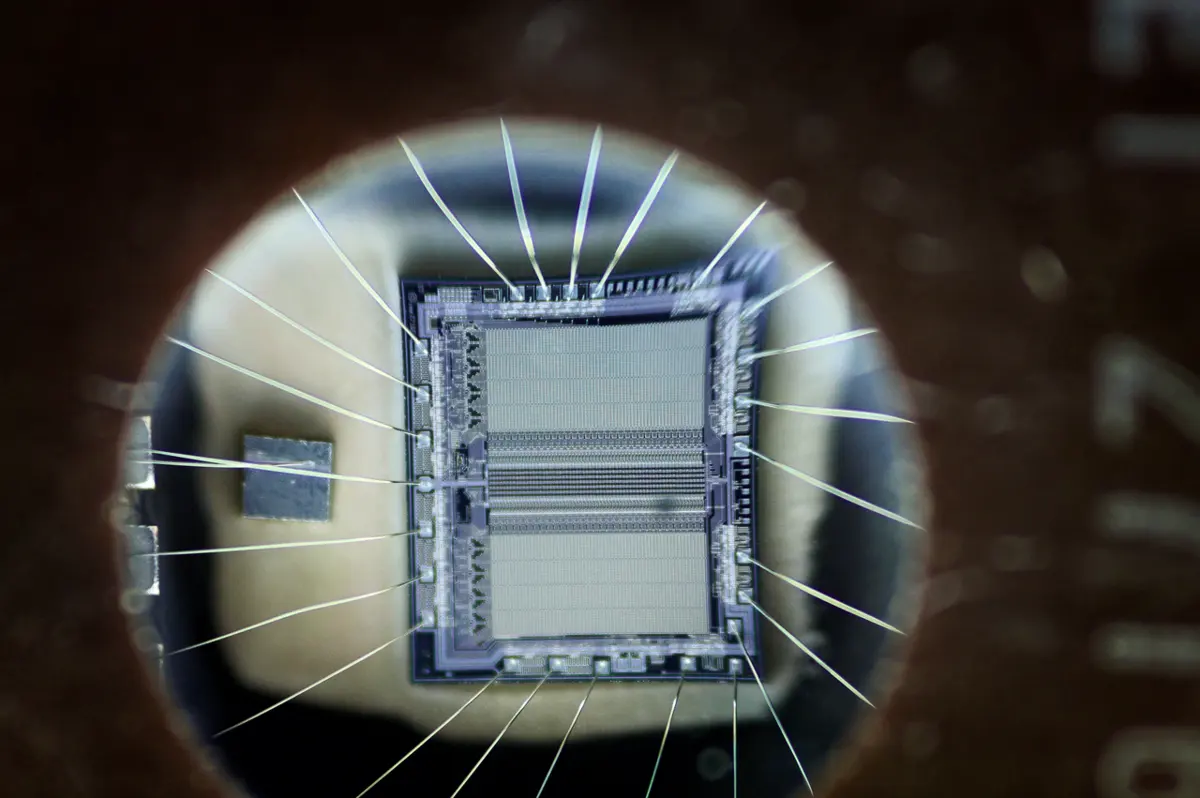
Firmware is software built into a piece of hardware, to operate and control that hardware: the BIOS (or its modern replacement, UEFI) in a computer, and the programs inside a washing machine, a router, a TV remote or a printer.
Cache memory
Cache memory is a small, very fast memory (made of SRAM) between the CPU and the RAM. It keeps copies of the data and instructions the CPU is using most often. When the CPU needs something, it looks in the cache first; if it is there (a cache hit), it gets it at once. If not (a cache miss), it fetches it from RAM, which takes much longer, and keeps a copy in the cache for next time. Since programs use the same instructions and data again and again, most of what the CPU needs is found in the cache, so it spends far less time waiting. That is the importance of cache memory: it makes the CPU faster. Cache is volatile, like RAM, and small: a few megabytes, built into the processor chip in levels (L1, L2, L3).
CPU registers
A CPU register is a very small, very fast memory place inside the microprocessor, with the highest data transfer rate of any memory. Registers hold the instruction being carried out, the data the ALU is working on and the result just made. A processor has only a few dozen registers, each holding one number (32 or 64 bits).
Secondary memory
Secondary memory, also called auxiliary or backup memory, keeps data, information and programs permanently, until you delete them. It is non-volatile: it keeps everything when the computer is off. It is much bigger and cheaper than primary memory but slower, and the CPU can’t use it directly: data is first copied into RAM. Hard disks, SSDs, pen drives, CDs and DVDs are secondary memory; you will meet them in 1.6.
Differences between primary and secondary memory
| Primary memory | Secondary memory |
|---|---|
| The main memory of the computer. | Also called auxiliary or backup memory. |
| Communicates with the CPU directly. | Communicates with the CPU indirectly, through primary memory. |
| Smaller storage capacity. | Much larger storage capacity. |
| Faster. | Slower. |
| More expensive for each GB. | Less expensive for each GB. |
| Built into the computer; its contents can’t be carried to another computer. | Its data can be carried to another computer (a pen drive, a portable disk). |
| Holds the data and instructions being used now. | Keeps data and information permanently. |
| Can be volatile (RAM, cache) or non-volatile (ROM). | Non-volatile. |
| Shorter access time: data is reached in nanoseconds. | Longer access time: microseconds to milliseconds. |
| Examples: RAM, ROM, cache. | Examples: hard disk, SSD, pen drive, CD, DVD. |
Which memory loses its contents when the computer is switched off?
Pick an answer to see why.
Units of memory measurement
The bit (binary digit) is the smallest unit of memory: it is a single 0 or 1. Bits are grouped into bigger units:
| S.N. | Memory unit | Equal to |
|---|---|---|
| 1. | Bit | 0 or 1 |
| 2. | Nibble | 4 bits |
| 3. | Byte | 8 bits |
| 4. | Kilobyte (KB) | 1024 bytes |
| 5. | Megabyte (MB) | 1024 KB |
| 6. | Gigabyte (GB) | 1024 MB |
| 7. | Terabyte (TB) | 1024 GB |
| 8. | Petabyte (PB) | 1024 TB |
| 9. | Exabyte (EB) | 1024 PB |
| 10. | Zettabyte (ZB) | 1024 EB |
| 11. | Yottabyte (YB) | 1024 ZB |
Why 1024 and not 1000? Computers count in twos, and 1024 is 2¹⁰, the power of two closest to a thousand. To change a bigger unit into a smaller one, multiply by 1024 for each step down; to change a smaller one into a bigger one, divide by 1024 for each step up.
1.6 Storage devices
Storage devices, or secondary memory, keep data and programs permanently for future use, even when the computer is switched off. The common kinds are magnetic (hard disks and magnetic tape), solid-state or flash (SSDs, pen drives, memory cards) and optical (CDs, DVDs and Blu-ray discs). A file can also be kept in cloud storage, on someone else’s computers over the internet.
Hard disk
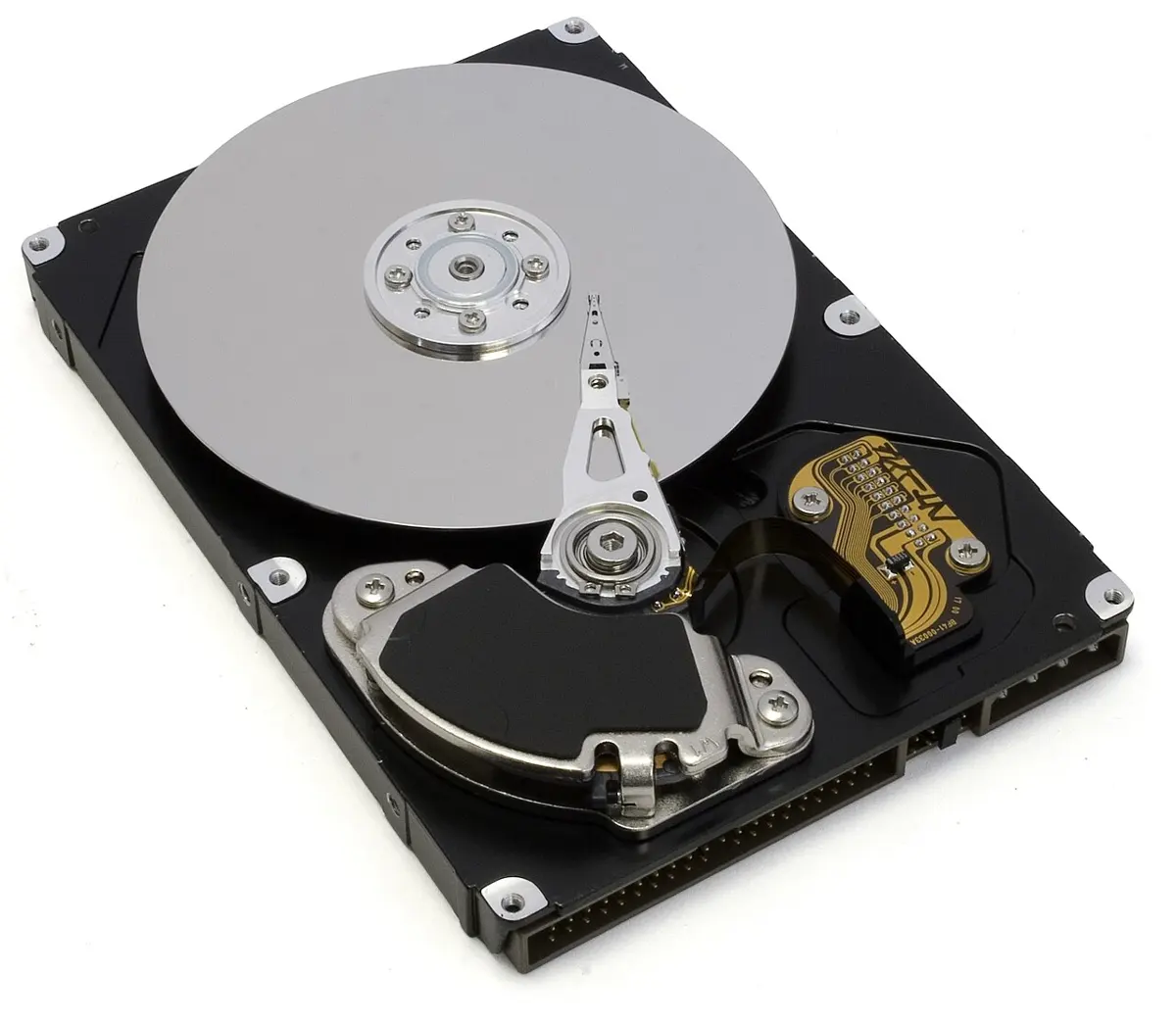
A hard disk drive (HDD) stores huge amounts of data for as long as you need it. Inside its sealed case are round, flat platters of aluminium (or glass), coated with a thin layer of magnetic material. The platters spin fast, and a read/write head on a moving arm floats on a thin cushion of air just above each surface, thousands of times closer than a hair is thick, magnetizing tiny spots to write bits and sensing them to read. Hard disks hold a lot for their price, from 500 GB to over 20 TB. Their speed depends on how fast the platters spin, measured in revolutions per minute (rpm): usually 5400 or 7200 rpm (servers’ disks spin at 10,000 or 15,000).
SSD (Solid State Drive)
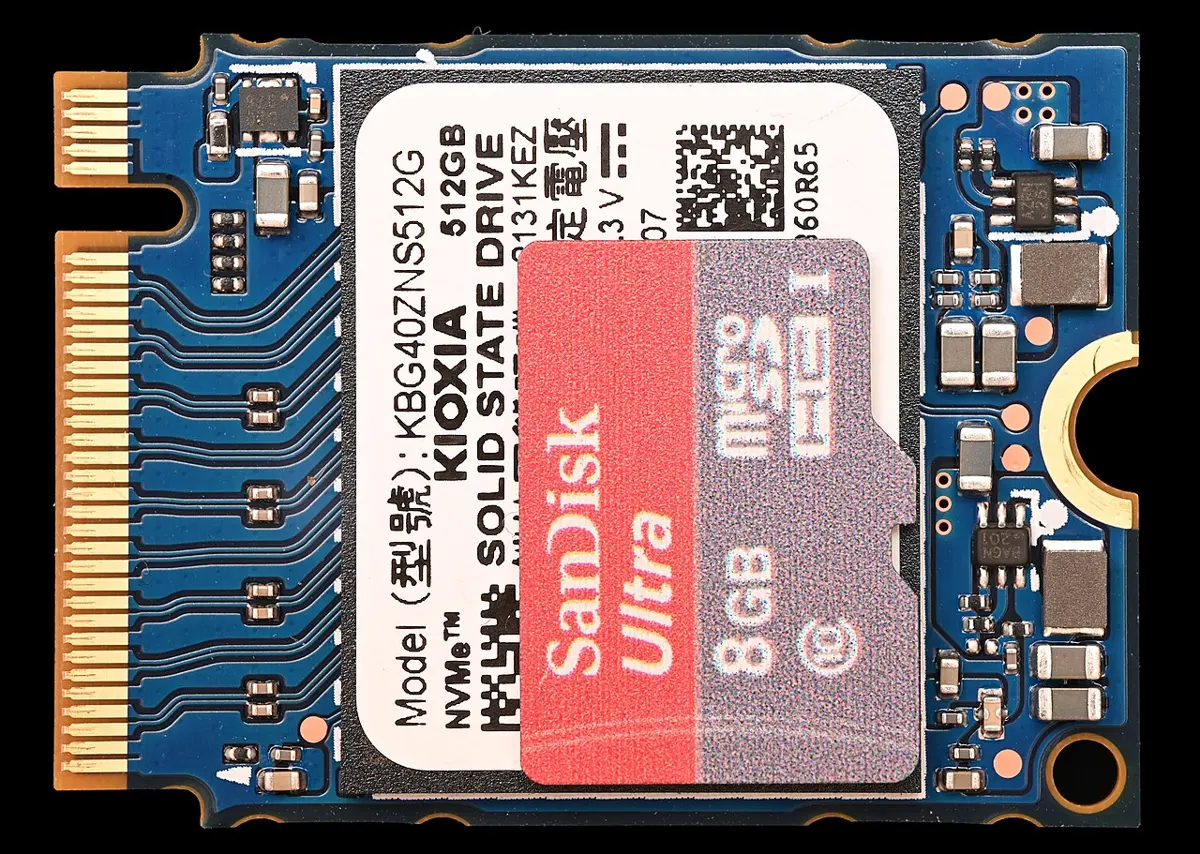
A solid state drive (SSD) stores data in flash memory chips, with no moving parts. So it reads and writes much faster than a hard disk, reaches data almost at once (low latency), uses less power, is silent, and survives knocks and drops. SSDs cost more for each gigabyte, but the price keeps falling, and they have replaced hard disks in most new laptops, notebooks and ultrabooks. The fastest, NVMe SSDs, are a small stick that plugs into an M.2 slot on the motherboard.
Optical storage discs
An optical disc stores data as a pattern on its surface that is read, and sometimes written, by a laser. The most common are CDs, DVDs and Blu-ray discs. All three are 12 cm across and 1.2 mm thick, and look alike; they differ in how tightly their data is packed, which depends on the color of the laser that reads them.
CD (Compact Disc)
The CD was developed by Philips of the Netherlands and Sony of Japan, who agreed its standard in 1980; the first CDs went on sale in 1982, for music. A CD is 12 cm across, 1.2 mm thick and weighs 15 to 20 g. It is made of clear polycarbonate plastic with a thin aluminium layer that reflects light. Its data is a spiral track of tiny pits pressed into the plastic, with flat lands between them. Reading from below, an infrared laser shines on the track; where the track changes from land to pit or back, the reflected light changes, and the drive reads each change as a 1 and the track between changes as 0s; it then decodes these bits into the music or data. A CD holds about 700 MB, or about 80 minutes of music (the first CDs held 74 minutes).
There are three kinds of CD, by how they can be written:
- CD-ROM: pressed in a factory, read only (music and software CDs);
- CD-R (recordable): blank, written once by a CD writer, then read many times;
- CD-RW (rewritable): can be written, erased and written again many times.
CDs were long used to carry software, music and files from one computer to another; today pen drives and the internet have mostly replaced them.
DVD (Digital Versatile Disc)
DVD stands for Digital Versatile Disc (at first, Digital Video Disc). It is the same size as a CD but holds much more, because its red laser reads smaller pits on a tighter track, and a DVD can have two layers of data on a side, and data on both sides. Its capacities:
- single side, single layer: 4.7 GB;
- single side, double layer: 8.5 GB;
- double side, single layer: 9.4 GB;
- double side, double layer: 17.08 GB.
The DVD was developed by Philips, Sony, Toshiba, Panasonic and other companies together; its standard was agreed in 1995, and DVDs went on sale in 1996. A DVD weighs about 16 g, and a DVD drive reads and writes it. A Blu-ray disc, read by a blue-violet laser, holds 25 GB on a layer, enough for a full film in high definition.
Differences between CD and DVD
| CD | DVD |
|---|---|
| Holds about 700 MB. | Holds 4.7 GB to 17.08 GB. |
| Cheaper. | Costlier. |
| Used mostly for music, software and small files. | Used mostly for films, software and big files. |
| One data layer, on one side. | Up to two layers on each side. |
| Read by an infrared laser; bigger pits. | Read by a red laser; smaller pits, closer together. |
| Kinds: CD-ROM, CD-R, CD-RW. | Kinds: DVD-ROM, DVD-R, DVD+R, DVD-RW, DVD+RW. |
| Developed by Philips and Sony. | Developed by Philips, Sony, Toshiba, Panasonic and others. |
Which holds the most data?
Pick an answer to see why.
Flash memory
Flash memory is a kind of non-volatile memory that can be erased and written electrically, again and again. It keeps its data without power, has no moving parts and is small, light and tough. It is inside USB pen drives, memory cards (SD and microSD cards), SSDs, phones, digital cameras and MP3 players. Flash memory is erased a block at a time, so a whole block is cleared before new data is written into it.
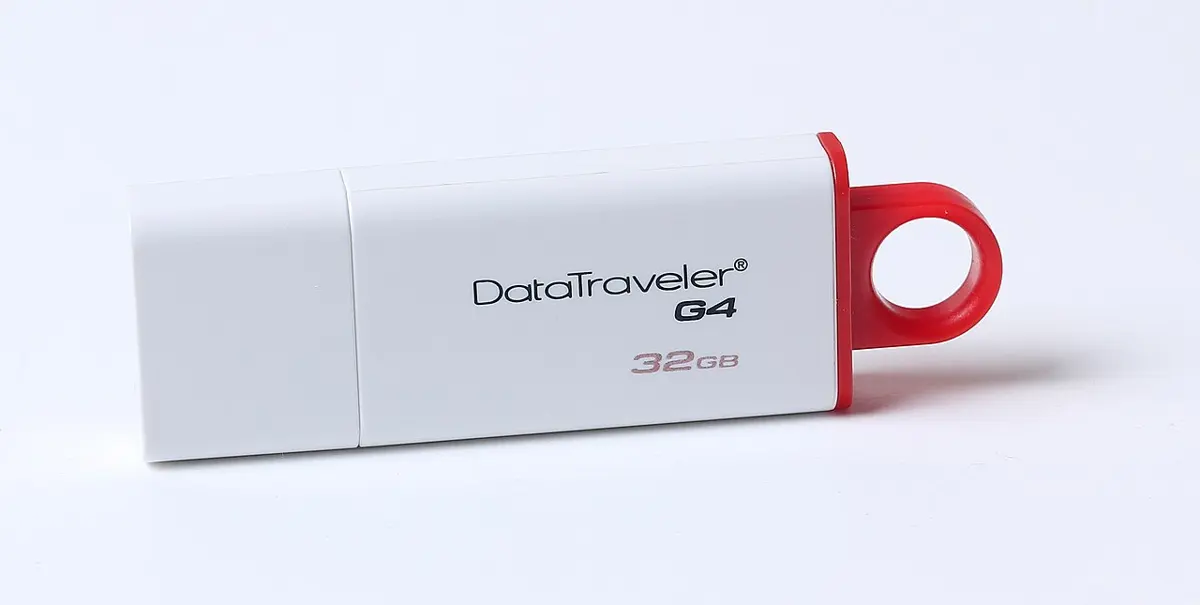
Pen drive
A pen drive (USB flash drive) is flash memory in a small stick with a USB plug. It is cheap, light, tough, needs no power cable, and holds from a few gigabytes to a terabyte, so it is the easy way to carry files and move them between computers, as students do with their projects. Flash memory reads data faster than a hard disk, though an ordinary pen drive is slower than an SSD, and it costs more for each gigabyte than a hard disk.
Cloud storage
Cloud storage keeps your files on remote servers (big computers in a company’s data center), reached over the internet. You can upload, open and manage your files from anywhere, on any device, as long as you have an internet connection. Companies such as Google (Google Drive), Microsoft (OneDrive), Dropbox and Amazon (S3) provide it. Its advantages:
- open your files on your phone, laptop or the school computer;
- files sync by themselves: a change made on one device appears on the others;
- you can buy more space, or use less, as you need;
- it can cost less than buying and looking after your own disks, and a lost phone doesn’t lose the files.
Its limits: you need the internet to reach your files, and you are trusting a company to keep them safe and private.
Comparing HDD, SSD and flash memory
Hard disk drives (HDDs) have been used for many years. They read and write with spinning platters and moving heads, so they are slower, at about 80 to 160 MB/s. They are cheap for each gigabyte and come large, from 500 GB to 20 TB and more, so they are good for backups and storing a lot of data. But their moving parts can fail and are easily damaged by a knock, and they use more power, especially when starting.
Solid state drives (SSDs) use NAND flash memory with no moving parts, so they are much faster, from about 200 MB/s to over 3,500 MB/s for NVMe SSDs (the newest pass 10,000 MB/s), with almost no waiting (low latency). They are more reliable, take shocks and vibration better, and use less power, which suits laptops. They cost more for each gigabyte, though prices are falling. Because of their speed, they are the best place for the operating system, software and games.
Flash memory devices, such as pen drives and SD cards, use the same NAND flash, with no moving parts. Their speeds vary widely: a USB 3.0 pen drive can reach about 400 MB/s (USB 3.0 itself can carry at most about 500 MB/s of data), and SD cards range from 10 to 300 MB/s. They are tough and use little power, which suits cameras, phones and other battery devices, and they are best for carrying files. They cost more for each gigabyte than hard disks, similar to SSDs.
| Hard disk (HDD) | SSD | Pen drive, memory card | |
|---|---|---|---|
| How it stores | magnetism on spinning platters | flash chips | flash chips |
| Moving parts | yes | no | no |
| Speed | 80–160 MB/s | 200 to over 3,500 MB/s | 10 to about 400 MB/s |
| Cost for each GB | lowest | higher | higher |
| Typical size | 500 GB to 20 TB | 256 GB to 4 TB | 16 GB to 1 TB |
| Survives knocks | poorly | well | well |
| Best for | backups, lots of data | the operating system, programs, games | carrying files; cameras and phones |
1.7 Output devices
Output devices present the results of processing in a form people can understand: text and pictures on a screen, a page on paper, or sound. They turn the computer’s digital signals into something we can see, hear or hold. The main output devices are monitors and printers; plotters, speakers and headphones are output devices too.
Output we can only see on a screen, which disappears when the screen is switched off, is soft copy. Output printed on paper, which we can hold and keep, is hard copy.
Monitor
A monitor, also called a visual display unit (VDU), shows the computer’s output as text, pictures and video, as soft copy. By color, monitors are monochrome (one color, such as green or white on black, in old computers) or color. Old monitors were bulky CRTs (cathode-ray tubes); today’s are flat screens.
LCD (Liquid Crystal Display) monitor
An LCD monitor makes its picture with liquid crystals held between two thin layers of glass or plastic. Each tiny dot of the screen (a pixel) has its own crystals, which twist to let more or less light through, and red, green and blue filters color it. Liquid crystals give no light of their own, so a lamp behind them, the backlight, shines through; in the first LCD monitors it was thin fluorescent tubes. LCD monitors are light, thin and use little power, with a sharp picture, which is why they replaced CRTs.
LED (Light Emitting Diode) monitor
An LED monitor is an LCD monitor lit from behind by light-emitting diodes (LEDs) instead of fluorescent tubes. The LEDs make it thinner, lighter and still more energy-efficient, with a brighter picture and better color, so it is easier on the eyes over long use. Nearly every monitor and TV sold today is an LED-lit LCD.
Printer
A printer is an output device that puts text and pictures on paper: hard copy. Printers are of two main types:
- Impact printers print by striking an inked ribbon against the paper, as a typewriter did. Example: the dot-matrix printer.
- Non-impact printers print without striking the paper, with a laser and toner, or sprayed ink. Examples: laser, inkjet and 3D printers.
Differences between impact and non-impact printers
| Impact printer | Non-impact printer |
|---|---|
| Prints by striking a ribbon against the paper. | Prints without touching the paper with a head (laser and toner, or ink). |
| Noisy. | Quiet. |
| Slower; print quality lower. | Faster; better quality, including photos. |
| Can print carbon copies (several copies at once). | Can’t print carbon copies. |
| Cheap to run (a ribbon). | Toner or ink costs more. |
| Example: dot-matrix printer. | Examples: laser, inkjet, 3D printers. |
Laser printer
A laser printer uses a laser beam to draw the page as a pattern of electric charge on a photosensitive drum. Powdered ink, toner, sticks to the drum only where the laser has drawn, is rolled onto the paper, and is then melted into it by a hot roller (the fuser): that is why pages come out warm. Laser printers are fast, measured in pages per minute (PPM), and print crisp, professional pages, so they are used in offices that print a lot.
Inkjet printer
An inkjet printer sprays tiny droplets of liquid ink through very fine nozzles onto the paper. It prints in color at high resolution, so it suits photos, graphics and everyday documents at home and in small offices. It is cheap to buy, but its ink can cost a lot for each page.
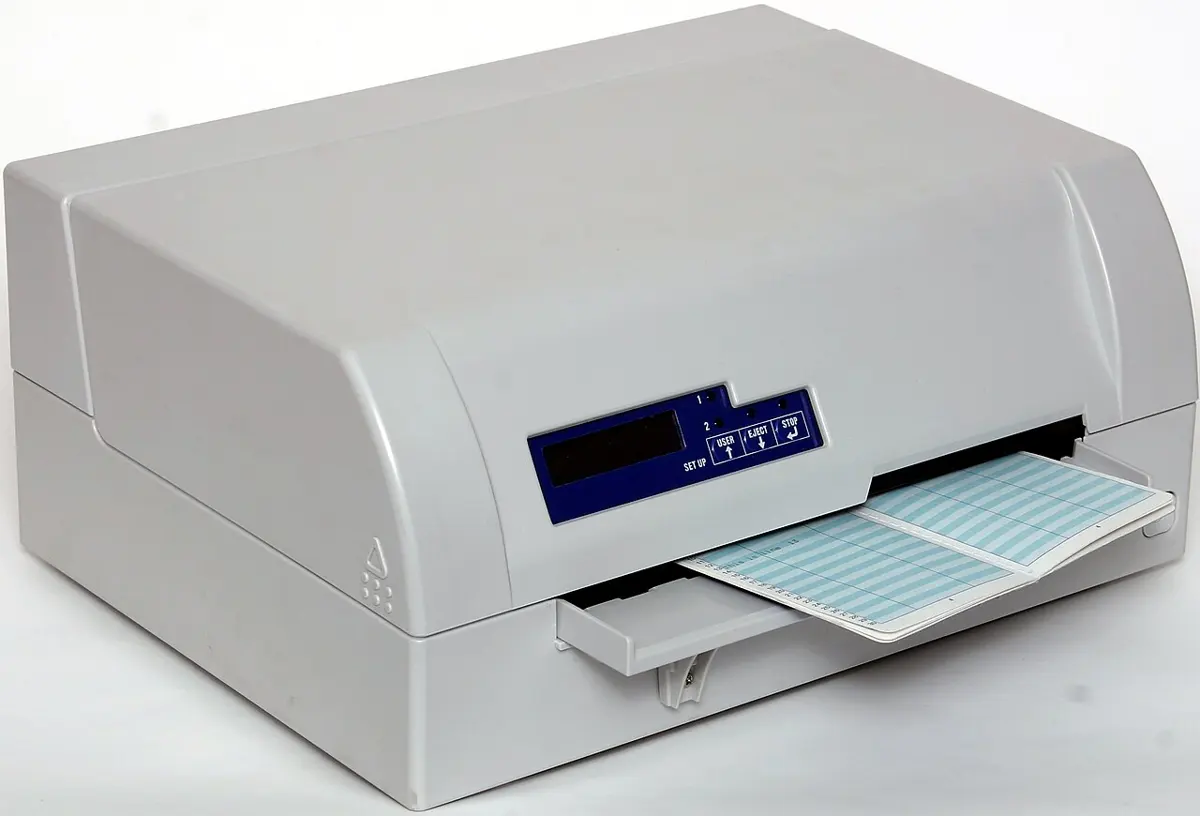
Dot-matrix printer
A dot-matrix printer is an impact printer. Its print head has a column of pins (9 or 24); the pins strike an inked ribbon against the paper, and each character is made of a pattern of dots. Its speed is measured in characters per second (CPS), about 50 to 400 CPS. It is noisy and its print is rough, but it is cheap to run, prints carbon copies and works for years, so banks in Nepal still use it to print passbooks.
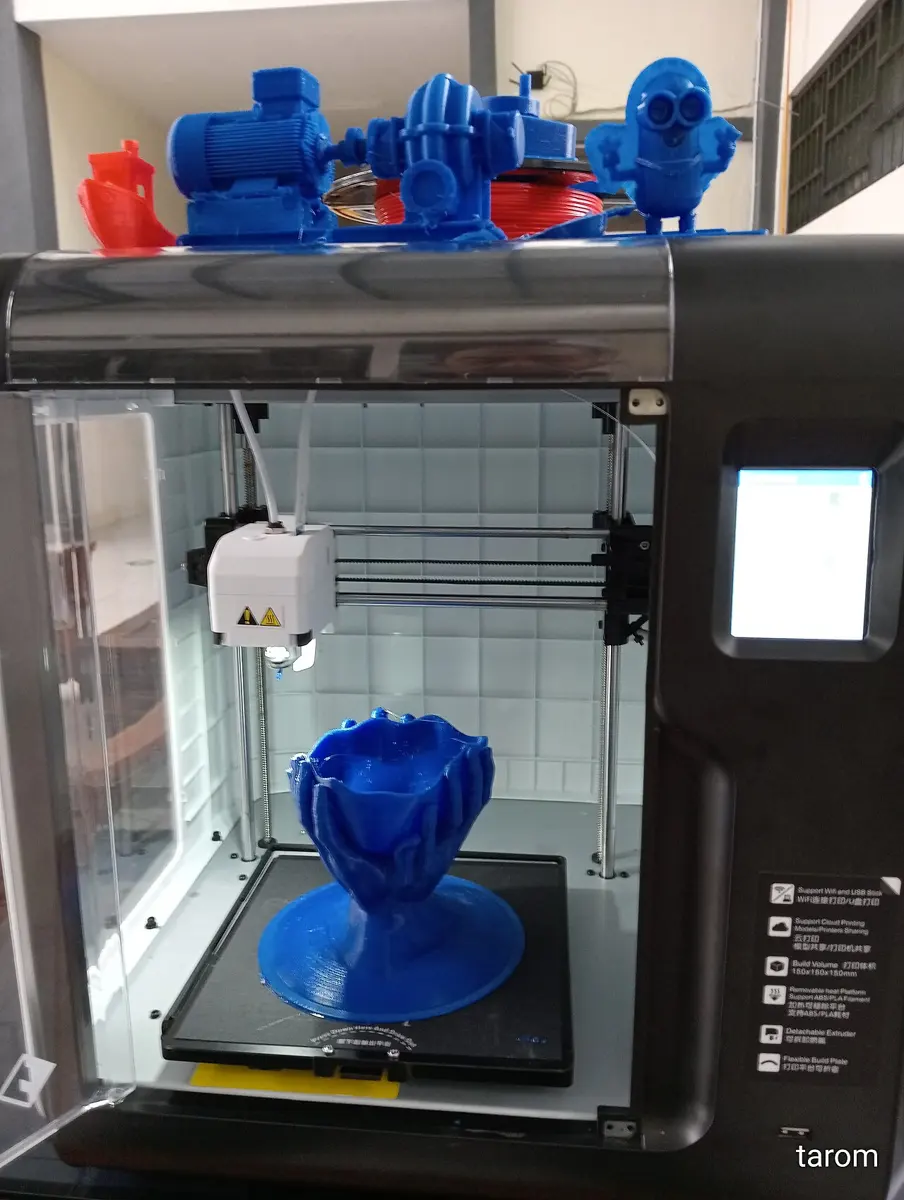
3D printer
A 3D printer is a non-impact printer that builds a solid three-dimensional object, layer by layer, from a design on the computer. The most common kind melts a plastic thread and lays it down, thin line by thin line; others use resin hardened by light, or metal powder. 3D printers are used in factories and design studios to make prototypes (first models of a new product), models and custom parts, and even in hospitals to make artificial limbs and models of a patient’s organs.
Speaker
A speaker turns the computer’s electrical signals into sound we can hear: music, voices, alerts. The quality of the sound depends on the quality of the speaker. There are speakers for many uses: small ones in laptops and phones, loud ones for halls, ones for deep bass, and weatherproof ones for outdoors. Headphones and earphones are small speakers worn on the ears.
A bank needs to print a passbook and its carbon copy at the same time. Which printer can do it?
Pick an answer to see why.
1.8 Peripheral devices
Peripheral devices are the hardware devices connected to a computer from outside, to extend what it can do: input devices (keyboard, mouse, scanner), output devices (monitor, printer, speakers), storage devices (external hard disk, pen drive), communication devices (a modem, a Wi-Fi adapter) and other special devices (a webcam, a game controller). They are what make a computer useful for input, output, storage and connecting to the internet.
Hardware ports
Hardware ports are the sockets, mostly on the outside of the system unit, where cables and devices plug in. Inside, each port is wired to the motherboard or to an expansion card. A port’s standard sets the shape of the plug and socket, the wires in the cable and what each is for, and the electrical signals sent along them, so any device made to that standard fits and works. Ports:
- connect peripheral devices to the computer;
- supply power to devices that need little, such as a mouse, a keyboard or a pen drive;
- carry data to and from the peripheral devices.
USB port
USB (Universal Serial Bus) is a port for sending digital data over short distances, and for power. It is the most used port of all: printers, cameras, keyboards, mice, speakers, scanners, pen drives and phones plug into it. The common USB plug, USB-A, is a flat rectangle that fits only one way up.
Type-C port
USB Type-C (USB-C) is the newer, smaller USB plug, found on most phones and laptops. It is reversible: it fits either way up. One USB-C port can do many jobs: fast charging, high-speed data transfer, and joining a monitor, a network or other accessories.
HDMI port
HDMI (High Definition Multimedia Interface) carries high-definition video and sound together over a single cable. It joins computers, game consoles, DVD and Blu-ray players and streaming boxes to TVs, monitors and projectors.
VGA port
VGA (Video Graphics Array) is an older analog port for monitors and projectors. Its D-shaped connector has 15 pins in three rows, carrying the red, green and blue color signals (RGB) and the horizontal and vertical synchronization signals that keep the picture steady. It is old, but many projectors in schools and offices in Nepal still have one.
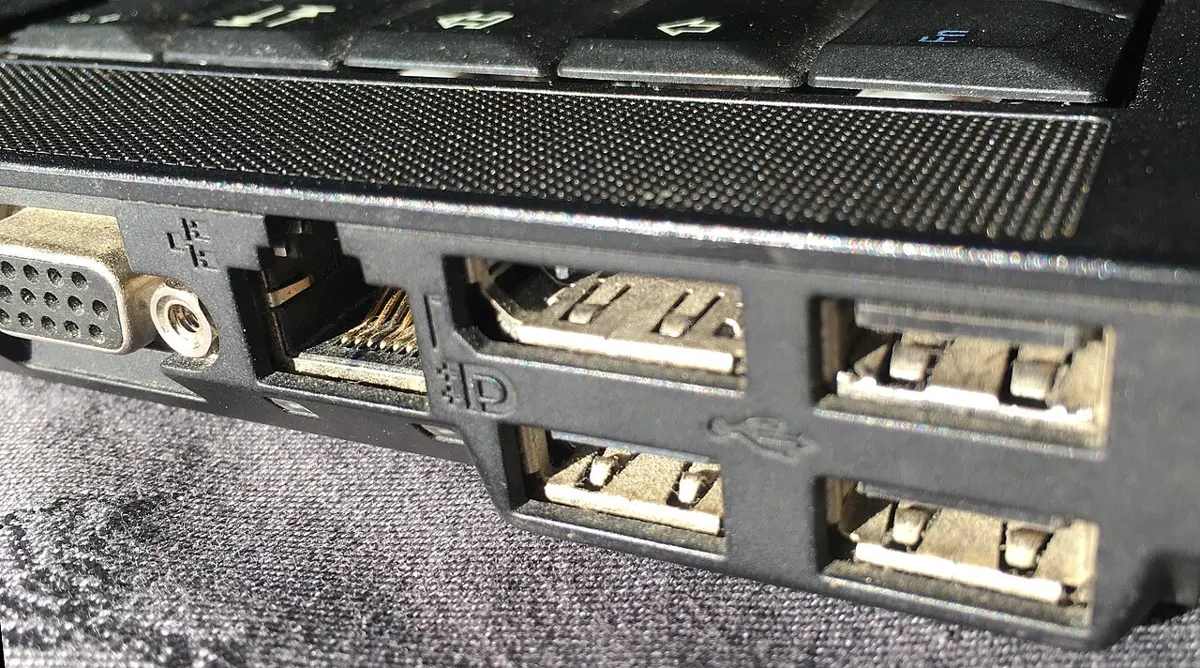
Ethernet port
An Ethernet port (an RJ-45 socket) joins a computer to a wired local area network (LAN) with a network cable. Ethernet is the set of rules for how data packets travel over the cable and how networked devices talk to each other. A wired connection is usually faster and steadier than Wi-Fi.
Audio port
Audio ports, also called audio jacks, are the small round sockets for headphones, microphones and speakers. They carry analog sound signals: out to headphones or speakers, or in from a microphone. On a desktop computer they are often colored: green for speakers or headphones, pink for the microphone, blue for line in.
Which port carries both high-definition video and sound to a TV on one cable?
Pick an answer to see why.
Exercise: Hardware
1. Write the full forms of the following abbreviations
i. CPU ii. BIOS iii. HDD iv. SSD v. RAM vi. CU vii. USB viii. ALU ix. MU x. PCB xi. ROM xii. PSU xiii. CMOS xiv. CD xv. DVD xvi. KB xvii. MB xviii. GB xix. TB xx. YB xxi. PB xxii. SRAM xxiii. DRAM xxiv. VRAM xxv. EPROM xxvi. EEPROM xxvii. rpm xxviii. VDU xxix. LED xxx. LCD xxxi. CPS xxxii. LCM xxxiii. PPM xxxiv. Mbps xxxv. HDMI xxxvi. LAN
Answer
2. Choose the correct answer
i. What is the main function of the CPU in a computer system?
Pick an answer to see why.
ii. Which of the following is volatile memory?
Pick an answer to see why.
iii. What does BIOS stand for?
Pick an answer to see why.
iv. Which of the following is a secondary storage device?
Pick an answer to see why.
v. What is the role of the motherboard in a computer system?
Pick an answer to see why.
vi. What is the role of a monitor as an output device?
Pick an answer to see why.
vii. What is the role of a microphone as an input device?
Pick an answer to see why.
viii. What is the main function of a printer as an output device?
Pick an answer to see why.
ix. What is the main function of the microprocessor in a personal computer?
Pick an answer to see why.
3. Write short answers to these questions
What is the main function of the CPU in a computer system?
Answer
Explain the difference between RAM and ROM in terms of what they do.
Answer
How does a hard disk differ from RAM in storing data?
Answer
What is the role of a motherboard in a computer system?
Answer
Explain cache memory and its importance for the CPU’s performance.
Answer
Define a bus in a computer.
Answer
What is the purpose of an input device in a computer system? Give examples.
Answer
What is a peripheral device, and how does it enhance a computer system?
Answer
4. Write long answers to these questions
Explain the architecture of a computer system, with the functions of the CPU, memory, input/output devices and storage.
Answer
What is the role of an operating system in managing and coordinating the parts of a computer system? Explain its functions with examples.
Answer
Differentiate between primary and secondary memory.
Answer
Describe the roles of cache memory, RAM and storage devices. How do they affect the computer’s overall performance?
Answer
Explain the architecture of a CPU in detail.
Answer
1.9 Computer software
Computer software is the set of instructions, programs and data that tells a computer what to do. Hardware is the tangible part, the part you can touch; software is intangible, the part you can’t, and neither is any use without the other: hardware without software is a box that does nothing, and software without hardware has nowhere to run. Software is of two types:
- a.system software, and
- b.application software.
a. System software
System software runs and manages the computer itself. It is the foundation that other software runs on, and the bridge between the user and the hardware: it starts the computer, manages its hardware, organizes files and folders, and keeps everything working smoothly and reliably. It includes operating systems, language processors, utility software, device drivers and firmware (the BIOS or UEFI).
i. Operating system
The operating system (OS) is the system software that controls and manages the whole working of the computer, just as a traffic police officer controls the traffic at a crossing. It is the most basic software a computer needs: it is the first software loaded into memory (RAM) when you switch on, and it works until you shut down. It controls the hardware and the application software, and is the interface between the user and the computer, and between software and hardware: it makes the hardware usable and gives programs and users an environment to work in. Without an operating system, we can’t use the computer at all. Examples: Microsoft Windows, macOS, Linux (Ubuntu, Fedora), UNIX, Android and iOS.
The operating system’s main jobs are managing the programs running (sharing the CPU between them), the memory, the files and the devices, giving the user an interface (a GUI, graphical user interface, of windows and icons, or a CUI, character user interface, of typed commands, as in the old DOS), and keeping the computer secure with accounts and passwords.
ii. Language processor
A computer understands only machine language, instructions written in 0s and 1s. Programmers write in assembly language or in high-level languages such as Python, which are easier for people. A language processor (or translator) is system software that translates these programs into machine language. There are three types:
- an assembler translates assembly language;
- a compiler translates a whole high-level program at once, before it runs (C, C++);
- an interpreter translates and runs a high-level program one line at a time (Python).
iii. Utility software
Utility software does particular jobs that maintain the computer’s hardware and data and keep it running smoothly: copying and moving files, recovering lost files, finding and removing viruses, managing disks, compressing files and making backups. Examples:
- backup software, which keeps copies of your files;
- antivirus software, such as Avira or Windows Security;
- file compression software, such as WinZip, WinRAR or 7-Zip, which packs files smaller;
- disk defragmenter, which puts the scattered pieces of files on a hard disk together so they load faster;
- cleaners, which remove temporary files and the browsing history (such as CCleaner);
- download managers and file splitters.
iv. Device drivers
A device driver is a set of programs that controls a particular device and lets the operating system use it. Every device, such as a printer, sound card or display card, has its own driver, written by its maker, which turns the operating system’s general commands (“print this page”) into the exact signals that device understands. When you buy a new printer, you first install its driver; many drivers today are installed by the operating system by itself.
Firmware such as the BIOS or UEFI is system software too: kept in a chip on the motherboard, it starts the computer, checks the hardware and hands over to the operating system.
b. Application software
Application software is software made for the user’s own tasks: writing documents, sending email, editing photos, making presentations, listening to music, engineering design, editing video, making bills and much more. It runs on top of system software. It is of two types:
i. Packaged (general-purpose) software
Packaged software is ready-made software, made for all users to do common, general tasks. You buy or download it and use it as it is. Companies such as Microsoft, Adobe, Google, Corel and Oracle make it. Examples: Microsoft Office (Word, Excel, PowerPoint), LibreOffice, Adobe Photoshop and InDesign, CorelDRAW, 3ds Max and Maya (3D design and animation), VLC media player, Google Meet, Zoom, Spotify, and database programs such as SQL Server, Oracle and Sybase (now part of SAP).
ii. Customized (tailored) software
Customized software is designed for the particular needs of one organization, office or person, and is useful mainly to them. It is made to order, by the organization’s own programmers or a software company. Examples: SEE result processing software, hospital management software, a school management system, billing software for a shop, air ticket reservation and banking software.
Open source and proprietary software
By whether its source code (the program as its programmers wrote it) can be seen, software is of two kinds: open source software (OSS) and closed source software (CSS), usually called proprietary software.
Open source software makes its source code public: anyone can read it, change it, use it and share it, under its license. It is usually free. Examples: Linux, Android (its core), the Apache web server, Audacity, LibreOffice (and the older OpenOffice), Firefox, Blender, GIMP, Python, Java and PHP.
Proprietary software keeps its source code closed: only the company or person who made it, or those they allow, can see and change it. Users usually buy a license to use it, which costs money and limits how it may be used, copied or changed. Examples: Windows, macOS, Adobe Photoshop, Microsoft Office, AutoCAD, iTunes and Google Earth.
Differences between open source and proprietary software
| Open source software | Proprietary software |
|---|---|
| Its source code is public: anyone can see it. | Its source code is closed: users can’t see it. |
| Anyone may copy, change and share the code, under its license. | Only its makers can see, copy and change the code. |
| Usually free, or for a small fee. | Usually bought: users pay for a license. Also called licensed or closed source software. |
| Anyone can find and fix its faults; many people check the code, but attackers can study it too, so its safety depends on an active community fixing problems quickly. | Only the company can fix it; users must trust it and wait for its updates. |
| More freedom to change it, which encourages new ideas. | Little freedom: its license limits what users may do. |
| Examples: Linux, Android, LibreOffice, Firefox, Blender. | Examples: Windows, macOS, Microsoft Office, Photoshop, iTunes. |
Comparing system software and application software
| System software | Application software |
|---|---|
| Made to manage the computer’s resources: memory, input and output devices, processes, security. | Made for the user’s own day-to-day tasks. |
| Often written in low-level languages (assembly) or languages close to the machine, such as C. | Usually written in high-level languages and 4GLs (fourth-generation languages, such as SQL). |
| Runs from when the computer is switched on until it is switched off. | Runs when the user starts it, and stops when the user closes it. |
| Installed with the operating system, when the computer is set up. | Installed as the user needs. |
| Can run on its own. | Can’t run without system software. |
| Doesn’t depend on application software. | Needs system software to run. |
| Essential: the computer can’t work without it. | Not essential to the computer itself. |
| Examples: Windows, Linux, device drivers, antivirus. | Examples: Word, a browser, Zoom, a billing program. |
Which of these can’t run without the other?
Pick an answer to see why.
Mobile and web applications
A program made for one particular purpose is called an application, or an app. Mobile software is the apps and operating systems made for mobile devices: smartphones, tablets and smartwatches. It is designed to use what those devices have: touchscreens, GPS, cameras, motion sensors and mobile networks. Mobile apps include games, productivity tools, social media and maps; mobile operating systems such as Android and iOS manage the device’s hardware and software. Mobile apps are installed from an app store.
Web applications run on web servers and are used through a web browser, over the internet. They don’t need to be installed on your device: you open them as a web page. Examples: email such as Gmail, online office tools such as Google Docs, and social media sites such as Facebook. They are convenient because they work on any device with a browser and an internet connection, and are always up to date; but they need the internet, and your data is kept on the company’s servers.
| Mobile app | Web app |
|---|---|
| Installed on the device, from an app store. | Not installed: opened in a browser. |
| Made for one operating system (Android or iOS). | Works on any device with a browser. |
| Can use the phone’s camera, GPS and sensors fully, and often works offline. | Needs the internet; less access to the device. |
| Updated by downloading the new version. | Always the newest version, updated on the server. |
| Examples: the Khalti or eSewa app, a game. | Examples: Gmail in a browser, Google Docs. |
Exercise
1. Write the full forms of the following abbreviations
i. OS ii. CUI iii. DOS iv. GUI v. SPSS vi. OSS vii. SQL viii. HTML ix. CSS
Answer
2. Choose the correct answer
i. What is the purpose of an operating system?
Pick an answer to see why.
ii. Which type of software is made for a particular task, such as word processing or spreadsheet calculations?
Pick an answer to see why.
iii. What is software?
Pick an answer to see why.
iv. Which of the following is application software?
Pick an answer to see why.
v. What is the role of the operating system?
Pick an answer to see why.
vi. Which of the following is not software?
Pick an answer to see why.
3. Write short answers to these questions
What does “open source” mean in software?
Answer
How does open source software differ from proprietary software?
Answer
What is system software, and what role does it play in a computer system?
Answer
Define application software, and give examples of common applications.
Answer
What is the purpose of utility software? Give examples of utilities.
Answer
4. Write long answers to these questions
Explain the types of computer software and what each does.
Answer
Differentiate between system software and application software, with the role of each in a computer system.
Answer
Differentiate between open source and proprietary software, with examples of applications we use every day.
Answer
Explain utility software and its role in improving a computer’s performance and usefulness.
Answer
Practice every question in the book, and keep track of the ones you miss →
A companion to your textbook, not a replacement for it: study from the book your school uses, and where the two differ, follow your teacher. Found a mistake? Please tell us.