
Bikash’s old phone has started to struggle. Apps take an age to open, a game he left a minute ago starts again from the beginning, and every photo he takes brings a message: “Storage almost full.” So on Saturday he goes with his father to a phone shop on New Road. The shopkeeper points at a card beside each phone: “Octa-core processor. 8 GB RAM, 128 GB ROM. 5,000 mAh battery.” His father nods as if he understands. Bikash doesn’t, not yet.
In Grade 6 you learned that every computer does four jobs: input, processing, output and storage. In this unit you will open a computer up and meet the parts that do those jobs: the processor, the memory, the storage, the devices that bring data in and send it out, and the ports that join them to the world. You will see how the operating system makes them all work together every time you tap. And by the end you will be able to read that card in the shop, and help someone choose the right phone or laptop for what they need and can pay.
Opening the box
A desktop computer’s big box is the system unit (you saw in Grade 6 that it is not “the CPU”). Take off its side panel, with the power cable unplugged, and this is what you find.
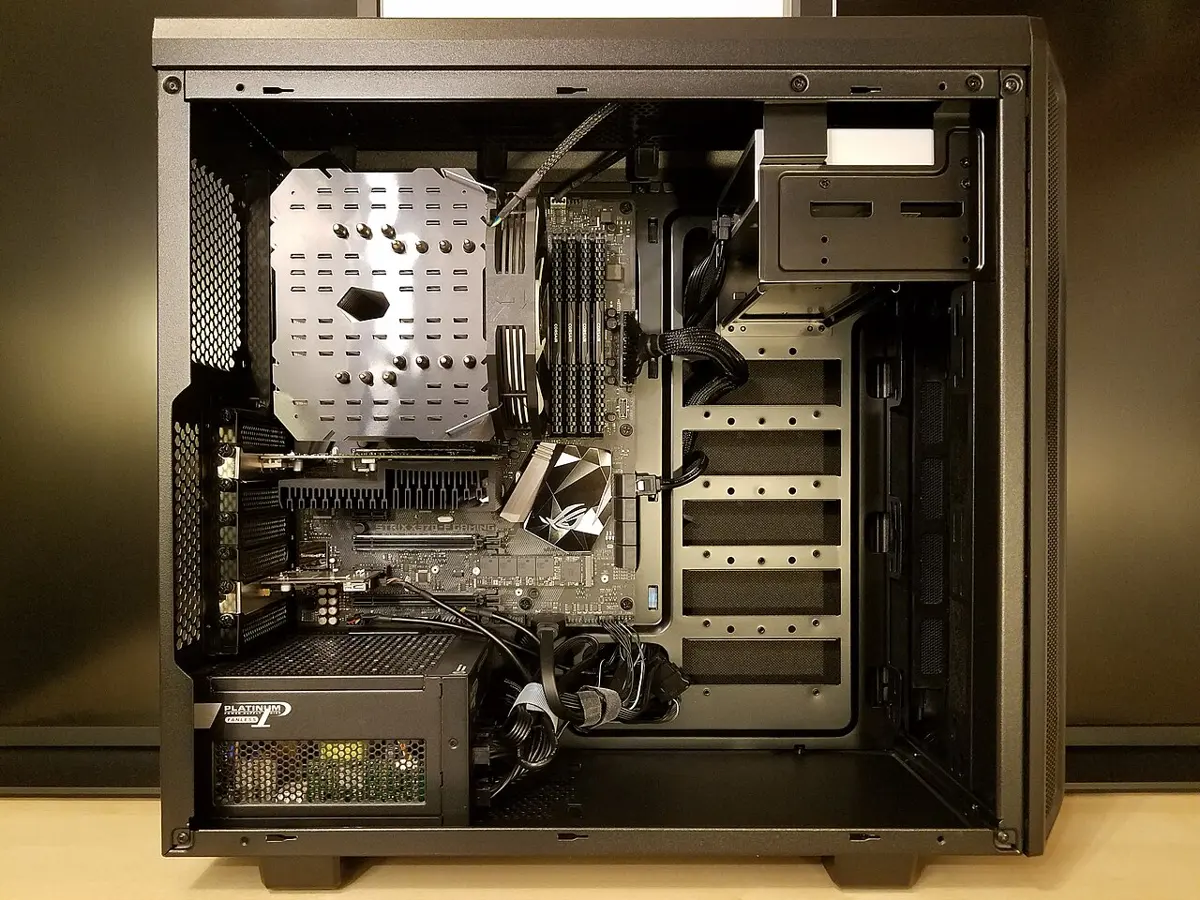
Every part is plugged into one large circuit board, the motherboard (or main board). Its printed copper lines carry data and power between the parts, like the roads of a town joining its houses. On it, or plugged into it, sit:
- the processor, or CPU (central processing unit), which carries out the instructions of programs: the processing;
- the memory, or RAM, which holds the programs and data being used right now;
- the storage, which keeps programs and files even when the power is off;
- the power supply, which turns the wall’s 230 volts into the low, steady voltages the parts need;
- cards that do special jobs, such as a graphics card, which makes the pictures on the screen;
- the ports, the sockets at the back and front, where the keyboard, mouse, screen and other devices plug in.
A laptop has the same parts, smaller and packed tight, with a battery, a screen and a keyboard built in. A phone packs them tighter still. Its processor, its graphics processor and many smaller parts are built together on a single chip, called a system on a chip, with the memory often stacked right on top of it.
The drawing that shows how the parts are joined, with a box for each and arrows for the data, is called a block diagram. It leaves out where each part sits and what it looks like, and shows only what matters: which part sends data to which.
Compare it with the four jobs of Grade 6. Processing, input and output are the same. The new block is memory, between the processor and storage. You will soon see why a computer needs both.
On which part are all the other parts of a computer mounted or plugged in?
Pick an answer to see why.
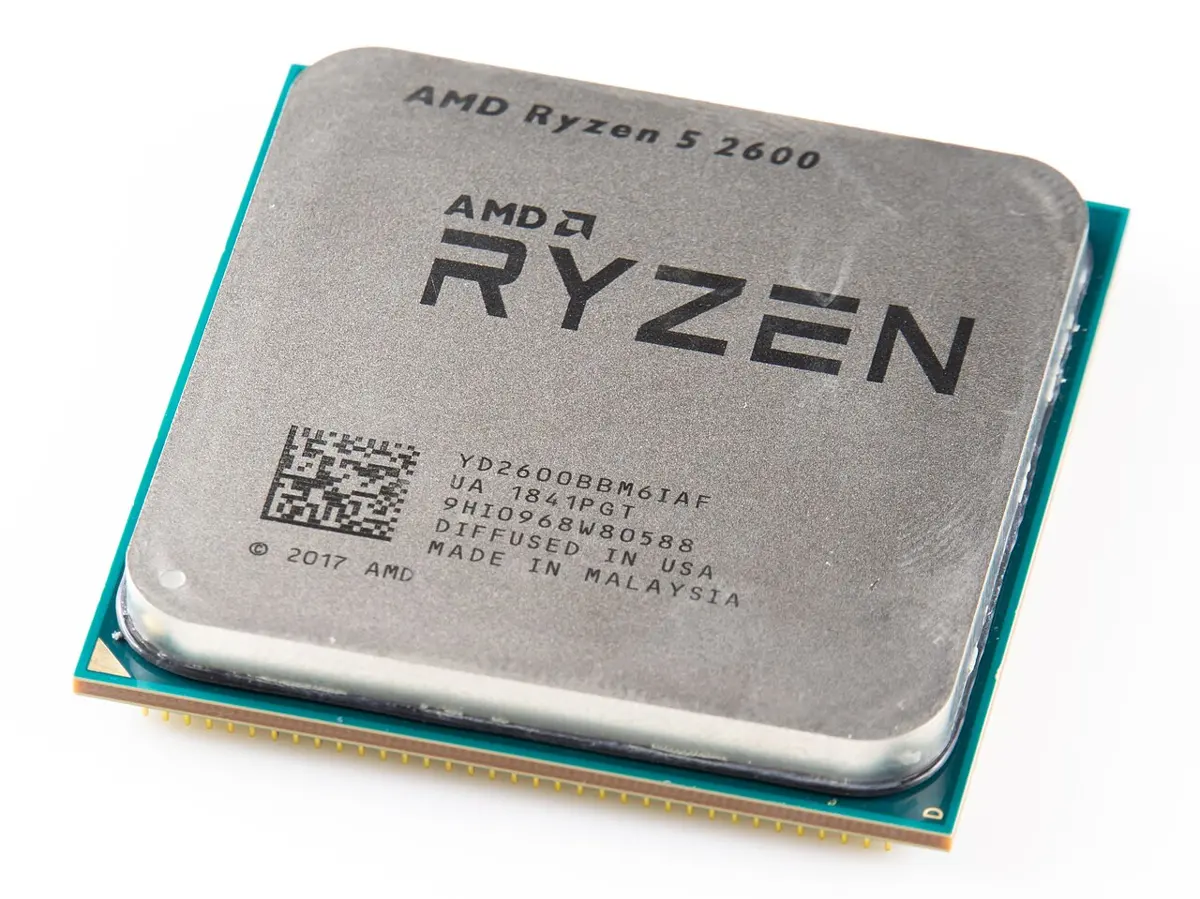
The processor: the part that follows instructions
Everything a computer does, from adding a bill to showing a video, comes down to the processor following instructions, one after another. Each instruction is tiny:
- copy a number from memory into the processor;
- add two numbers, or subtract, or compare them;
- copy the answer back into memory;
- if the last answer was zero, go to some other instruction instead of the next one.
That is all. A program for even a simple game is millions of these. The processor gets through them so fast that it seems to do everything at once. In Grade 9 you will see how it does it, from switches up to a whole processor.
How fast: the clock
A processor keeps time with a clock: an electronic pulse that ticks very fast, and at each tick the processor takes the next small step. How many ticks it makes in a second is the clock speed, measured in hertz (Hz): one hertz is one tick a second. Processors tick in gigahertz (GHz), and one gigahertz is a thousand million ticks every second. A processor of 3 GHz ticks 3,000,000,000 times a second.
How many: the cores
Think of a tea shop at the bus park in the morning. With one cook, every order waits its turn. With four cooks, four orders are made at once. A processor today is usually several processors in one chip, called cores, each able to follow its own list of instructions. A processor with two cores is dual-core, with four quad-core, with eight octa-core: the word Bikash saw on the card.
More cores help when there is a lot to do at once: a video call while a file downloads, or a video being made smaller to send. But four cooks don’t make one cup of tea four times faster. A job that has to go step by step, each step needing the one before, runs on one core whatever the number of cores.
Many devices also have a graphics processor (GPU): hundreds or thousands of small, simple cores that work together on pictures, where every dot of the screen can be worked out at the same moment. The same kind of work, lots of simple sums at once, is why graphics processors are also used to train AI.
Why computers get hot
Every time a transistor switches, it turns a little electricity into heat. Billions of transistors, switching billions of times a second, make a lot of heat: without its cooler, a desktop processor would overheat within seconds and have to shut itself down. So a desktop has a metal heat sink, with thin fins that pass the heat to the air, and a fan that blows the air away. A laptop has a small fan and air vents. A phone has no fan: it spreads the heat through its body, which is why a phone gets warm during a long game or a video call. When it gets too hot, a phone or laptop slows its own processor down to cool off. That is one reason a hot phone in the sun feels slow.
A shop says one laptop has an 8-core processor and another a 4-core one. What can you be sure of?
Pick an answer to see why.
Why does a phone often get warm during a long video call?
Pick an answer to see why.
Memory and storage
A phone shop’s card says two sizes, “8 GB RAM, 128 GB”. Why two? Think about doing your homework.
Your books are kept in the almirah. There is room for all of them, and they stay there for years. But you can’t study from the almirah: you take out the books you need and spread them on your desk. The desk is small, but whatever is on it is right at hand. When you finish, the desk is cleared for the next day, and anything you had only scribbled on a loose sheet, and never copied into your notebook, is thrown out with the scraps.
A computer works the same way:
- Storage is the almirah: big, and it keeps everything, apps, photos, songs, documents, even with the power off. But it is slow for the processor to reach.
- Memory is the desk. Its full name is RAM (random-access memory), and it holds whatever is being used right now: the apps that are open, the photo being edited, the message being typed. It is small, but very fast. And when the power goes off, it is cleared: memory forgets everything.
The processor works only on what is in memory. So when you open an app, a copy of it is loaded from storage into memory, and the processor runs it from there. When you save your work, it is copied from memory back to storage, where it is safe.
Memory that forgets when the power goes off is called volatile. RAM is volatile; storage is non-volatile: it keeps its data with no power at all.
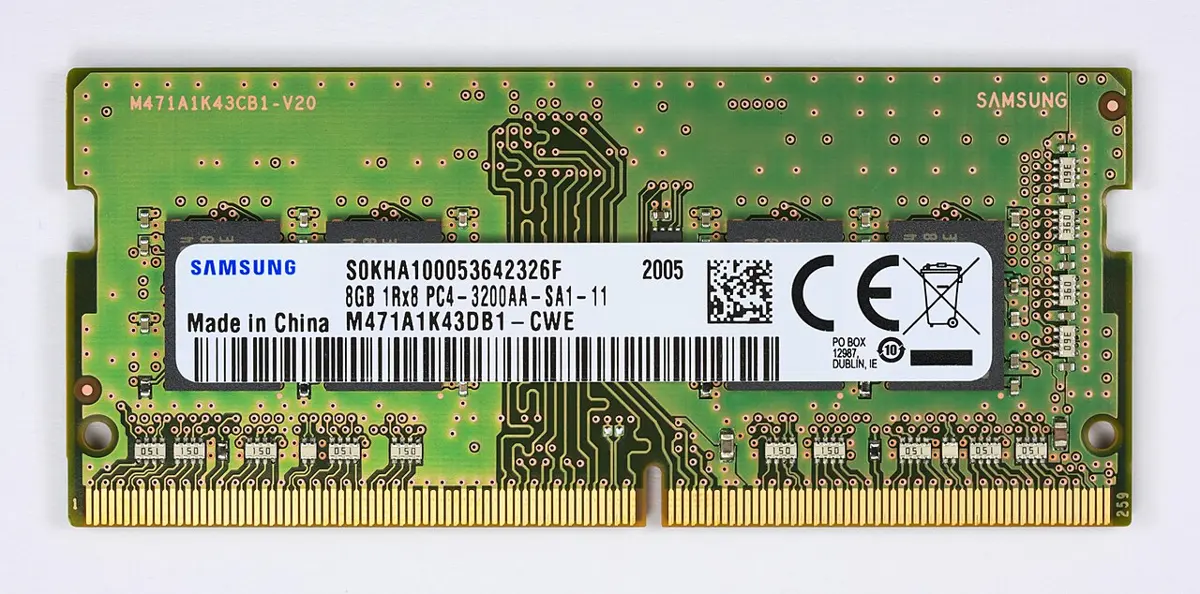
Now Bikash’s old phone makes sense. Its memory was small, so to open a new app the operating system had to close one he had left open, and that game had to load again from the start. And its storage was nearly full of photos and videos.
What a power cut takes
When the power goes off, everything in memory is lost; everything in storage stays. So you lose only what you hadn’t saved: the essay you typed since the last save, the changes to a picture, a game’s progress since its last save point. This is why Grade 6 told you to press Ctrl + S often, and to use a UPS. A laptop or a phone has a battery, so a power cut doesn’t touch its memory; but when the battery runs flat, the same thing happens.
Sushma was typing an essay on a desktop computer for an hour without saving. The power went off. What does she find when the power comes back?
Pick an answer to see why.
Why not just one kind?
Why have two kinds of memory at all? Because the fast kind is costly and forgets, and the kind that keeps things is slower. RAM costs many times more for each gigabyte than storage. So a computer has a little fast memory for what it is using, and a lot of cheaper storage for everything else. The same idea goes even further: inside the processor itself is a tiny, faster memory still, which you will meet in Grade 9.
Kinds of storage
Storage has been made in many ways. The two you will meet most:
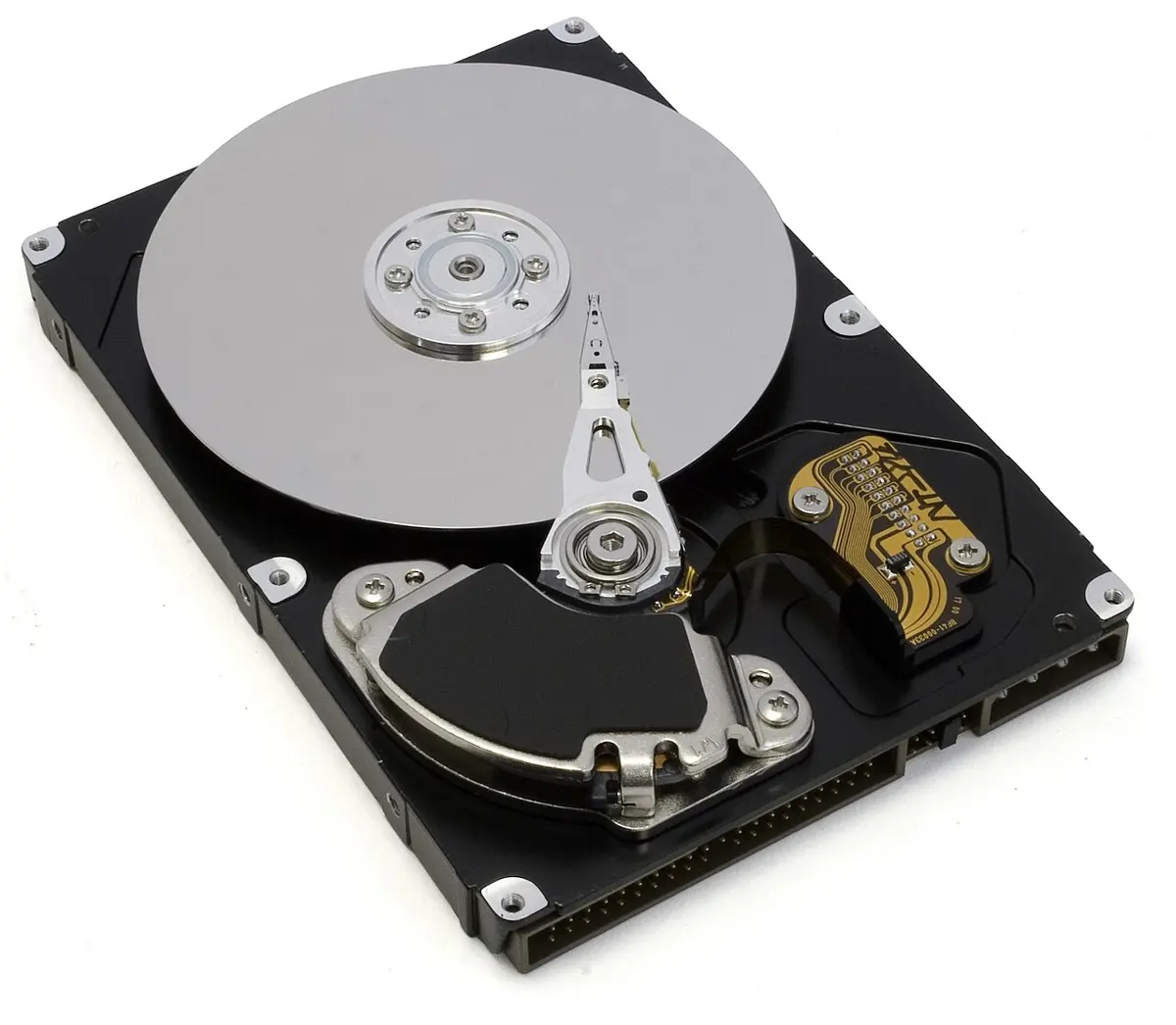
- A hard disk drive (HDD) keeps data on round metal platters coated with a magnetic material, spinning thousands of times a minute. A read/write head on an arm floats a tiny distance above the platter, magnetizing tiny spots to write and sensing them to read. Hard disks hold a lot for little money, but they are slow to start reading, because the head must swing to the right place and wait for it to spin round, and they can be damaged by a bump while running.
- A solid-state drive (SSD) has no moving parts at all. It keeps data in flash memory: chips of tiny cells that trap electric charge, and keep it with no power. It is many times faster than a hard disk, silent and tougher. The storage in every phone, every pen drive and every memory card is flash too.
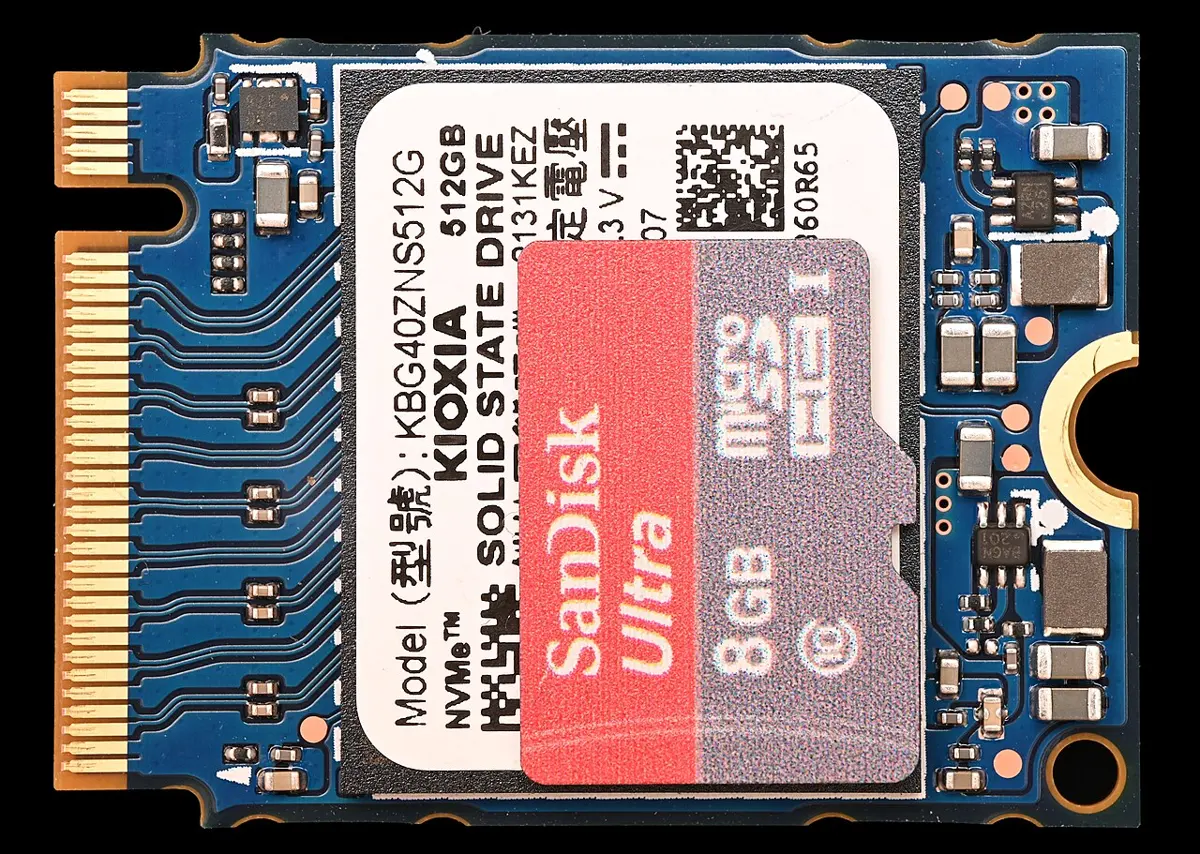
There are also discs, such as CDs and DVDs, which a laser reads and writes, now seldom used. And cloud storage, where your files are kept on a company’s computers and reached over the internet, is storage too: someone else’s hard disks and SSDs, far away. You will see how the cloud works in Grade 10.
ROM, and a word that confuses everyone
Some memory chips are written once, when the device is made, and then only read, never changed: ROM (read-only memory). They are non-volatile. A computer keeps a small program in such a chip, called firmware, which starts first when it is switched on, checks the hardware and starts loading the operating system from storage. Today firmware is usually kept in flash, so that it can be updated, but it is still often called ROM.
Why does a computer load an app into memory before running it, instead of running it straight from storage?
Pick an answer to see why.
Input and output, a closer look
In Grade 6 you sorted devices into input and output. A phone has more of both than most computers, many of them hidden.
Sensors in your pocket
Besides the touchscreen, microphone and camera, a phone has sensors that notice the world by themselves:
| Sensor | What it notices | What the phone does with it |
|---|---|---|
| accelerometer | the phone speeding up, slowing down or shaking, and which way is down | turns the picture when you turn the phone; counts your steps |
| gyroscope | how fast the phone is turning | steadies videos; lets you look round in a 360° photo |
| proximity sensor | something close to the screen | switches the screen off when you hold the phone to your ear, so your cheek doesn’t press buttons |
| light sensor | how bright it is around you | dims the screen in the dark, brightens it in the sun |
| magnetometer | the Earth’s magnetism | the compass, and which way you face on a map |
| GPS receiver | signals from satellites | where you are, on a map |
| fingerprint reader | the pattern of ridges on your finger | unlocks the phone for you, and only you |
How a touchscreen feels your finger
Most phone screens are capacitive touchscreens. Under the glass is a fine grid of see-through wires carrying a tiny electric charge. Your finger conducts electricity, so where it touches, it changes the charge in the grid, and the phone works out where, many times a second, even for two fingers at once. That is why a touchscreen doesn’t notice a pencil, or a finger in an ordinary woolen glove: they don’t conduct. Gloves made for phones have threads that conduct in the fingertips.
The camera and the screen
A camera’s image sensor is a chip covered with millions of tiny light-sensitive cells, one for each pixel. Each measures how much light falls on it. A 12 MP (megapixel) camera has about 12 million of them. More megapixels let you enlarge a photo more, but a sharp, clear photo depends as much on the size of the sensor and the quality of the lens.
The screen does the opposite. It is a grid of pixels, each made of tiny red, green and blue parts that the computer sets brighter or dimmer. Unit 2 shows how those three make every color.
More output
- a speaker, and a vibration motor, a tiny motor with an off-center weight that shakes the phone;
- a printer: an inkjet printer sprays tiny drops of ink; a laser printer uses a laser to draw the page as electric charge on a drum, which picks up powdered ink (toner) and presses it onto the paper with heat;
- a projector, which throws the screen’s picture onto a wall: the projector in a classroom is an output device.
Why does a phone’s screen switch off when you hold it to your ear during a call?
Pick an answer to see why.
Ports: where things plug in
A port is a socket on a computer or phone where a cable or a device plugs in. Each kind has its own shape, so that only the right plug fits, and its own job.
- USB (Universal Serial Bus) is the port for almost everything: pen drives, keyboards, mice, printers, phones, chargers. USB-A is the older, wide, flat one; its plug goes in only one way up. USB-C is the small, oval one, on almost every new phone and many laptops. Its plug fits either way up, and the same port can charge the device, carry data, and even send the picture to a screen.
- HDMI carries pictures and sound together, from a laptop to a TV, a projector or a second screen.
- The audio jack is a small round hole, 3.5 mm across, for wired earphones, speakers or a microphone. Many new phones have none: earphones then plug into USB-C, or connect without a wire.
- Ethernet joins a computer to a network by a cable, usually from a router. Its plug is wider than a phone’s and clicks in with a little clip.
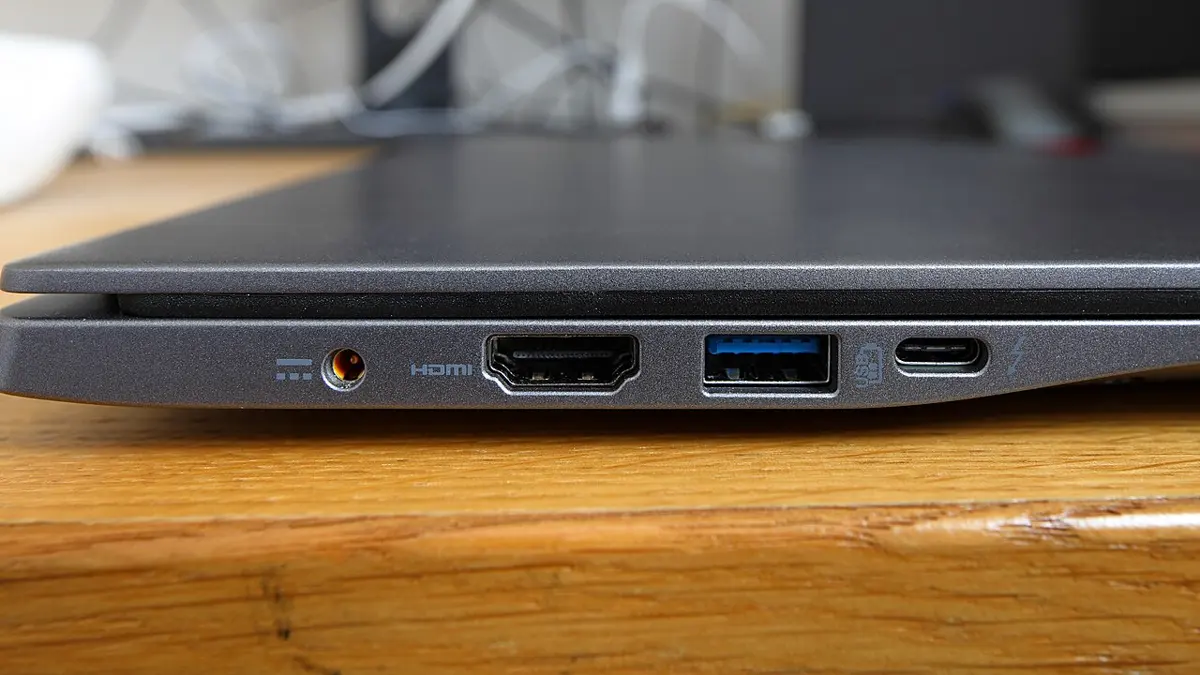
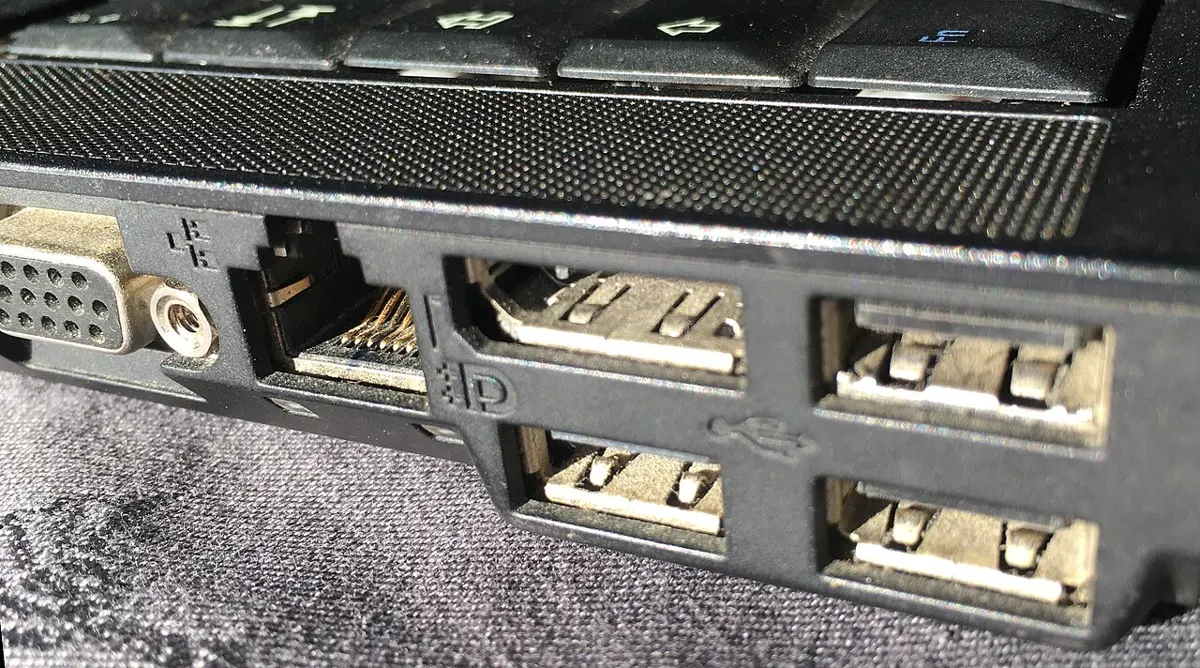
Some connections have no port at all. Wi-Fi joins a device to a network by radio, and Bluetooth joins nearby devices, such as wireless earphones or a speaker, by radio too. A phone also has slots for a SIM card (Unit 6), and on some phones a memory card.
Your class wants to show a laptop’s slides on the classroom’s projector. Which port do you most likely need?
Pick an answer to see why.
The operating system at work
In Grade 6 you met the operating system, the program that runs the whole device, and listed its jobs. Now you have seen the parts inside, you can see how it does them.
Starting up
Press the power button. The firmware in its chip on the motherboard runs first: it checks that the memory and the other parts work, finds the storage, and starts loading the operating system from storage into memory. This is called booting, from an old saying about lifting yourself up by your own bootstraps. When the operating system is in memory and running, it shows the home screen, and the device is ready.
Sharing the processor
On a phone, music plays while a map shows the way and a message arrives. There are more programs than cores, so the operating system makes them take turns. Each gets the processor for a few thousandths of a second, then the next one, round and round, so fast that to you they all seem to run at once. Deciding whose turn it is, and for how long, is called scheduling.
Managing memory
The operating system gives each open app its own part of memory and doesn’t let one app read or change another’s. So one app crashing doesn’t bring down the rest, and a harmful app can’t read your bank app’s memory. When memory fills up, it closes apps you haven’t used for a while, as you saw in the memory widget. And when memory is very short, a computer can use part of its storage as extra, slower memory, which is one reason a computer with too little RAM feels slow.
Keeping files
You already know files and folders. Behind them, the operating system knows where every file actually sits on the storage, often in many pieces in different places, and finds them again when you open the file.
Working the hardware: drivers
There are thousands of kinds of printers, cameras and earphones. The operating system can’t know them all, so each kind comes with a small program called a driver, which tells the operating system how to talk to it. Plug in a new printer and the operating system finds and installs its driver; then any app can print, by asking the operating system.
Safety, users and updates
Because every app must ask the operating system for the hardware, the operating system can ask you first: “Allow this app to use the camera?” It keeps separate user accounts with their own passwords and files, so two people can share a computer. And it is updated to close holes that attackers have found.
Every time you tap
Now put it all together. You tap the camera icon:
- Input: the touchscreen notices your finger and where it touched.
- The operating system works out that you tapped the camera icon.
- It loads the camera app from storage into a free part of memory, closing an old app first if memory is full.
- The processor starts carrying out the camera app’s instructions, taking turns with the other apps.
- The camera app asks the operating system for the camera. The operating system checks the app is allowed, and uses the camera’s driver to switch it on.
- Pictures stream in from the camera’s sensor (input), the processor works on them, and they appear on the screen (output). When you press the button, the photo is saved to storage.
All that, in less than a second.
A new printer won’t print until something is installed on the computer. What is it most likely to be?
Pick an answer to see why.
Choosing a phone or laptop
Back to Bikash in the phone shop. The right phone isn’t the one with the biggest numbers. It is the one that does what its user needs, for as long as they need it, at a price they can pay. So start with the person, then read the card.
Which kind of device?
| Device | Good for | Not so good for |
|---|---|---|
| phone | always with you; calls, messages, photos, payments, maps, videos | long typing, big documents, spreadsheets, programming |
| tablet | reading, drawing, watching, video calls on a bigger screen | long typing (without a keyboard), many programs |
| laptop | schoolwork, typing, spreadsheets, programming, anywhere, through power cuts on its battery | costs more; heavier to carry than a phone |
| desktop | the most power and the biggest screen for the money; easy to repair and add to | doesn’t move; needs a UPS in a power cut |
Reading the card
| On the card | What it means for you |
|---|---|
| processor | how fast apps run and open. Compare actual models, not just cores and GHz. Games, editing video and programming need more; calls and messages need little. |
| RAM | how many apps stay open at once, and how smooth it feels. Too little and apps close and reload. |
| storage | how many apps, photos and videos fit. The operating system takes part of it, so a 64 GB phone has less than 64 GB free. |
| battery | how long between charges. Phones give it in mAh (milliamp-hours): the more, the longer, for phones of the same kind. A big, bright screen and a busy processor use it faster. Laptops give it in Wh (watt-hours). |
| screen | its size, measured corner to corner in inches, and how sharp and bright it is |
| camera | megapixels, but also the size of its sensor and its lens: look at photos taken with it |
| updates | how many years the maker promises updates. A phone without updates gets no fixes for its security holes. |
A program also has system requirements: the least it needs to run, written by its makers. A game’s card might say it needs “4 GB RAM, 3 GB free storage, and the operating system’s version 12 or newer”. On a device that falls short, the program won’t install, or runs badly.
Beyond the price
Choosing a device also changes things beyond the person who buys it.
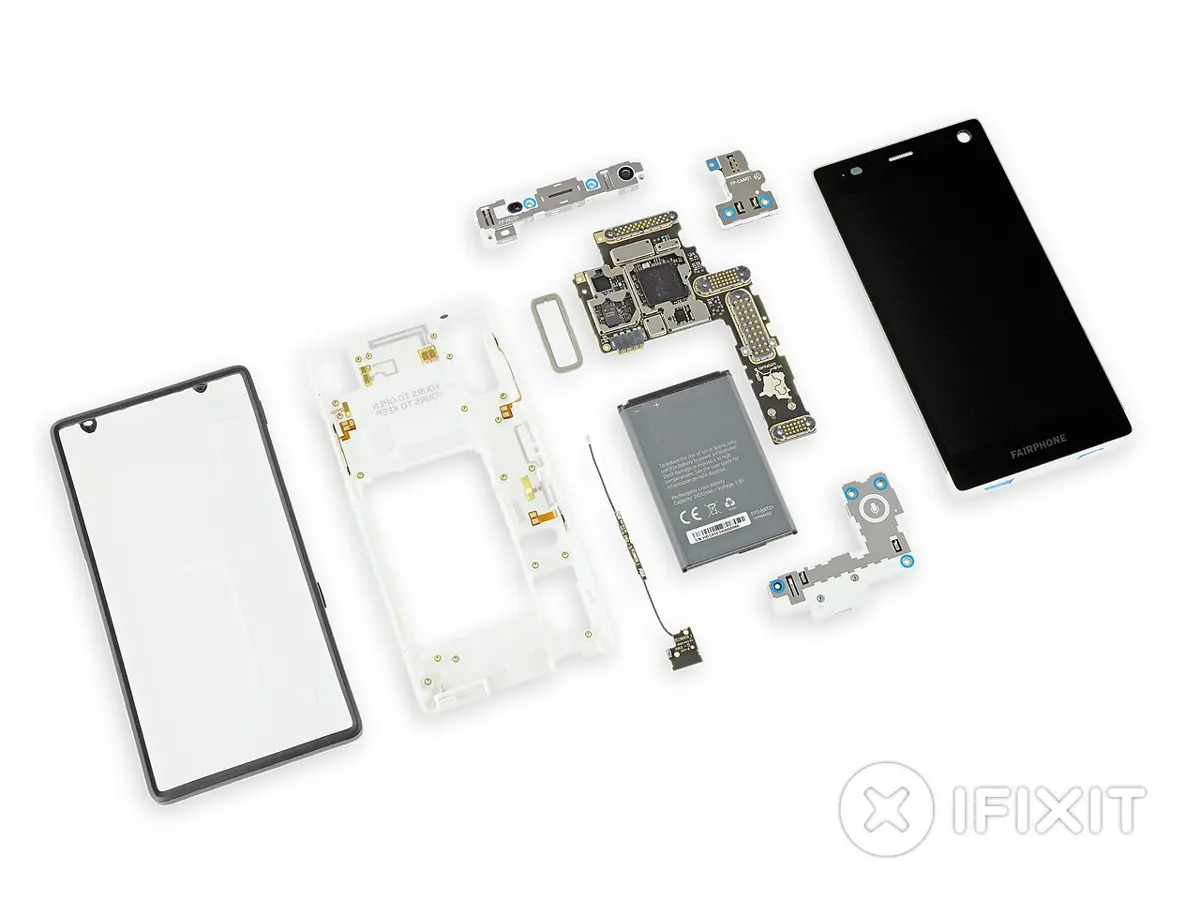
- For the planet. Every phone and laptop is made from metals dug from mines, with a lot of energy, and ends as e-waste. The longer a device is used, the less is dug and thrown away. So choose one with years of updates, a battery that can be replaced, and spare parts and repair shops in Nepal. A good second-hand device, or an old laptop given new life, is often enough. Laptops also use much less electricity than desktops, which matters on a UPS or solar power. In Grade 10 you will see what happens to old phones in Nepal.
- For the people who make it. Batteries need metals such as cobalt, and about three quarters of the world’s cobalt (as of 2025) is mined in the Democratic Republic of the Congo, where in 2016 Amnesty International found children as young as seven working in its small, dangerous mines. Some makers now check where their metals come from, and say so.
- For the people around you. In many families one phone is shared by everyone. A device that suits a grandparent (a big screen, simple settings, loud sound) or a person who can’t see well (a good screen reader) matters as much as speed.
Which is the best reason to choose a phone with more RAM?
Pick an answer to see why.
Project
In short
Exercise
Which part carries out the instructions of a program?
Pick an answer to see why.
What happens to the data in RAM when a desktop computer’s power suddenly goes off?
Pick an answer to see why.
Which of these has moving parts inside?
Pick an answer to see why.
A phone advert says “6 GB RAM, 128 GB ROM”. What is the 128 GB?
Pick an answer to see why.
Which port is usually used to connect a computer to a router by a cable?
Pick an answer to see why.
Music plays while you read a message on a phone with one core. How does the operating system do it?
Pick an answer to see why.
Draw a block diagram of a computer. Label the processor, memory, storage, input devices and output devices, and show with arrows which way data moves. Give one example of each kind of device.
Answer
Give three differences between memory (RAM) and storage. Why does a computer need both?
Answer
Sita was editing a photo on her family’s desktop computer when the power went off. Which of these does she still have when the power returns, and which has she lost? Give a reason for each.
- i.the photo as it was before she began editing, saved last week
- ii.the changes she made in the last ten minutes without saving
- iii.the photo-editing program
Answer
What is the clock speed of a processor? A processor runs at 2.5 GHz. How many ticks does it make in one second? Why can’t you say that it is slower than every 3 GHz processor?
Answer
What is a core? When do more cores help, and when do they not?
Answer
Compare a hard disk drive and a solid-state drive: how each keeps data, and one advantage of each.
Answer
Name the port you would use for each, and say why: i. showing a film from a laptop on a TV; ii. charging a new phone; iii. wired earphones with a thin round plug; iv. a wired connection to the school’s router.
Answer
Name four sensors in a smartphone, and say what each lets the phone do.
Answer
Write four jobs of the operating system, with an example of each from a phone.
Answer
Describe, step by step, what happens inside a phone from the moment you tap an app’s icon to the moment the app appears. Name the parts that take part.
Answer
A Grade 8 student needs a laptop for typing, spreadsheets and learning to program, for at least four years. Her family can pay Rs 70,000. Here are two laptops.
| Laptop 1 | Laptop 2 | |
|---|---|---|
| price | Rs 58,000 | Rs 72,000 |
| processor | a recent model, mid-range | a recent model, fast |
| RAM | 8 GB | 16 GB |
| storage | 512 GB SSD | 512 GB SSD |
| battery | 50 Wh, about 8 hours | 45 Wh, about 6 hours |
| weight | 1.5 kg | 2.2 kg |
| ports | USB-A, USB-C, HDMI | USB-C only |
Which would you advise, and why? Give at least three reasons.
Answer
Give one way in which choosing a phone affects each: the environment; the people who make phones; the people who will use it.
Answer
Quiz yourself: Computer systems, Grades 6–12 →
Practice every question in the book, and keep track of the ones you miss →