
Open your school’s website, a news page or the SEE results page on a phone. You see headings, photos, a menu, colored buttons. But the page did not travel to your phone like a photo of a page. What came first was text: letters, with little notes in them saying “this is a heading”, “put a picture here”, “make these words dark red”. Your browser read that text, fetched the pictures it named, and drew the page.
In this unit you will write that text yourself. You will build web pages in two languages, HTML for what is on the page and CSS for how it looks, typing them here and watching the page change as you type. Then you will learn what makes a page good for the people who use it: a grandmother with tired eyes, a blind student whose phone reads the page aloud, a farmer on a cheap phone. By the end you will have made a page about your own place and improved it after watching someone use it.
A web page is text
In Grade 6 you met the web: pages joined by links, which a browser asks a server for, each page with its own address, its URL. A web page arrives as a text file. The words you read are in it, and so are instructions about them. Here is a very small one:
<h1>Bhaktapur</h1><p>Bhaktapur is a city of temples, pottery and juju dhau.</p>The words in angle brackets, <h1> and <p>, are not shown on the page. They are tags: labels that mark what each part of the text is. <h1> marks a heading, <p> a paragraph. Marking up a text in this way is called markup, and the language of these tags is HTML, short for HyperText Markup Language. “Hypertext” is text with links in it, which is what the web is.
Most tags come in pairs: an opening tag such as <p>, and a closing tag with a slash, </p>. The opening tag, the content between, and the closing tag together make one element. An opening tag can also carry attributes, extra information written as a name and a value: href="festivals.html" says where a link goes.
HTML is not a programming language like Python. It doesn’t calculate, decide or repeat anything. It only describes: this is a heading, this is a list, this is a picture. That is why it is called a markup language.
In <p>Namaste</p>, which part does the page show?
Pick an answer to see why.
What is HTML?
Pick an answer to see why.
The skeleton of every page
A real page has a few more lines around its content. Every page you make should start like this:
<!DOCTYPE html><html lang="en"> <head> <meta charset="utf-8"> <title>My first page</title> </head> <body> <h1>About me</h1> <p>My name is Asha. I am in <strong>Grade 8</strong>.</p> </body></html>- Line 1,
<!DOCTYPE html>, tells the browser that this is a modern HTML page. It isn’t a tag of the page, just a note at the top. <html lang="en">holds the whole page. Its attribute, lang, says the page’s language:enfor English,nefor Nepali.- The head holds information about the page, which isn’t shown in it.
<meta charset="utf-8">says the text is stored in UTF-8, the way of storing Unicode you met in Grade 7, so that Nepali letters arrive as Nepali. The title is the name shown on the browser’s tab, in bookmarks and in search results. - The body holds everything shown on the page.
So elements sit inside other elements: the title inside the head, the head inside the html element. This is called nesting. An element that starts inside another must also end inside it. Close the inner one first:
<p>I am in <strong>Grade 8</strong>.</p> ✓ strong closes inside p<p>I am in <strong>Grade 8</p></strong>. ✗ the two crossA few elements have nothing inside them and no closing tag: <meta>, <img> for a picture, and <br>, which starts a new line. They are called empty elements.
The spaces at the start of the lines, the indents, show which element is inside which. Here they are only for people reading the code; the browser ignores them. That is different from Python, where an indent changes what the program does.
Which of these is nested correctly?
Pick an answer to see why.
Where does a page’s <title> appear?
Pick an answer to see why.
Headings, paragraphs and lists
Look at a newspaper: the name of the story in big letters, smaller headings above its parts, then paragraphs. HTML has the same parts.
- Headings:
<h1>to<h6>, from the most important to the least. A page has one<h1>, saying what the whole page is about. The parts of the page get<h2>; a part of a part gets<h3>. Choose a heading by its place in this outline, not by how big you want it to look: sizes and colors are CSS’s job, later in this unit. - Paragraphs:
<p>. A browser joins all the spaces and line breaks in your text into one space, and wraps the lines to fit the screen. So pressing Enter in your HTML doesn’t start a new line on the page; a new<p>does (or, inside a paragraph, a<br>). - Lists:
<ul>is a list with bullets, for things in no special order (an unordered list);<ol>is a numbered list, for steps or a ranking (an ordered list). Each thing in either list is a list item,<li>.
<h2>The five days</h2><ol> <li>Kag Tihar: crows are fed.</li> <li>Kukur Tihar: dogs get a garland.</li></ol>Your page has an <h1> and then some text you want bigger than normal, so you make it an <h4>, though it isn’t a heading. What is wrong with that?
Pick an answer to see why.
Links and pictures
Links
The web is pages joined by links, and a link is the element <a> (it stands for anchor). Its href attribute says where it goes:
<a href="https://en.wikipedia.org/wiki/Nyatapola">Wikipedia's page on Nyatapola</a><a href="festivals.html">our page on festivals</a>The first link has a full web address, like the ones you met in Grade 6, so it can lead to any page on any website. The second has only a file name: it leads to another page of the same website, kept on the server beside this one. A website is just a folder of such files, linked to each other.
The words between <a> and </a> are what the reader taps. Make them say where the link goes: “our page on festivals”, not “click here”. You will see why later in this unit.
Pictures
A picture is an empty element, <img>, with two attributes it always needs:
<img src="nyatapola.jpg" alt="Nyatapola, a temple with five roofs, on a high stone base with steps">- src (source) is the picture’s file: its name, if it is in the website’s folder, or a full address.
- alt is the alternative text: words that say what the picture shows. A screen reader reads them aloud to people who can’t see the picture; the browser shows them if the picture doesn’t load, on a weak signal or when the file is missing; and search engines read them to know what the picture is.
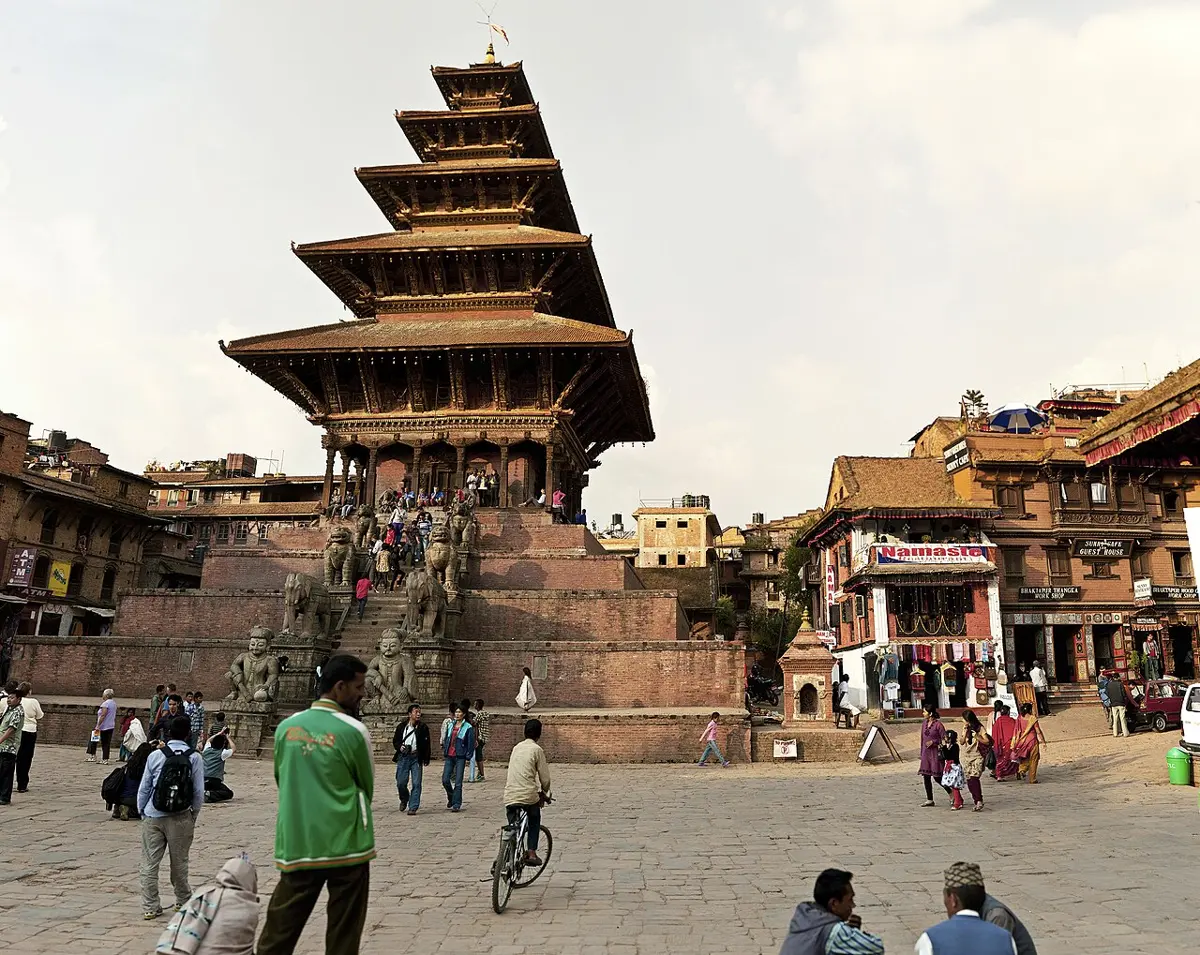
Good alt text says what matters about the picture on this page, in a short sentence, without “a picture of”: the screen reader already says it is a picture. A photo of a festival might be “A huge crowd on the steps of Nyatapola at Bisket Jatra”. A picture that is only decoration, a flower border or a line, gets an empty alt, alt="", so the screen reader skips it instead of reading out its file name.
Tables
A class routine, a bus fare chart, a cricket score card: information in rows and columns is a table. In HTML, a table, <table>, is made of rows, <tr> (table row); each row is made of cells: <th> for a heading cell (table heading), <td> for an ordinary one (table data).
<table> <tr> <th>Time</th> <th>Sunday</th> <th>Monday</th> </tr> <tr> <td>10:00</td> <td>Science</td> <td>Math</td> </tr></table>The table is built row by row, from the top, and each row should have the same number of cells. <th> cells are bold and centered, and, more importantly, they tell a screen reader what each column is, so that it can say “Monday: Math” instead of just “Math”.
Pages in Nepali
In Grade 7 you saw that Nepali text is stored as Unicode code points, in UTF-8. A web page in Nepali needs three things:
<meta charset="utf-8">in the head, so the browser reads the bytes as UTF-8. Without it, some browsers show Nepali as gibberish such asने.lang="ne"on the<html>tag, or on any element written in Nepali inside an English page. A screen reader then reads it with a Nepali voice instead of trying to read it as English; the browser picks a Nepali font; and a search engine knows who the page is for.- A font that has Devanagari letters. In CSS (later in this unit) you list fonts in order of preference, ending with a general kind, and the browser uses the first one the device has.
A page in Nepali shows correctly on your phone. Why should it still have lang="ne"?
Pick an answer to see why.
Style with CSS
So far your pages look plain: black text, white background, the browser’s own font. HTML says what each part is. How it looks, its colors, fonts, sizes and spacing, is written in a second language, CSS, short for Cascading Style Sheets.
Keeping the two apart is a big help. A school’s website may have two hundred pages. If every heading’s color were written in the HTML, changing it would mean two hundred changes. With CSS, one rule says how every <h2> on every page looks, and changing one line changes them all, just as changing one number in a loop changed all the sides of the turtle’s square in Grade 6.
A rule
CSS is a list of rules. Each rule has a selector, which says which elements it styles, and then, inside braces { }, its declarations: a property, a colon, a value and a semicolon.
The CSS goes in its own file, usually called style.css, and each page links to it with one line in its head:
<link rel="stylesheet" href="style.css">So the same style sheet serves every page of the website. (CSS can also go inside a <style> element in a page’s head, or on one tag, as <p style="color: red">. The first suits a single page; the second is a style written onto one element, which you would have to repeat on every element, so keep it for a quick test.)
Colors
A color can be written in three ways:
- by name:
red,white,navy,maroon, more than 140 names in all; - as RGB, the three numbers you met in Grade 7, red, green and blue, each from 0 to 255:
rgb(139, 26, 26)is a dark red; - as a hex code:
#8b1a1ais the same dark red. After the#come three pairs of characters, the red, green and blue numbers written in hexadecimal, counting in sixteens with the digits 0–9 and a–f:8bis 8 × 16 + 11 = 139, and1ais 1 × 16 + 10 = 26. You will learn hexadecimal properly in Grade 9; for now, you can copy hex codes from a color picker, or usergb().
color sets the color of the text, and background-color the color behind it.
Fonts and text
font-familynames fonts in order of preference, ending with a general kind:font-family: "Noto Sans Devanagari", "Nirmala UI", sans-serif;. The browser uses the first font the device has. sans-serif fonts have plain letters; serif fonts have small strokes at the ends of the lines, like a newspaper’s.font-sizesets the size, for example18px. A px is a CSS pixel, about the size of a dot on an ordinary computer screen; phones use several real dots for each one, so text in px looks about the same size everywhere.font-weight: bold;,font-style: italic;,text-align: center;andline-height: 1.5;(the space between lines, 1.5 times the text’s size) do what they say.
Space: every element is a box
A browser draws every element as a box. Around the content is the padding, space inside the box’s edge, colored with its background; then the border, a line round the box; then the margin, empty space outside the border that keeps other boxes away.
padding: 16px, border: 4px solid maroon and margin: 20px, drawn bigger than a screen would show it. .notice { background-color: #fff1c9; padding: 16px; border: 4px solid maroon; margin: 20px;}Classes: styling some elements, not all
The selector p styles every paragraph. To style only some, give them a class, a name of your choosing, in the HTML: <p class="note">. In CSS, a selector starting with a dot picks the elements with that class: .note { color: gray; }. Several elements can share a class, and a class can be on any kind of element.

Which rule makes every paragraph on the page dark blue?
Pick an answer to see why.
A box’s border should keep 10 px of empty space between itself and the text inside. Which property sets that?
Pick an answer to see why.

Pages for phones
Most people in Nepal open web pages on a phone, so a page has to work on a small screen first.
Open an old website on a phone, and you may see the whole page shrunk to fit, with words too small to read, so that you have to pinch, zoom and scroll sideways along every line. Three things cause most of it:
- The viewport line is missing. When the first smartphones came out, almost every website was made for computer screens. So, unless a page says otherwise, a phone’s browser lays the page out as if its screen were about 980 px wide, like a computer’s, then shrinks the result to fit. One line in the head tells the phone to use its own width:
<meta name="viewport" content="width=device-width, initial-scale=1">- Fixed widths.
width: 700px;makes a box 700 px wide on every screen, but a phone is only about 360–430 px wide, so the reader scrolls sideways. Use max-width instead:max-width: 700px;means “at most 700 px, and narrower if the screen is”. For pictures,img { max-width: 100%; }keeps every picture inside the screen. - Tiny text and tiny buttons. Text for reading should be about 16 px; buttons and links big enough, and far enough apart, to tap with a finger.
Pages everyone can use
In Grade 7 you learned to design for everyone: text that can be read, your language, never color alone, names on buttons for screen readers, big targets, light pages. On the web, each of these is something you can check in your own HTML and CSS. Think of how some of your users meet your page:
- A blind student uses a screen reader, which reads the page aloud. Many screen-reader users find their way by headings: the screen reader lists them, and they jump to the part they want. They can also ask for a list of all the links. And for each picture, they hear its alt text, or nothing useful.
- A grandmother reads it on an old phone in sunlight, with the text size turned up.
- A student on a weak signal waits for the pictures, seeing the alt text first.
So, for every page you make:
| Check | Why |
|---|---|
The page’s language is set: lang="en", and lang="ne" on Nepali |
the screen reader uses the right voice |
Every picture has alt text (alt="" for decoration) |
blind readers, slow connections and search engines know what it shows |
One <h1>, then headings in order, never skipping a level |
the outline people jump through makes sense |
| Link words say where the link goes | “click here, click here” in a list of links tells a listener nothing |
| Enough contrast between text and background | pale text disappears for older eyes, cheap screens and sunlight |
| Text about 16 px, never tiny; nothing wider than a phone | the page can be read on any phone without zooming |
| Color is never the only signal | some people can’t tell red from green |
Contrast is measured as a ratio of how much light the text and its background give, from 1 : 1 (the same color, invisible) to 21 : 1 (black on white). The world’s accessibility guidelines, the Web Content Accessibility Guidelines (WCAG), ask for at least 4.5 : 1 for ordinary text, and 3 : 1 for big text. Pale gray #aaaaaa on white is only 2.3 : 1, too faint; #767676 on white is 4.5 : 1, just enough; black on white is 21 : 1.
The text on a page is pale yellow on white. Which check does it fail?
Pick an answer to see why.
A blind reader asks for the list of links on a page, and hears “click here, click here, read more”. What should the designer have done?
Pick an answer to see why.
Designing for people
A page can pass every check and still be hard to use: the thing you came for may be hidden, or a button may do nothing you can see. Human-centered design means designing around the people who will use something: finding out who they are and what they need, then testing with them and improving, again and again, instead of guessing.
The process goes round in a circle:
- Understand the users: who they are, what they want to do, on what device, in which language.
- Design and build a first version, small and quick.
- Test it with real users: watch them try to do something with it.
- Improve it from what you saw, and test again.
It is the same habit as debugging in Unit 1, aimed at people: predict, try, compare, change one thing.
Five principles to look for
Designers have learned, by watching people, what makes things easy to use. Here are five principles. You can look for each one in any app or website, and say whether it is present or missing:
| Principle | Means | Missing when… |
|---|---|---|
| Clear | You can see what it is for and what to do next, in plain words. | the main button is hidden among ads; a button is only an icon nobody understands |
| Consistent | Things that work the same look the same, and stay in the same place. | “Book” on one page is “Reserve” on the next |
| Feedback | Every action visibly does something, and you are told what happened. | you press Pay and nothing changes |
| Forgiving | Mistakes are hard to make, easy to see and easy to undo. | a wrong date wipes out the whole form; an error says only “Error 42” |
| For everyone | It works for people of every age, ability and language, on any phone. | tiny pale text, English only, red and green with no words |
Testing with a user
You can’t test a page by looking at it yourself: you know where everything is, and what every word means. (Grade 7’s lesson: you are not your user.) Instead, watch someone else use it.
- Give them a task, not a tour: “Find out when the bus leaves” rather than “What do you think of my page?”
- Watch, and don’t help. Ask them to think aloud. Every time you want to explain something, write it down instead: that is a place the page should explain itself.
- Note where they get stuck, what they tap that does nothing, and what they say.
- Afterwards, ask what was hard. Then fix the biggest problem first, and test again, with someone new if you can.
Putting a page online
Your pages so far live only in this book, in your browser. To put a page on the web, its files must be copied to a web server: a computer that is always on and connected to the internet, and answers when a browser asks for a page. This is called hosting. The website also needs a name, a domain, like the ones you met in Grade 6. Some companies host small websites for free, with a name under theirs.
Project
In short
Exercise
Which is a closing tag?
Pick an answer to see why.
Which line of HTML shows a picture correctly, for everyone?
Pick an answer to see why.
What does <meta name="viewport" content="width=device-width, initial-scale=1"> do?
Pick an answer to see why.
In the CSS rule .notice { padding: 10px; }, what does .notice select?
Pick an answer to see why.
Users of a ticket website keep pressing Pay twice and paying twice. Which design principle is most likely missing?
Pick an answer to see why.
Which text and background colors fail the 4.5 : 1 contrast check?
Pick an answer to see why.
Explain each term, with an example: tag, element, attribute, selector, declaration.
Answer
Write the HTML for a page titled “My favorite food”, with a main heading, one paragraph about why you like it, and a bulleted list of three things that go into it.
Answer
Find four mistakes in this HTML, and correct them.
<html> <body> <h3>Our school<h3> <p>We have <strong>600 students.</p></strong> <img src="school.jpg"> </body></html>Answer
Write CSS that i. makes the whole page’s text dark gray, #333, in a sans-serif font; ii. makes every <h1> maroon; iii. gives every element of class fare a light yellow background, #fff3c4, and 8 px of space inside its border.
Answer
What is the difference between padding and margin? Draw a box and label its content, padding, border and margin.
Answer
Why should HTML say what each part of the page is (heading, list, paragraph), and CSS say how it looks? Give two reasons.
Answer
A page about Dashain is written in Nepali, but its <html> tag says lang="en". The page looks fine. Who has a problem with it, and why?
Answer
Write the HTML for a table of bus fares with two columns, To and Fare, and two rows: Kathmandu, Rs 50; Banepa, Rs 60. (The fares are only an example.)
Answer
A health post’s website lets people book a visit. On it: the “Book” button is pale green with white text; after booking, the page goes back to the home page without saying anything; the booking form forgets everything if one box is wrong; the page is in English only; and the menu is in the same place on every page. For each of the five design principles, say whether it is present or missing on this website, with the evidence. Then suggest the three most important improvements.
Answer
You have made a web page for your school’s science club. Describe how you would test it with a user, and how you would use what you find.
Answer
Quiz yourself: Creating, Grades 6–12 →
Practice every question in the book, and keep track of the ones you miss →