
Sita worked for a whole evening on her science project. She saved it, switched off the computer and went to sleep happy. Next day in class her teacher asked to see it. Sita opened the computer and looked. And looked. The file was there somewhere, but where? Was it called “Document 3”? “New Microsoft Word Document”? Was it in Downloads, or on the desktop, or on her brother’s pen drive?
Everyone who uses a computer has had a morning like Sita’s. In Unit 1 you saw what a computer is made of. This unit is about using one well: keeping your work where you can find it, typing quickly in English and in Nepali, letting the computer listen to your voice, making it work for people who can’t see or hear well, and looking after a phone or computer so that it lasts. Most of it you can practice on a phone; where you need a computer, this unit says so.
The operating system
When you switch on a phone, a logo appears, and a few seconds later the home screen is ready, with its icons waiting for a tap. Nobody opened an app yet. So what was the phone doing?
It was starting its most important program, the one you met in Unit 1 running underneath all the apps: the operating system, often shortened to OS. The operating system runs the whole device. It starts first and keeps running until you switch off, and every other program works through it.
Think of a busy hotel. Guests never go into the kitchen or the store room themselves. They ask at the front desk, and the people there get the kitchen cooking, find a free room, keep the keys and the records, and make sure two guests aren’t given the same bed. The operating system is the device’s front desk. Its main jobs are:
- Starting the device, and shutting it down safely.
- Running apps: opening them, sharing out the processor and the memory between them, and closing them.
- Keeping files: deciding where on the storage each file goes, and finding it again.
- Working the hardware: the screen, the keyboard or touchscreen, the camera, the speaker, Wi-Fi, a printer. An app never works the camera itself; it asks the operating system.
- Settings and safety: the screen lock, who may use the device, which app may use the camera or your location, and updates that fix problems.
So software comes in two kinds. System software runs the computer itself; the operating system is the main one. Application software, the apps of Unit 1, does a job for you: a browser, a calculator, a game, a program for writing. An app made for one operating system usually won’t run on another, which is why the same app often comes in several versions, one for each operating system. Some apps aren’t installed at all: they open in a web browser, and they are called web apps.
Which of these is a job of the operating system, not of an app?
Pick an answer to see why.
A calculator app is…
Pick an answer to see why.
Files and folders
Everything you save is kept in a file: a photo, a song, an essay, a video, a game’s saved progress. A file is a named piece of stored information, like a page in a copy, kept until you delete it.
A phone or computer holds many thousands of files, so it keeps them in folders, just as your school keeps papers in files and cupboards. A folder can hold files and other folders. A folder inside a folder is called a subfolder.
The program for looking at files and folders, opening, moving and deleting them, is called a file manager. On a phone it is usually an app called Files; on a computer it opens when you click a folder.
A tree of folders
Folders inside folders inside folders make a shape like an upside-down tree, so it is called a folder tree. At the top is the whole storage, sometimes called the drive. From it, folders branch out, and the files hang at the ends like leaves.
To tell someone exactly where a file is, you name every folder you must open to get to it, from the top down, and then the file. This list is the file’s path. In Figure 2.2, Sita’s Nepali essay is in the folder Nepali, which is in School, which is in Documents, which is in Sita, which is in Users, on the drive C:. So its path is
C:\Users\Sita\Documents\School\Nepali\mero-gaun.docx
The names are joined with a mark between them. Some computers use a backslash (\), others a slash (/), and phone apps often show a small arrow (›). Whichever mark it is, a path reads the same way: from the top, one folder at a time, down to the file.
In Figure 2.2, what is the path of rangoli.jpg?
Pick an answer to see why.
File names
A file’s name has two parts, joined by a dot: leaf-project.docx. The part after the dot is the extension. It tells the computer what kind of file it is, and so which app should open it.
| Extension | What kind of file |
|---|---|
| .jpg, .png | a picture or photo |
| .mp3 | sound or music |
| .mp4 | a video |
| .docx | a document from a writing program |
| a document for reading and printing, which looks the same on every device |
Phones and many computers hide the extension, but it is still there. Don’t change it when you rename a file: a photo renamed from .jpg to .mp3 is still a photo, but no app will open it properly.
A good name says what is inside, so that you can find it in a year’s time without opening it. IMG_4521.jpg says nothing; tihar-deusi-2083.jpg says a lot. Some simple rules help:
- Say what it is, and add the date or the class if that helps: grade6-science-leaf-project.
- Use letters, numbers and hyphens (-). Some marks can’t go in a name, such as
\ / : * ? " < > |on Windows, because they mean something else in a path. - Before a big change to your work, save a copy with a new name (leaf-project-v2), so that if the change goes wrong, the old one is still there. Then you can reuse and improve your work without losing it.
Working with files
These are the things you will do with files and folders again and again. Every file manager can do all of them; the menus differ a little from one device to another.
| To… | On a computer | On a phone |
|---|---|---|
| create a folder | right-click in the folder where it should go › New › Folder | in the Files app, open the place › ⋮ menu › New folder |
| rename a file or folder | right-click it › Rename (or select it and press F2) | press and hold it › Rename |
| copy it | right-click › Copy, open the new place, right-click › Paste | press and hold › Copy to, then choose the folder |
| move it | drag it onto the folder, or Cut then Paste | press and hold › Move to |
| delete it | select it and press Delete | press and hold › Delete (the bin icon) |
| find it | type part of its name in the search box at the top | tap the search icon (the magnifying glass) and type |
Copying and moving are not the same. A copy leaves the file where it was and puts a second one in the new place: now there are two, and changing one doesn’t change the other. A move takes the file away from its old place: there is still only one.
A deleted file usually isn’t gone at once. A computer puts it in the Recycle Bin (or Trash), and a phone’s gallery or Files app keeps it in a Recently deleted or Trash folder, usually for a month or more. Until it is emptied, you can bring the file back.
Sita copies her essay from the computer to her pen drive, then corrects a mistake in the copy on the pen drive. What happens to the essay on the computer?
Pick an answer to see why.
Finding a lost file
Back to Sita. If you can’t find a file:
- Search for any word you remember from its name. The search box in a file manager looks inside every folder below the one you are in, so start from the top.
- Look in Recent (or Recent files), which lists what you opened or saved lately.
- Look in Downloads, where files from the internet and chat apps land.
- Sort the folder by date modified, newest first: the file you saved last night will be at the top.
- Check the Recycle Bin or Trash.
Then, when you find it, give it a good name and move it to where it belongs.
The keyboard
A computer’s keyboard has about a hundred keys. Besides the letters and numbers, these are the ones you will use most:
| Key | What it does |
|---|---|
| Shift | hold it for a capital letter, or the top sign on a key (Shift + 1 gives !) |
| Caps Lock | press once and every letter is a capital, until you press it again |
| Enter | starts a new line or paragraph; in a box or a menu, it says “go” |
| Backspace | deletes the letter before the cursor (to its left) |
| Delete | deletes the letter after the cursor, or a selected file |
| Space bar | a space between words |
| Tab | jumps to the next box in a form, or moves text in a little |
| arrow keys | move the cursor (the blinking line where your typing goes) |
| Ctrl and Alt | do nothing alone; held with another key, they make a shortcut (below) |
| Esc | escape: closes a menu or stops what is happening |
Touch typing
You can type with one finger, looking for each key. Or you can touch type: type with all ten fingers without looking at the keys, each finger pressing only its own keys. It takes some weeks of practice, then you can type much faster than you write, with your eyes on the screen to catch mistakes.
Touch typing starts from the home keys. Rest your left hand’s fingers on A S D F and your right hand’s on J K L ;, with your thumbs on the space bar. Feel the small bumps on F and J: they let your pointing fingers find home without looking. Each finger reaches up or down from its home key to the keys in its column, and comes back home.
How to practice (about five minutes at a time, every day, beats an hour once a week):
- Sit up straight, feet flat, the screen at eye level, wrists level and not resting on the edge of the desk.
- Type the home keys only: asdf jkl; then words made only from them: sad, lad, fall, flask, salad, a lad asks dad.
- Add one new key at a time to each hand: e and i, then r and u, then t, y, g, h, and the rest.
- Don’t look down. If you must, look and then put your fingers back home.
- Aim to be accurate first. Speed comes with practice. Typing speed is counted in words per minute (wpm). Roughly, a beginner who looks for each key types 10 to 20 words a minute, and many people who touch type well reach 40 or more.
On a phone there are no home keys: most people type with two thumbs. Long-press a key for the numbers and signs above it, and use the phone’s suggestions above the keyboard to finish long words.
Shortcuts
A keyboard shortcut is a key held with another to do something quickly, without the menus. On most computers it is the Ctrl key (on Apple’s computers the ⌘ Command key) with a letter. Five every student should know:
| Shortcut | What it does |
|---|---|
| Ctrl + C | copy what is selected |
| Ctrl + X | cut: copy it and take it away from here |
| Ctrl + V | paste: put what you copied or cut here |
| Ctrl + Z | undo: take back the last thing you did |
| Ctrl + S | save your work |
and three more that help: Ctrl + A selects everything, Ctrl + F finds a word on the page, and Alt + Tab jumps between open windows.
Press Ctrl first and keep holding it, then tap the letter. To select some text before copying, drag across it with the mouse, or hold Shift and press the arrow keys.
On a phone, press and hold on a word: handles appear to stretch the selection, and a small menu offers Copy, Cut, Paste and Select all. To paste, press and hold where the text should go.
You have deleted a whole paragraph by mistake. Which shortcut brings it back?
Pick an answer to see why.
Typing in Nepali
One number for every letter
In Unit 5 you will see that a computer keeps everything as numbers. Text is no different: each letter is kept as a number. For this to work everywhere, every device must agree which number is which letter.
That agreement is called Unicode. It gives every letter, of every writing system in the world, its own number: the Latin letters of English, Devanagari for Nepali and Hindi, the Newa script of Nepal Bhasa, the Tibetan, Chinese and Arabic scripts, even emoji. The Nepali letter क is number 2325, on every phone and computer in the world. When you send a message in Unicode, your friend’s phone reads the same numbers and shows the same letters.
Keyboard layouts for Nepali
A computer’s keyboard has English letters on it, so how do you type क? You switch the keyboard to Nepali. The keys stay the same, but each now gives a Nepali letter. Which key gives which letter is set by the keyboard layout. Nepali has two common layouts on computers:
- The Romanized layout gives each key the Nepali letter that sounds like it: k gives क, n gives न, m gives म. Vowel signs too: a gives ा, i gives ि, e gives े. So you type nepal for नेपाल. If you already know the English keyboard, it is quick to learn.
- The Traditional layout puts the letters where they were in the old Nepali fonts such as Preeti (below), so people who learned to type Nepali with those fonts can keep their speed. It doesn’t follow the English letters at all: k gives प, as it does in Preeti.
Both layouts type the same Unicode letters. A page typed with one looks exactly the same as a page typed with the other, on any device.
On a phone there is often a third way, transliteration: you type the word as it sounds in English letters, namaste, and the keyboard turns it into नमस्ते, offering choices when it isn’t sure. It also gives Unicode.
Why not Preeti?
For many years, before Unicode was everywhere, Nepali was typed with special fonts, the best known of them Preeti. A Preeti font is a trick: you type ordinary English letters, and the font draws each one as a Nepali shape. Type g]kfn with the Preeti font on, and the screen shows नेपाल.
But what is saved is still the English letters g]kfn. Send that file to a phone without the Preeti font, or paste it into a message, and your friend sees g]kfn. A search for नेपाल can’t find it, a spelling checker can’t check it, and a screen reader (below) reads out nonsense. Many older Nepali documents and notices on computers in Nepal are in Preeti, and have to be converted to Unicode before they can be used everywhere.
Hari types a notice in the Preeti font and sends it to the school’s office. On the office phone it shows as ljBfno. Why?
Pick an answer to see why.
Typing with your voice
Most phones, and many computers, can also type what you say. This is voice typing (or dictation). Tap the microphone on the keyboard, speak, and your words appear as text, in Nepali too.
It is quick, and it helps anyone who finds typing slow or hard. But it makes mistakes, especially with names, with words it hasn’t heard often, and in noisy places. So:
- Speak clearly, at an even speed, a sentence at a time, somewhere quiet.
- Read every word afterwards and correct it. Voice typing doesn’t know what you meant; it guesses from the sounds.
- Often your voice is sent over the internet to the company that makes the keyboard, to be turned into text. So it uses data, and you shouldn’t dictate anything private.
Computers for everyone
Some people can’t see the screen, or see it only dimly. Some can’t hear the sound. Some can’t hold a mouse or press small keys. With the right settings, they can still use a phone or computer for everything you do. Features that make a device usable by people with a disability are called accessibility features. Every phone and computer has them built in, for free:
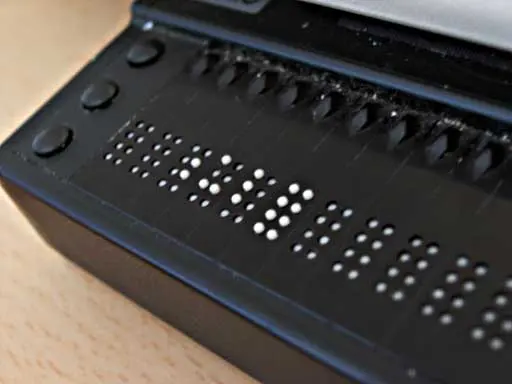
- A screen reader reads aloud whatever is on the screen: each icon, button and line of text. A blind person moves around the screen with gestures or keys and hears where they are. Some also connect a braille display, which raises the dots of braille letters under the fingers.
- A magnifier makes part of the screen much bigger, for people who see dimly. Bigger text and bold text help too.
- Captions show the words of speech and videos as text on the screen, for people who are deaf or hard of hearing (and for anyone in a noisy bus).
- Voice control lets people who can’t use their hands open apps and type by speaking.
These help everyone sometimes: captions in a noisy place, a magnifier for small print, a screen reader to listen to a long article with your eyes resting.
Looking after your devices
A phone or computer can last many years, or be ruined in a minute. Most of the damage comes from four things: the battery, the electricity supply, heat, and dust and water.
The battery
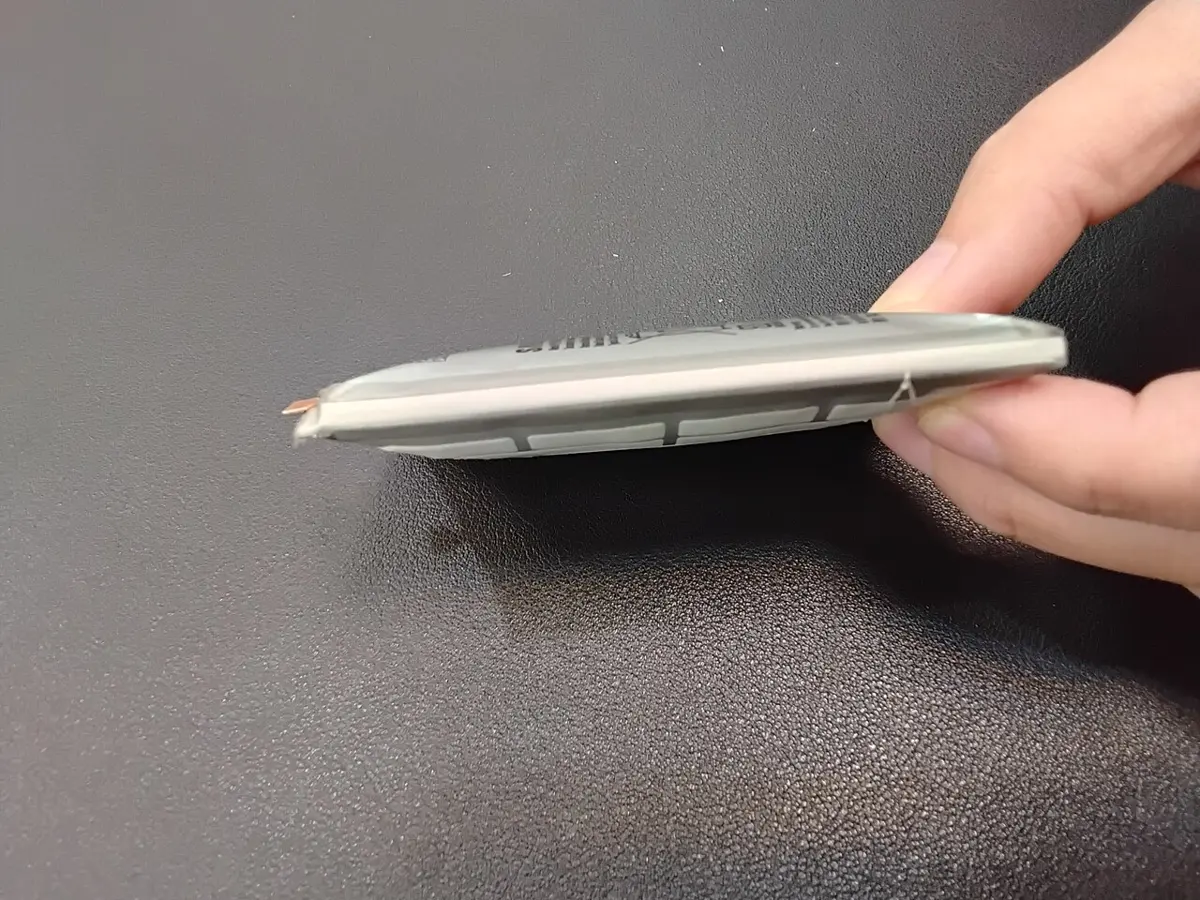
Phones and laptops run on lithium-ion batteries. Every battery wears out slowly: each time it is charged and used it holds a little less, and after a few years it may last only half a day. Heat makes it wear out much faster.
- Keep the phone out of hot places: not in the sun, not on a bus’s dashboard, not under a pillow or a blanket while charging.
- Use a good charger, the one that came with the device or a proper one of the same kind. A cheap copy may overheat or damage the battery.
- It is fine to charge whenever it suits you: a short charge doesn’t harm a lithium-ion battery.
- To make one charge last longer in a day, turn the screen’s brightness down, and turn on the battery saver when the battery is low.
- If the back of a phone or a laptop starts to bulge, the battery is swelling. Stop using and charging it, and take it to a repair shop. A swollen battery can catch fire.
Electricity in Nepal
In Nepal, the electricity from the wall is about 230 volts. But the supply isn’t always steady:
- The power can go off suddenly. Anything not yet saved on a desktop computer is lost, and a file being saved at that moment can be damaged.
- The voltage can swing: it often drops in the evening, when everyone switches on lights and cookers, and rises again late at night. A big swing can harm a device.
- It can surge: jump very high for a split second, when the power comes back or when lightning strikes nearby.
Three things protect against these:
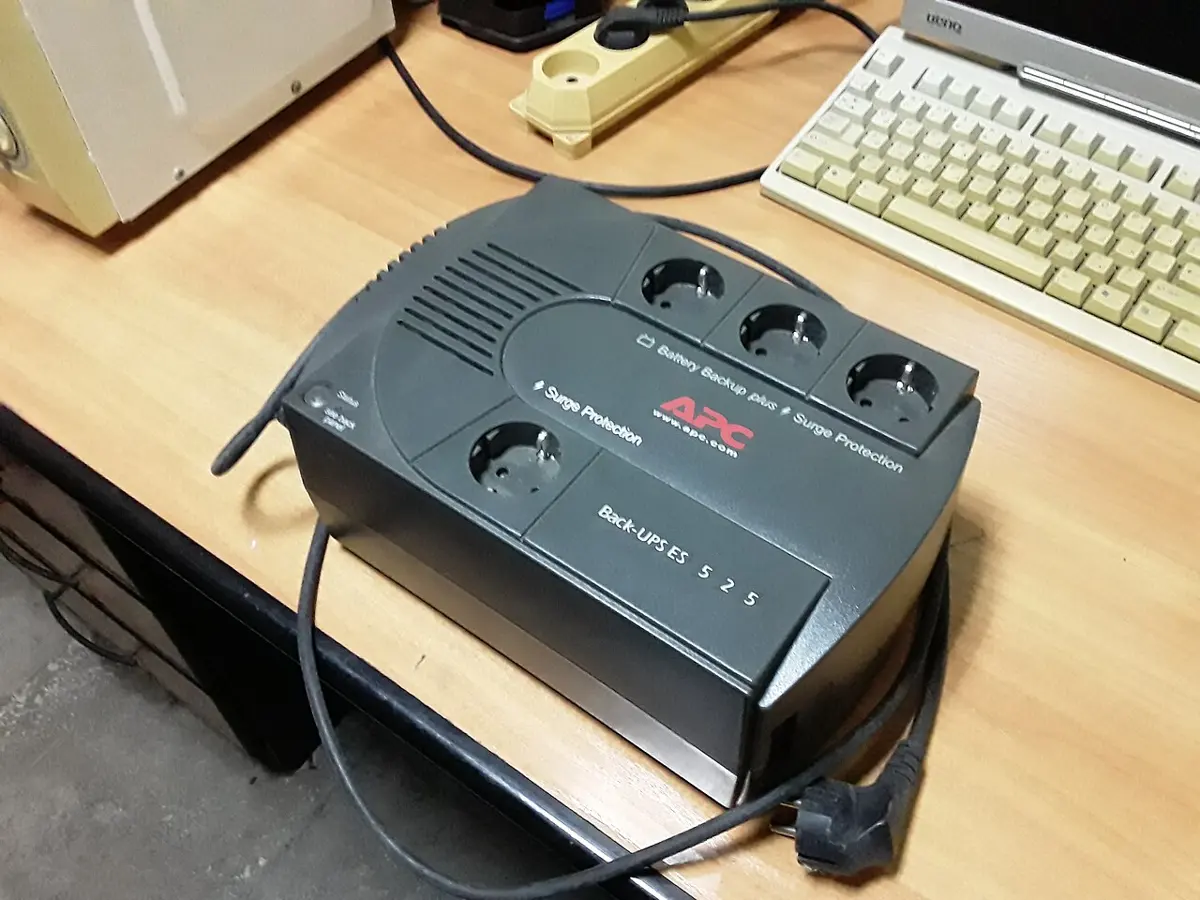
- A UPS (uninterruptible power supply) is a box with a battery inside, between the wall and a computer. When the power goes, it keeps the computer running for a few minutes, long enough to save your work and shut down properly. Many also smooth out small swings and surges.
- A voltage stabilizer keeps the voltage steady when the supply swings up and down. Many homes in Nepal use one for a fridge or a TV.
- A spike guard (a power strip with surge protection) soaks up short surges before they reach the devices plugged into it.
And in a thunderstorm, unplug the computer, the TV and the Wi-Fi router from the wall. A device that isn’t connected can’t be reached by a surge.
Save often (Ctrl + S), so that a power cut costs you a few minutes of work, not a whole evening. And shut a computer down from its menu, not by switching off at the wall.
Heat, dust and water
- Heat: computers cool themselves by pulling air through small vents. Keep them clear: use a laptop on a table, not on a bed or a blanket.
- Dust: in a dusty place, cover the computer when it isn’t in use. Clean the screen and keys with a soft, dry cloth, with the device switched off; never spray water on it.
- Water: keep drinks away from keyboards and phones.
Project
In short
Exercise
Which of these is an operating system?
Pick an answer to see why.
What does the extension .mp3 at the end of a file’s name tell you?
Pick an answer to see why.
On which keys do your fingers rest when you touch type?
Pick an answer to see why.
Which shortcut saves your work?
Pick an answer to see why.
Why does Nepali typed in Unicode look right on every phone, while Preeti doesn’t?
Pick an answer to see why.
The power in your school goes off often. What protects the lab’s computers so that students can save their work?
Pick an answer to see why.
What is an operating system? Write four of its jobs.
Answer
What is the difference between system software and application software? Give two examples of each.
Answer
Look at Figure 2.2. Write the paths of leaf-project.docx and mero-gaun.docx. In which folder do the two paths first go different ways?
Answer
Draw a folder tree for these files of a Grade 6 student: a science project, a Nepali essay, a math worksheet, and two photos from a school trip to Nagarkot. Name each folder and file well.
Answer
What is the difference between copying a file and moving it? When would you copy rather than move?
Answer
Why should you give files good names? Rename these badly named files: IMG_0034.jpg (a photo of your class on Teachers’ Day), Document1.docx (your English essay on Dashain), final final 2.docx (the newest version of your science report).
Answer
Sita types her Nepali poem with the Preeti font and sends it to her cousin in Pokhara. Her cousin sees only English letters and signs. Explain why, and what Sita should do.
Answer
Name three accessibility features. For each, say who it helps most and how.
Answer
Voice typing is quick. Give two of its problems, and say how to deal with each.
Answer
The electricity in a village goes off often, and the voltage drops every evening. Rina’s family is buying a computer. Give her three pieces of advice to keep it safe, and the reason for each.
Answer
Write four ways to make a phone’s battery last longer, both each day and over the years.
Answer
Quiz yourself: Using computers well, Grades 6–12 →
Practice every question in the book, and keep track of the ones you miss →