
You type “Khana khayau?” in Bhaktapur and press Send. Less than a second later, your cousin’s phone buzzes in Pokhara, about 150 km away. Between the two phones, your message was cut into pieces, turned into flashes of light in a glass thread, into radio waves from a tower, passed from box to box by machines that read its address, and put back together in the right order. Nobody planned its route; it found its own way.
All of that is a computer network at work. A computer network is a group of two or more computers and other devices connected to share data, resources and messages. The connections can be wires (such as Ethernet cables) or no wires at all (such as Wi-Fi and Bluetooth). Networks let us send email, make video calls, share files, study online, work from home, and let smart devices, from a home assistant to a sensor in a field, do their jobs.
Mobile networks have made this possible in your pocket. 4G LTE (Long Term Evolution) gave phones enough speed for video calls, online classes and downloads. 5G is faster still, with almost no delay, and it can connect many more devices at once without slowing down, even in a crowded place. In this unit you will meet the signals, cables, radio waves, boxes, shapes, sizes, rules and addresses that make all of it work.
1.1 Concept of telecommunication
Telecommunication means sending and receiving information over long distances with the help of electronic devices: telephones, mobile phones, radios, televisions and computers. A phone call, a text message and a TV program are all telecommunication.
To make this possible, devices are connected together; the connection is a network. A network can use wires (telephone lines, cables) or work without them (Wi-Fi, mobile networks). Through it, messages, sounds, pictures and videos travel from one place to another quickly.
Broadband
Broadband is a high-speed internet connection that can carry a large amount of data quickly. It is much faster than the dial-up connections of the 1990s, which used an ordinary telephone call and managed at most 56 kilobits per second, and kept the phone line busy while you were online. With broadband you can watch videos, join online classes, play games and download files without long waits, and the connection is on all the time.
The kinds of broadband connection:
- i.DSL (Digital Subscriber Line): data over ordinary copper telephone lines, alongside phone calls.
- ii.Cable: data over the coaxial cables that bring cable TV.
- iii.Fiber optic: data as flashes of light in thin glass fibers, the fastest of all.
- iv.Satellite: data by radio to and from a satellite in space, for places no cable reaches.
- v.Wireless: mobile networks such as 4G and 5G, or a fixed wireless link from a tower.
Broadband is used in homes, schools, offices and public places.
Which kind of broadband reaches a home as flashes of light?
Pick an answer to see why.
Throughput
Throughput is the amount of data that is actually sent or received successfully over a network in a given time. It tells how fast data is really moving between two devices. Higher throughput means quicker downloads, video that doesn’t stop to buffer, and smoother online classes.
Bandwidth
Bandwidth is the maximum amount of data a network connection can carry in a given time. Think of a road: bandwidth is how wide it is, how many vehicles it could carry each minute. Throughput is how many really get through, which can be fewer when the road is crowded or blocked.
Both are measured in bits per second:
| Unit | Means | Bits per second |
|---|---|---|
| bps | bits per second | 1 |
| kbps | kilobits per second | 1,000 |
| Mbps | megabits per second | 1,000,000 |
| Gbps | gigabits per second | 1,000,000,000 |
Throughput can never be more than the bandwidth, and it is usually less: other devices share the line, a little of every packet is its address and not your data, a weak Wi-Fi signal loses packets that must be sent again, and the website at the far end may itself be slow.
3G, 4G and 5G
Mobile networks are named by generation (the G): each one a big step on the one before. The first generation (1G, the 1980s) carried only voice, as analog radio; 2G made calls digital and added SMS text messages.
3G, the third generation, made the internet usable on phones. It allowed:
- i.faster web browsing;
- ii.sending and receiving pictures and videos (multimedia messages);
- iii.video calls;
- iv.mobile broadband: online games and apps.
4G, the fourth generation (4G LTE), is much faster and more reliable than 3G. It offers:
- i.fast download and upload;
- ii.low latency: little delay during online activities;
- iii.high-quality (HD) video streaming;
- iv.a better experience in online games;
- v.quick access to websites, apps and cloud services.
5G, the fifth generation, is faster still, with very little delay, and it can serve many more devices at the same time. It helps with:
- i.very fast internet access;
- ii.apps of augmented reality (AR) and virtual reality (VR);
- iii.self-driving vehicles, which must react in a split second;
- iv.the Internet of Things (IoT): thousands of sensors and smart devices in a smart home or a smart city.
| 3G | 4G (LTE) | 5G | |
|---|---|---|---|
| Typical speed | a few Mbps | tens of Mbps | hundreds of Mbps, up to a few Gbps |
| Delay (latency), roughly | 100 ms | 30–50 ms | 10 ms or less |
| Made possible | mobile internet, video calls | HD video, apps, online classes | AR and VR, self-driving cars, IoT in crowds |
Latency is the delay between sending something and the reply starting: the time a packet takes to go there and back. It matters most for calls, games and machines that must react quickly.
Which is the biggest gain of 5G over 4G for a self-driving car?
Pick an answer to see why.
Data packets
When information is sent over a network, it is broken into small pieces called data packets. They travel across the network, sometimes by different routes, and are put back together in the right order at the destination. Each packet carries a piece of the message and details such as the sender’s and receiver’s addresses and its number in the message, so that it reaches the right place and can be put in order.
Packets help to:
- send information faster: many messages share the same lines, taking turns packet by packet;
- make data transfer more reliable: a lost packet is sent again, not the whole file;
- communicate efficiently over long distances: if one route is broken, the packets go round it.
Frequency
Radio signals, like sound, are waves. The frequency of a wave is the number of waves that pass each second; it is measured in hertz (Hz), one wave each second:
- kHz, kilohertz: 1,000 waves each second;
- MHz, megahertz: 1 million each second;
- GHz, gigahertz: 1 billion each second.
Every wireless technology sends on its own range of frequencies, its band, so that they don’t drown each other out. Frequency matters for Wi-Fi and Bluetooth, for mobile networks such as 4G and 5G, for radio and TV broadcasting, and for devices such as microwave ovens and RFID systems. Roughly: a higher frequency can carry more data each second, but it reaches less far and is stopped more easily by walls, rain and trees; a lower frequency reaches farther and through more.
Examples of frequencies in daily life:
| Technology | Frequency range | What it is used for |
|---|---|---|
| Wi-Fi (2.4 GHz) | 2.4–2.5 GHz | wireless internet at home or school (WLAN) |
| FM radio broadcasting | 88–108 MHz | music and news on FM radio |
| Microwave oven | 2.45 GHz | heating food |
| Bluetooth | 2.4–2.5 GHz | connecting wireless devices such as speakers and earbuds |
| AM radio broadcasting | about 530–1,600 kHz (to 1,710 kHz in the Americas) | long-distance radio, especially at night |
| 5G (millimeter wave) | about 24–71 GHz | very fast mobile data over short distances |
| RFID (UHF) | 860–960 MHz | smart cards, tracking stock in a warehouse |
| Television broadcasting (UHF) | 470–890 MHz | digital TV signals |
FM radio is broadcast at about 100 MHz. How many waves is that each second?
Pick an answer to see why.
Communication mode
Data communication is moving data between computers and other electronic devices. The mode is which way the data can flow.
- Simplex mode: data flows in one direction only. Radio and television broadcasting are simplex: the station sends, and your radio set only receives. A keyboard sending keys to a computer is simplex too. (Books also give newspapers and books as examples of one-way communication.)
- Duplex mode: data flows in both directions. There are two kinds:
- Half duplex: both directions, but one at a time. A walkie-talkie: you press the button to talk, then let go to listen; if both press at once, neither is heard. That is why walkie-talkie users say “over” when they finish.
- Full duplex: both directions at the same time. A mobile or landline phone call: you can both talk and hear at once.
Two friends use walkie-talkies on a trek. What mode is that?
Pick an answer to see why.
1.2 Communication media
Communication media (also called transmission media) are the paths or channels that carry data and information between devices in a network. There are two kinds:
- i.Guided media (also called bounded or wired media): physical wires or cables that guide the signal along them: twisted pair, coaxial and optical fiber cables.
- ii.Unguided media (also called unbounded or wireless media): signals sent through the air or space with no cable: radio waves (Wi-Fi, Bluetooth, mobile networks), microwaves, infrared and satellites.
Guided media
Guided media carry data along a cable. They are often faster, safer and more reliable than wireless: the signal stays inside the cable, so it isn’t weakened by walls or weather and is harder to listen in to.
- a.Twisted pair cable (CAT6). Inside the plastic jacket are four pairs of thin copper wires, each pair twisted round each other. The twists are not for neatness: interference from outside (a motor, a power line) affects both wires of a pair almost equally, and the receiver looks only at the difference between them, so the interference cancels out. CAT6 (Category 6) is the common network cable for connecting computers, routers, switches and other devices. It is faster and more reliable than older cables such as CAT5e. Its key features:
- i.it carries up to 1 Gbps over 100 meters;
- ii.it can reach 10 Gbps over shorter distances (about 55 m);
- iii.its wires are tightly twisted and better insulated, often with a plastic spline keeping the pairs apart;
- iv.it picks up less interference, for a stable connection.
CAT6 cables are used in homes, offices and data centers where a fast, steady connection matters.
b. Coaxial cable. A copper core in the middle, a thick plastic insulator round it, a shield of braided copper (often with foil), and a plastic jacket, all sharing one center (co-axial). The shield keeps interference out. Coaxial cable brings cable TV and, in some places, cable internet; it is thicker and stiffer than twisted pair.
c. Optical fiber cable. A high-speed cable made of thin strands of glass (or plastic) that carries data as pulses of light. The light stays inside the glass core by total internal reflection off the cladding round it, so it travels a long way with very little loss. Compared with twisted pair and coaxial cable, fiber is far faster, reaches much farther, and isn’t affected by electrical interference, so Internet Service Providers (ISPs) use it for fast internet. Fiber cables are joined to equipment with connectors such as ST (Straight Tip), SC (Subscriber Connector), LC (Lucent Connector) and SMA (SubMiniature version A).
Unguided media
Unguided media, also called wireless communication, carry data with no wires or cables, as radio waves (or microwaves or infrared light) through the air. Wireless connects us to the internet, lets us share files, and makes mobile services possible. Because everyone shares the same air, a country decides who may use which frequencies: in Nepal, the Nepal Telecommunications Authority (NTA) licenses them, for proper use and security; a few bands, such as Wi-Fi’s and Bluetooth’s, anyone may use at low power without a license.
Common kinds of wireless communication:
i. Wi-Fi (Wireless Fidelity). Wi-Fi connects devices to a network, and through it to the internet, without cables. It uses radio signals in the 2.4 GHz and 5 GHz bands (newer Wi-Fi also 6 GHz). An access point, usually inside a home’s Wi-Fi router, joins phones, computers, tablets and other gadgets to the network. For a better, faster connection, Wi-Fi picks the least crowded channel (a narrow slice of its band) and uses tricks such as channel bonding (using two neighboring channels together, for twice the bandwidth) and beamforming (aiming the signal towards the device instead of spreading it equally everywhere). Wi-Fi is used in homes, schools, offices and public places to give many devices internet at once.
ii. Bluetooth. Bluetooth shares data over short distances, usually up to about 10 meters, without cables. It is found in smartphones, tablets, computers, smartwatches and fitness bands, and connects headphones, keyboards and speakers. It uses radio waves in the 2.4 GHz band with Frequency Hopping Spread Spectrum (FHSS): classic Bluetooth jumps between 79 narrow channels, about 1,600 times a second, in an order both devices know, so interference on one channel spoils only a moment of the signal. It uses very little power, so it suits small, battery-run devices.
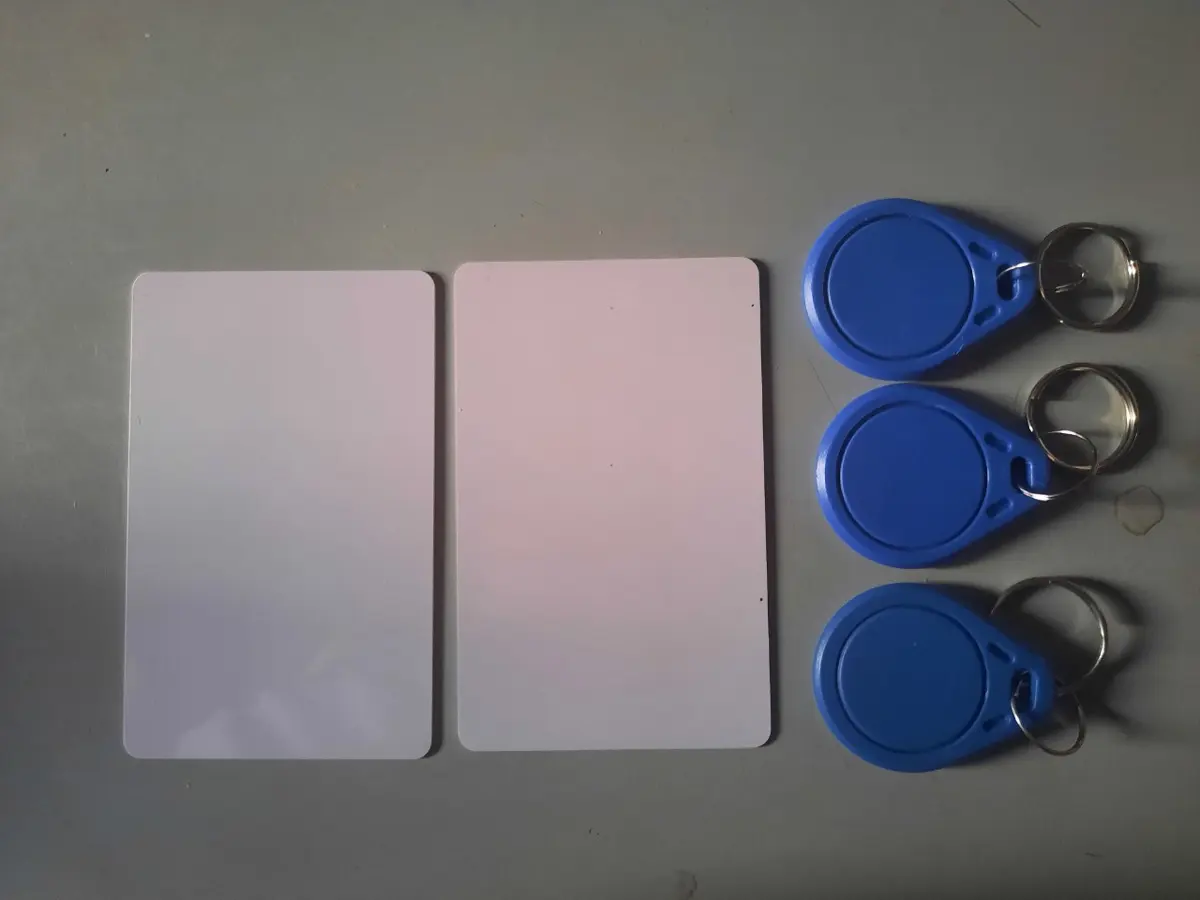
iii. RFID (Radio Frequency Identification). RFID uses radio waves to pass information between tags and readers. A tag is attached to an object; when a reader scans it, the reader receives the data stored in the tag. Passive tags have no battery: the reader’s radio waves power them, so they work only within a few centimeters to a few meters. Active tags have their own battery and reach much farther. RFID identifies and tracks goods, manages stock in warehouses, controls entry to secure areas (ID cards), and makes contactless payment possible, in shops, offices, schools and transport.
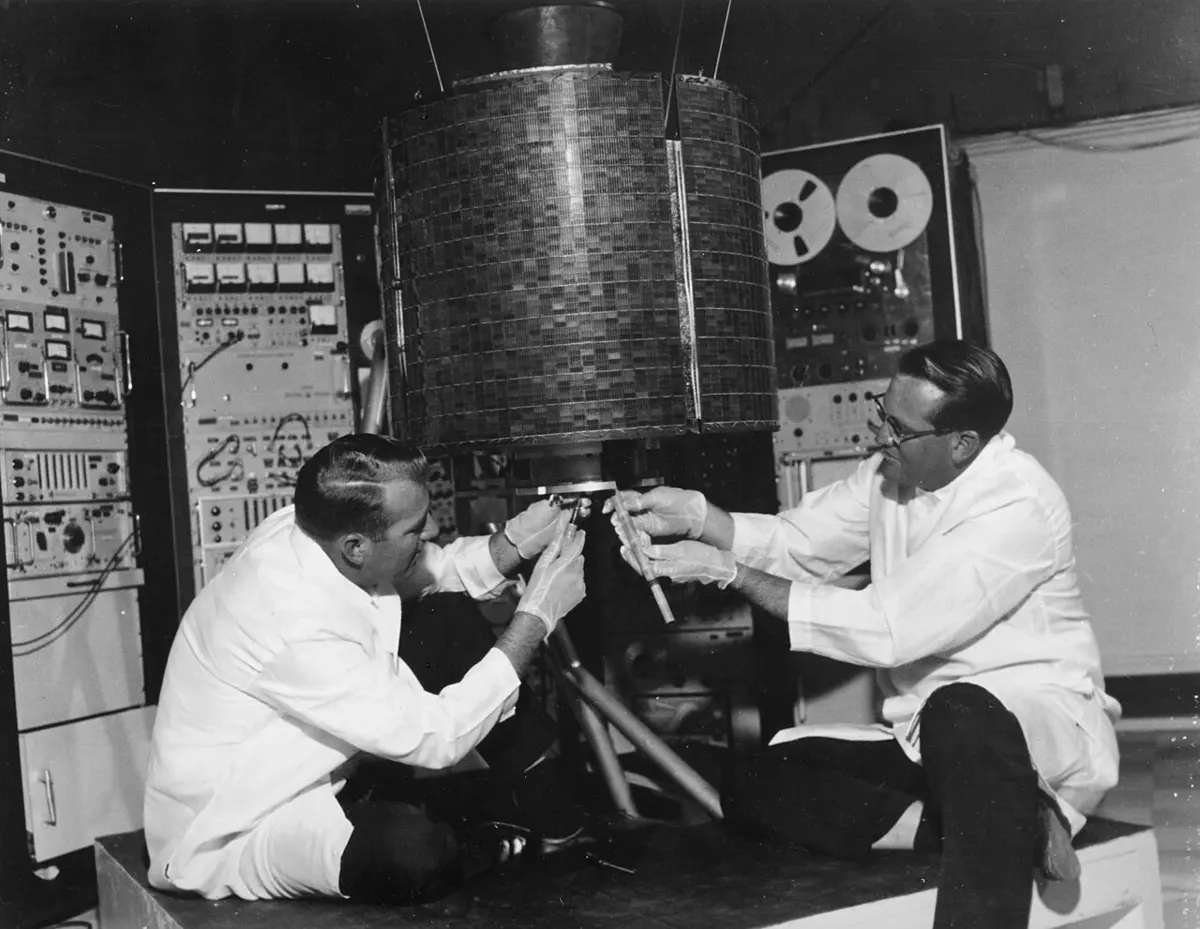
iv. Satellite communication. A communication satellite is a radio relay station in space: it receives signals from one place on Earth and sends them on to another, so text, photos and videos can reach any part of the world. Sending a signal up from an Earth station to the satellite is the uplink; the satellite sending it down to Earth is the downlink. Commercial satellites have carried telephone calls, radio and television since 1965, and today also GPS navigation, weather forecasting, military communication and internet to remote places. Many TV satellites are geostationary: 35,786 km above the equator, they go round once a day, so they stay over the same point and a dish can point at them without moving.
Two more kinds of wireless link: microwave links, in which dishes on towers beam signals to each other in a straight line from hilltop to hilltop (common in Nepal’s hills, where laying cable is hard), and infrared, light our eyes can’t see, which a TV remote uses over a few meters and can’t pass through walls.
Guided and unguided media compared:
| Guided media | Unguided media |
|---|---|
| Data and signals are sent through wires or cables. | Data and signals are sent through the air or space, without wires. |
| Hardly affected by rain or wind. | Can be affected by weather, walls and distance. |
| Mostly used to connect nearby devices, as in a LAN (and for long fiber links). | Used where cables can’t go easily, nearby (Wi-Fi) or far away (satellite, microwave). |
| A fixed path for the data, along the cable. | No fixed path; the signal spreads through the air. |
| Harder to listen in to. | Easier to listen in to, so it needs encryption. |
| Also called wired or bounded media. | Also called wireless or unbounded media. |
| Examples: CAT6 (twisted pair), coaxial cable, optical fiber. | Examples: Wi-Fi, Bluetooth, microwave, satellite, infrared. |
A laptop at home is on the internet with no cable plugged in. What carries its data to the router?
Pick an answer to see why.
Sending a TV program from an Earth station up to a satellite is called:
Pick an answer to see why.
1.3 Connector
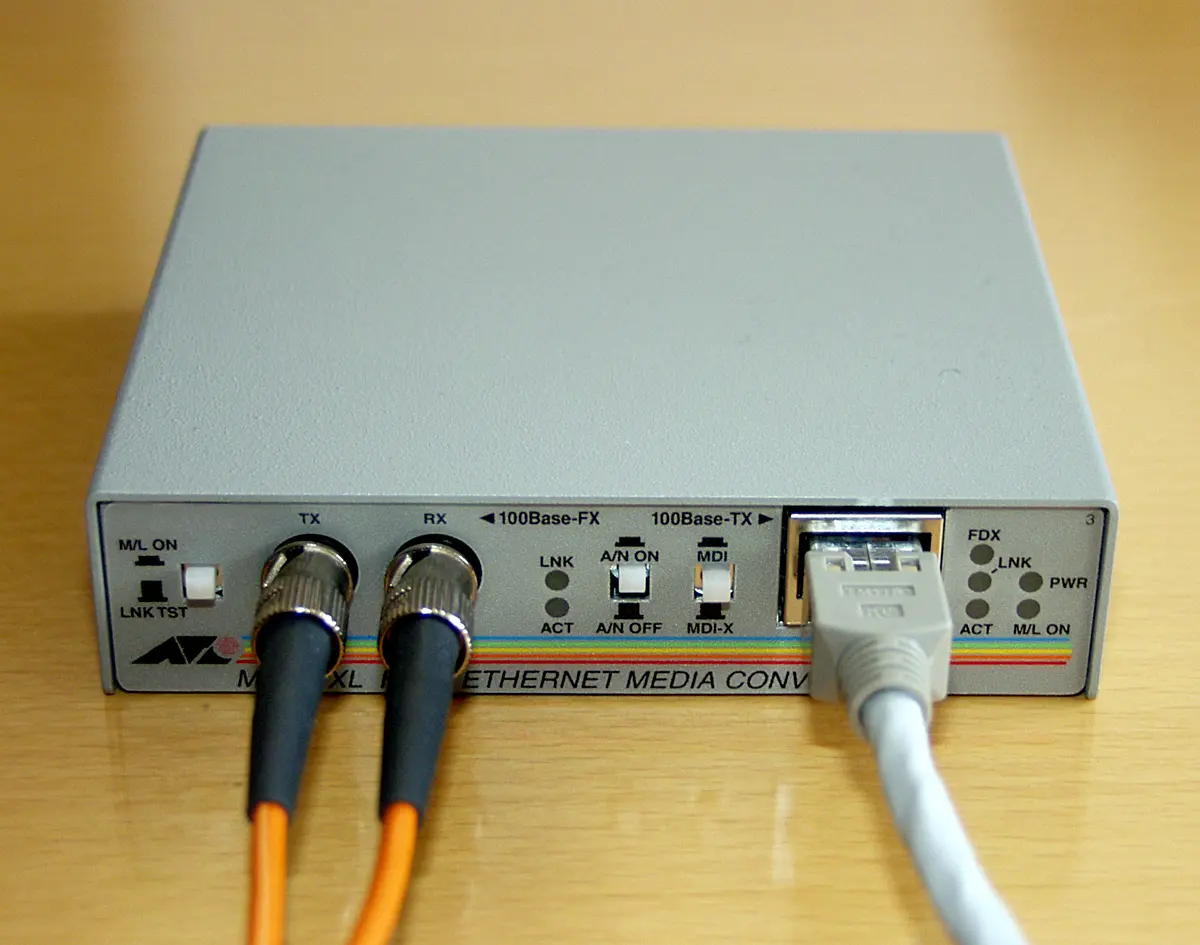
Connectors are the plugs and sockets that join communication media (cables) to network devices such as computers, routers and switches. They pass the data signals between the cable and the device. Two common ones are the RJ-45 connector, used for Ethernet cables, and the fiber connectors; a media converter joins the two kinds of cable.
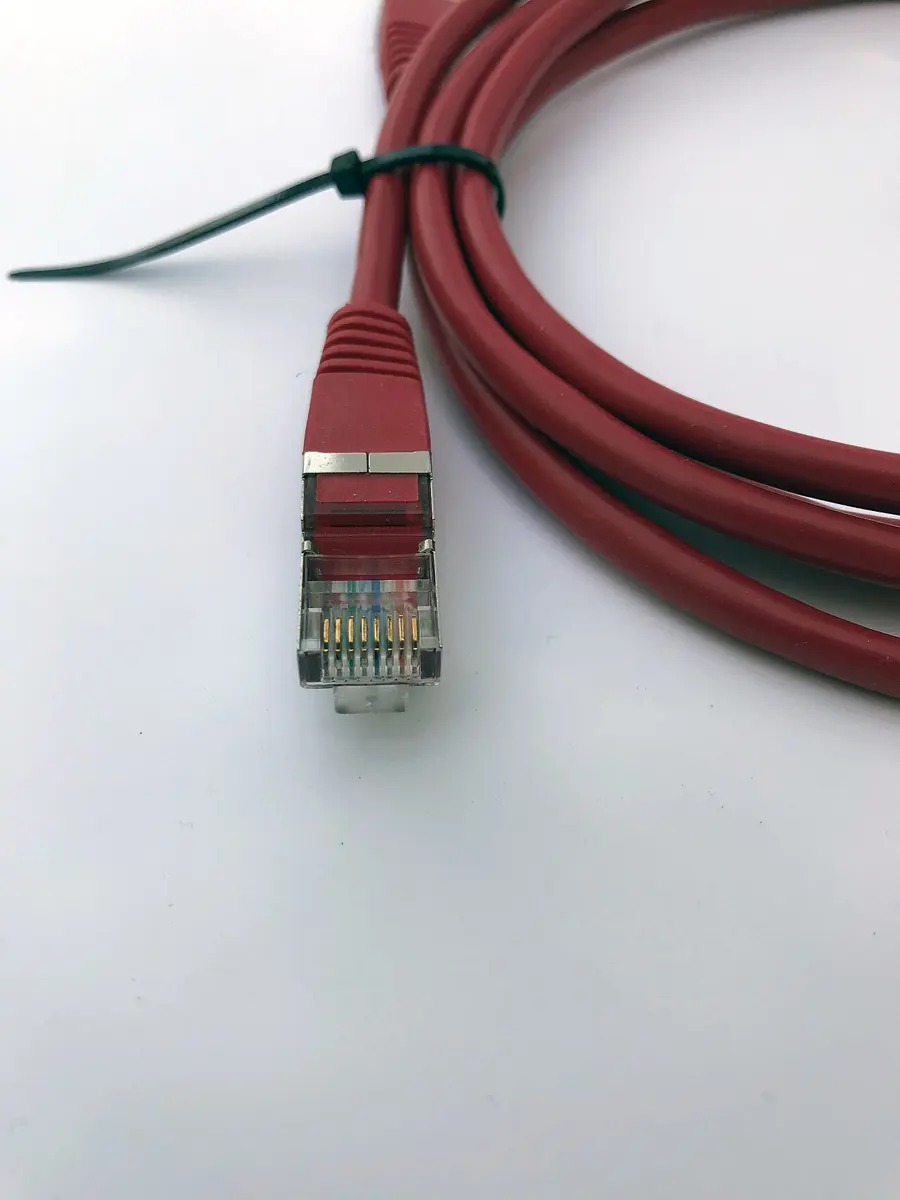
RJ-45 (Registered Jack 45). The standard plug on the end of an Ethernet cable, a little wider than a phone’s plug. It is a clear plastic plug with eight pins, one for each of the eight wires of a twisted pair cable; a springy clip holds it in its socket and lets it out when pressed. The wires go in a fixed color order, set by a wiring standard (T568B is the more common: white-orange, orange, white-green, blue, white-blue, green, white-brown, brown), and the plug is crimped on with a tool that presses the pins into the wires. RJ-45 gives reliable, high-speed data over Ethernet networks.
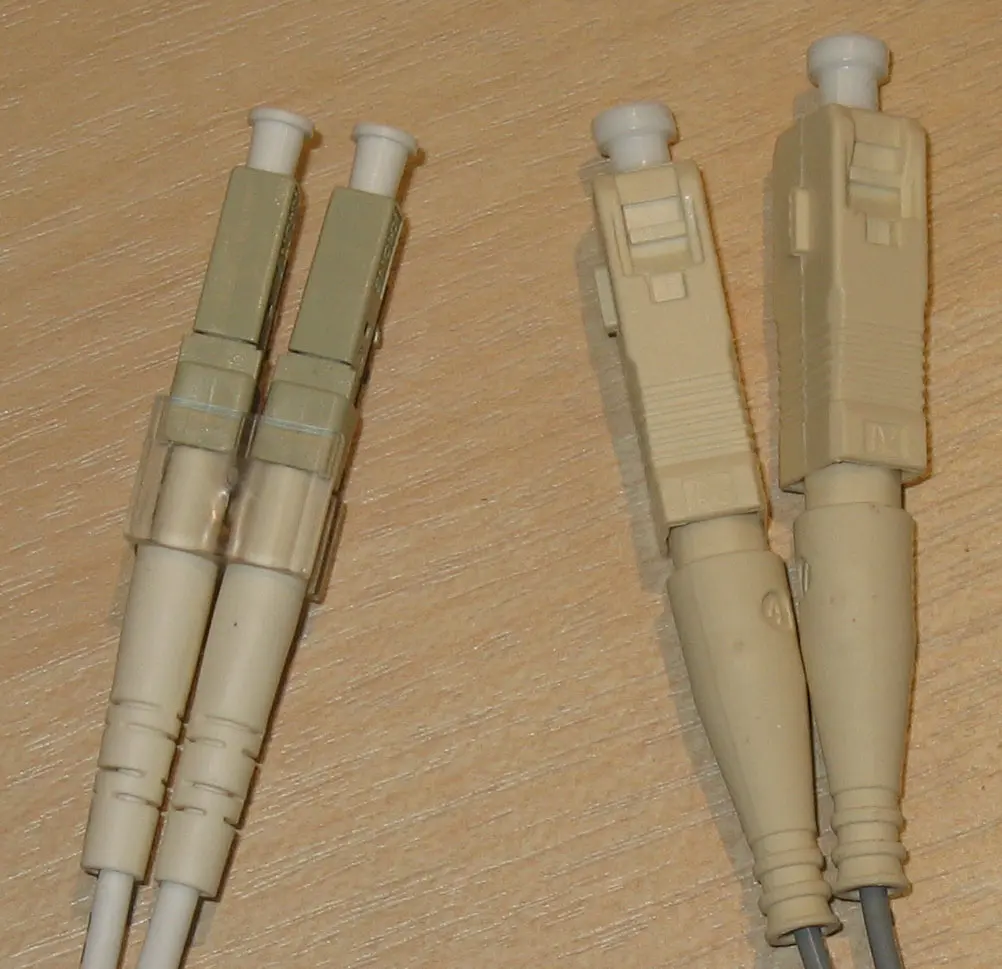
Fiber connectors. They hold the end of a fiber exactly in line with the fiber or the light source it meets, since the glass core is narrower than a hair. Common ones are the SC (a push-in square plug), the LC (a smaller one, half the size, used where many fibers meet) and the ST (round, with a twist lock).
Media converter. A device that joins two different kinds of cable, most often copper (twisted pair) and optical fiber. It changes the electrical signals from the copper cable into light signals for the fiber, and back. Media converters are used in schools, offices and data centers to join different parts of a network. They are useful when:
- i.a copper cable is not long enough (copper Ethernet reaches only 100 m; fiber reaches kilometers);
- ii.fiber is needed for more speed and a better connection, for example between two buildings.
1.4 Networking devices
Computer networks carry the internet, email, chat, e-banking and much more. A network has three kinds of parts:
- hardware: the computers and the devices that join them (network card, modem, hub, switch, bridge, repeater, router, access point);
- software: a Network Operating System (NOS), such as Windows Server or Linux, which manages the network’s users, files and printers, and the application software that uses the network (a browser, an email app);
- media: the cables and radio links that carry the data (1.2).
Every computer joins the network through a NIC (Network Interface Card): the socket for the cable, or the Wi-Fi radio, built into almost every computer and phone today. Each NIC has its own MAC address, a 48-bit number set when it is made, such as 3C:52:82:4F:1A:07.
Repeater. A signal grows weaker as it travels along a cable. A repeater takes in a weak signal, regenerates it (makes it clean and full strength again) and sends it on, so data can travel farther. It doesn’t read the messages; it only boosts the signal. A Wi-Fi repeater (extender) does the same for a Wi-Fi signal in a far corner of a house.
Hub. A box with several ports (sockets) that joins computers in a star shape. It is simple and cheap, but not clever: whatever arrives on one port, it copies out of every other port, to every computer, and only the one it is meant for keeps it. So the computers share the hub’s bandwidth, and only one can send at a time. Hubs have been replaced by switches.
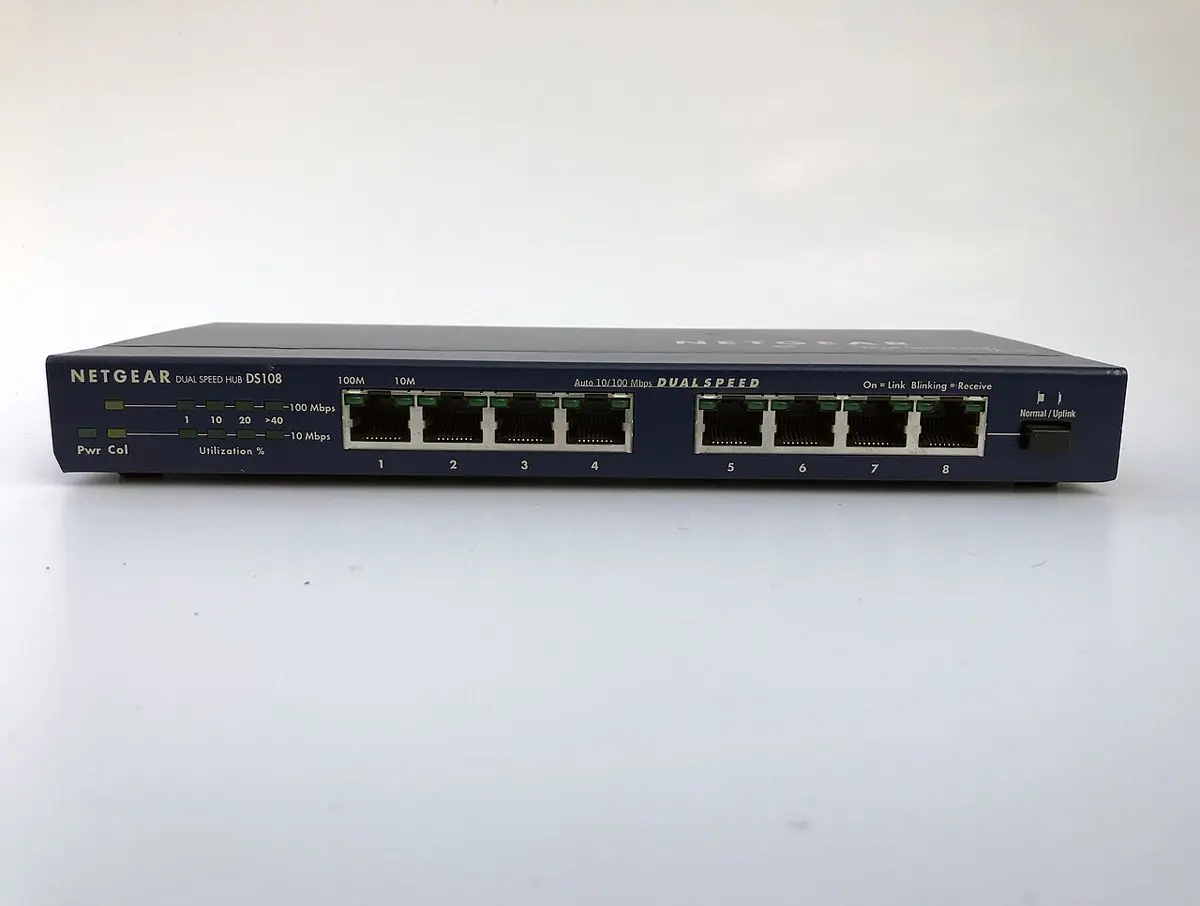
Switch. Also a box of ports that joins computers into one network, but it learns which computer is on which port (by their MAC addresses) and sends each message only to the port it is meant for. So several pairs of computers can talk at once, each at full speed, and computers don’t see each other’s messages. A switch is faster and safer than a hub, and is what every lab and office uses today.
Bridge. A device that joins two networks of the same kind (two LANs using the same protocols) into one, or divides a busy network into two parts. It looks at each message’s address and decides whether to pass it to the other side or keep it on its own side, so each side’s local traffic stays local.
Router. A device that joins different networks together, wired or wireless, such as a home’s network and the internet company’s. It reads the IP address on every packet and decides where to send it next, choosing the best path among many: it is the most “intelligent” of these devices. A home Wi-Fi router is really several devices in one box: a router, a small switch, a Wi-Fi access point, and often a modem.
Modem. Short for modulator–demodulator. It turns a computer’s digital data into signals that can travel along a telephone line or cable (modulation), and turns the signals arriving back into data (demodulation). On a fiber line, the box that turns light into electrical signals for the router does this job (it is called an ONT, an optical network terminal).
Access point. A device that lets Wi-Fi devices (phones, laptops) join a wired network by radio: Wi-Fi on one side, a cable to the switch or router on the other. Schools and offices put several in different rooms.
Twenty computers in a lab are joined by one box. When PC 3 sends a file to the printer, only the printer receives it. What is the box?
Pick an answer to see why.
1.5 Topology
Network topology is the pattern in which the parts of a network are connected: its shape. The physical topology is how the cables and devices are really laid out; the logical topology is the path the data takes round the network, which can be different. The four main topologies are:
- i.bus topology;
- ii.star topology;
- iii.ring topology;
- iv.hybrid topology.
Bus topology
All the computers and devices (the nodes) are joined to one single cable, the bus (or backbone). A message sent by one computer travels along the whole cable, and every computer sees it; only the one it is addressed to keeps it. A terminator is fixed at each end of the cable to soak up the signal, so it doesn’t bounce back and garble the messages. A bus with exactly two ends is called a linear bus.
Features of bus topology:
- i.It is cheap and needs less cable than other topologies.
- ii.It suits small networks and is easy to understand.
- iii.It is easy to extend: a new computer is joined anywhere along the cable.
- iv.Terminators are needed at both ends of the cable.
But: one break anywhere in the bus stops the whole network, the fault is hard to find, and only one computer can send at a time, so it slows down as computers are added.
Star topology
Every node is joined by its own cable to a central device, a switch (or, in old networks, a hub). It is the most common topology today: almost every LAN, at home, in a school lab or an office, is a star. The switch also regenerates the signal, like a repeater. A star can use twisted pair, optical fiber or coaxial cable.
Features of star topology:
- i.It is fast, and there is little unnecessary traffic, since a switch sends each message only where it is going.
- ii.It is easy to set up, to change and to troubleshoot: a faulty cable affects one computer and is easy to find.
- iii.If one node or its cable fails, the rest keep working.
But: it needs more cable than a bus, and if the central switch fails, the whole network stops.
Ring topology
Each computer is joined to the next, and the last one back to the first, making a closed loop. Data travels round the ring in one direction, from computer to computer, one after another: each computer receives the data, keeps it if it is for itself, and otherwise passes it on, boosting the signal as it does (so each acts like a repeater). In the classic token ring, a special message, the token, goes round, and only the computer holding the token may send, so messages never collide. Rings can use any cable; big rings joining buildings or cities usually use fiber.
Features of ring topology:
- i.Every computer has the same responsibility, passing on the data, so no central device or server is needed to control it.
- ii.Data flows smoothly even when the network is busy, since computers take turns (no collisions).
- iii.It is fairly cheap to install.
But: in a simple ring, one broken cable or computer stops the whole ring, and adding or removing a computer interrupts it. (Rings built with a second ring running the other way survive one break.)
Hybrid topology
A hybrid topology combines two or more topologies, such as star, bus, ring and mesh, in one network. It gives flexibility: each part can use the shape that suits it. A company might have a star in each department, with the departments’ switches joined by a bus or ring backbone. A school might have a star in each lab, the labs joined to the office by fiber.
Features of hybrid topology:
- i.New devices and technologies can be added as the network grows.
- ii.Since it combines several networks, a fault in one part rarely brings the whole network down.
- iii.It uses the strengths of each topology where they help most.
But: it is harder to design and manage, and costs more.
In which topology does one broken cable anywhere stop the whole network?
Pick an answer to see why.
1.6 Networks by the area they cover
A computer network is a group of two or more computers and devices connected by wire or wireless media to exchange data and information and to share hardware, software and other resources. Networked computers can share scanners, printers, hard disks, software and an internet connection. The services a network gives include print service, message service (email, chat), application service, file service and database service.
Features of a computer network:
- i.Networked computers can share hardware such as scanners, printers and hard disks.
- ii.Through the internet, they can communicate and share information all over the world.
- iii.The network can be managed from one place (centralized administration).
- iv.Data and software can be backed up for all the computers together.
Networks are named by the area they cover. The four main kinds are:
- i.PAN (Personal Area Network);
- ii.LAN (Local Area Network);
- iii.MAN (Metropolitan Area Network);
- iv.WAN (Wide Area Network).
PAN (Personal Area Network)
A PAN connects devices close to one person, within a few meters. It is for personal use: a phone, tablet, laptop, smartwatch or fitness band, and accessories such as a wireless keyboard, mouse, earbuds or printer. Features:
- i.It works within a small area, usually up to about 10 meters.
- ii.It links a person’s own devices: phones, tablets, laptops, smartwatches, fitness trackers.
- iii.Files, photos, videos and other data can be passed between the devices.
- iv.It is easy to set up, often by pairing devices by Bluetooth.
LAN (Local Area Network)
A LAN is a network in a small area: a room, a building, a school or a college, up to about a kilometer across. It is usually owned by one family, school or company. It is often joined by cable (twisted pair, with switches), and a LAN whose devices join by Wi-Fi is a WLAN (Wireless Local Area Network). A LAN transfers data faster than a MAN or a WAN. The network of a school’s computer lab is a LAN.
Features of a LAN:
- i.It covers a small area, such as a room, a building or a campus.
- ii.Many devices share one transmission medium and its resources.
- iii.Today LANs use the star topology (bus and ring in older ones).
- iv.Its communication is reliable, with fewer errors than a WAN, and fast.
MAN (Metropolitan Area Network)
A MAN covers a city or a valley, larger than a LAN and smaller than a WAN, joined by wire (usually fiber) or wireless links. It transfers data faster than a WAN but slower than a LAN. Organizations with branches in one city or valley, such as a bank with branches round the Kathmandu Valley or a college with campuses across it, use one; a city’s cable TV network and an internet company’s fiber network across a city are MANs too.
Features of a MAN:
- i.It ranges from a few buildings on a campus to a whole city.
- ii.It is usually owned by one organization or a group of them.
- iii.It lets an area share resources (a city’s CCTV, a bank’s data).
- iv.It joins LANs to each other and to a WAN and the internet.
WAN (Wide Area Network)
A WAN covers a large area: a country, a continent or the whole world. Its computers are joined by long-distance links: fiber cables across countries and under oceans, microwave links and satellites, mostly rented from telecom companies. It is the largest kind of network: the internet is the biggest WAN of all, and a country’s mobile network and a bank’s network joining all its branches are WANs too.
Features of a WAN:
- i.It can cover the whole world.
- ii.It is usually owned by many organizations.
- iii.Its links are provided by public carriers: telephone and fiber networks, satellites, mobile networks, cable systems.
- iv.Data must cross long distances and many devices, so it is usually slower than a LAN for one user, and the delay is longer.
| PAN | LAN | MAN | WAN | |
|---|---|---|---|---|
| Area | a few meters, one person | a room, building or campus (up to about 1 km) | a city or valley | a country or the world |
| Owned by | one person | one family, school or company | one or a few organizations | many organizations |
| Speed for one user | fast | fastest | fast | slower, longer delay |
| Example | phone and earbuds | a school’s computer lab | a bank’s branches in the valley | the internet |
1.7 Network architecture
Network architecture is the overall design of how the computers on a network communicate and work with each other: which computers give services, which use them, and the topology and transmission modes between them. There are two kinds:
Client–server network
In a client–server network, one or more powerful computers, the servers, provide services (files, email, websites, printing, databases), and the other computers, the clients, use those services. A server is a specialized computer that controls the network’s resources and serves the other computers; it is the network’s central controller. Servers run a server operating system such as Windows Server, Linux (such as Ubuntu Server) or UNIX. When you open a website, your phone is the client and the website’s computer is the server.
Features of a client–server network:
- i.Backup can be done in one place, on the server.
- ii.Dedicated servers make sharing resources faster.
- iii.Security is better, since all shared resources and users are managed in one place.
But: servers cost money, need a trained administrator, and if the server fails, its services stop for everyone.
Peer-to-peer network
In a peer-to-peer (P2P) network, every computer is equal: there is no server. Each computer (each peer) can share its own files, printer and software with the others, and use theirs: each is both a client and a server. It is also called a workgroup. It suits small places such as a small office, a single room or a home. Ordinary desktop operating systems (Windows, macOS, Linux) have peer-to-peer sharing built in.
Features of a peer-to-peer network:
- i.All resources and contents on the computers can be shared.
- ii.No system administrator is needed; each user controls what their own computer shares.
- iii.One computer’s failure doesn’t stop the others.
But: security is weaker (each computer is set up on its own), backups are scattered, and it becomes hard to manage beyond about ten computers.
A small travel agency has four computers and one printer, and no IT staff. Which architecture suits it best?
Pick an answer to see why.
Network protocols
A protocol is a set of rules that computers follow to communicate on a network: how a message starts and ends, how it is addressed, what happens if part of it is lost. Two computers can understand each other only if they follow the same protocols, much as two people need a shared language. The first protocol of the ARPANET (1970) was NCP, the Network Control Protocol (or Program); on 1 January 1983 the whole ARPANET switched to TCP/IP, the internet’s protocols ever since.
Common protocols:
- i.TCP/IP (Transmission Control Protocol / Internet Protocol): the internet’s own protocols. IP gives every device an address and carries packets towards it; TCP cuts data into packets, numbers them, checks that every one arrives and puts them back in order.
- ii.HTTP (HyperText Transfer Protocol): how a browser asks a web server for pages (HTML documents) and the server sends them, on the World Wide Web.
- iii.HTTPS (HyperText Transfer Protocol Secure): HTTP with the data encrypted, so nobody on the way can read or change it: passwords, payments and personal data are safe from snoopers. The padlock in a browser’s address bar shows it.
- iv.DHCP (Dynamic Host Configuration Protocol): gives a device an IP address automatically when it joins a network, so nobody has to set one by hand.
- v.SMTP (Simple Mail Transfer Protocol): for sending email, from your email app to its server and from server to server.
- vi.FTP (File Transfer Protocol): for transferring files between computers.
- vii.DNS (Domain Name System): turns a name such as moecdc.gov.np into the IP address of its server.
Which protocol does an email app use to send a message?
Pick an answer to see why.
1.8 Concept of IP addressing
The Internet Protocol (IP) gives every device on a network a unique address, its IP address, and carries data between devices by those addresses, so that what one computer sends reaches the right one. Two versions are in use: IPv4 (version 4) and IPv6 (version 6).
IPv4 (Internet Protocol version 4)
IPv4 is the fourth version of the Internet Protocol, and still the most used. An IPv4 address is 32 bits long, which allows 2³² = 4,294,967,296 addresses, about 4.3 billion. It is written in dotted-decimal notation: four numbers from 0 to 255, separated by dots, such as 192.168.1.1. Each number is 8 bits (one byte, an octet), and 8 bits can count from 0 to 255.
With phones, laptops, TVs and sensors all going online, 4.3 billion addresses are far too few: this is IPv4 address exhaustion. Two tricks stretch them:
- Private addresses: three ranges (10.x.x.x, 172.16.x.x to 172.31.x.x, and 192.168.x.x) are kept for use inside homes and offices. Every home can use the same 192.168.1.x numbers, since they never appear on the internet itself.
- NAT (Network Address Translation): the router gives the whole home one public address on the internet and remembers which private address inside asked for what, so the answers go to the right device.
IPv6 (Internet Protocol version 6)
IPv6 was made to solve IPv4’s shortage of addresses. (There was never a version 5 in use: the number was taken by an experiment.) Its addresses are 128 bits long, allowing 2¹²⁸ addresses, about 3.4 × 10³⁸: enough to give every grain of sand on Earth tens of billions of billions of them. An IPv6 address is written in hexadecimal (the digits 0–9 and a–f), as eight groups of four hex digits separated by colons, for example 2001:0db8:85a3:0000:0000:8a2e:0370:7334. Leading zeros in a group may be left off, and one run of all-zero groups may be written as ::, so that address is also 2001:db8:85a3::8a2e:370:7334.
IPv6 also brings stateless address auto-configuration (a device makes its own address from the network’s prefix, without DHCP), security built into its design (IPsec, for encryption and authentication), and better support for multicast (one message to many receivers). IPv6 has spread more slowly than expected, but it is growing as the internet makes room for more devices; the two versions run side by side.
IPv4 and IPv6 compared:
| IPv4 | IPv6 |
|---|---|
| Address is 32 bits long. | Address is 128 bits long. |
| About 4.3 × 10⁹ addresses. | About 3.4 × 10³⁸ addresses. |
| Written in decimal, four numbers with dots: 192.168.1.1 | Written in hexadecimal, eight groups with colons: 2001:db8::1 |
| Addresses set by hand or by DHCP. | Devices can also set their own (auto-configuration) and be renumbered easily. |
| Addresses are shared through NAT, so two devices often can’t connect directly end to end. | Enough addresses for every device, so end-to-end connection is possible again. |
| Encryption and authentication (IPsec) is an optional extra. | IPsec was built into its design. |
| Its header is 20–60 bytes. | Its header is a fixed 40 bytes. |
The default gateway and the subnet mask
An IP address has two parts: the network part, the same for every device on one network, and the device part (host part), different for each. The subnet mask says where the split is: 255.255.255.0 means the first three numbers are the network and the last is the device, so 192.168.1.23 and 192.168.1.40 are on the same network. When a computer sends to an address on its own network, it sends straight there, through the switch. When the address is on another network (any website, for example), it sends the packet to its default gateway: the router that joins its network to the others, usually at an address such as 192.168.1.1.
1.9 Concept of the internet, intranet and extranet
The internet is the worldwide network of computer networks that lets people share information and communicate across any distance. It works with the TCP/IP protocols, which move data between computers over wired and wireless links. It gives us many services: the web, email, social media, online shopping, video streaming and gaming. It has changed how we communicate, work and learn.
An intranet is a private network inside an organization, used by its own staff to communicate, share information and work together. Unlike the internet, open to everyone, an intranet can be used only by authorized people of that organization. It uses the same technologies as the internet (TCP/IP, HTTP, HTML), for email, file sharing, internal websites and tools to work together. Its aim is better communication inside the organization, more work done, and easy access to the organization’s resources. A bank’s staff portal, where employees see notices, forms and the bank’s own systems, is an intranet.
An extranet is a private network that lets an organization share some of its information with selected people outside it: customers, suppliers, partners. It works like an intranet, but gives controlled access to outsiders as well as staff. Access is limited to authorized users, to keep the information safe. A medicine company’s portal where pharmacies log in to see their orders and bills is an extranet.
| Internet | Intranet | Extranet | |
|---|---|---|---|
| What it is | Joins millions of private, public, academic, business and government networks worldwide. | A private network for one organization’s staff only. | A controlled private network that also lets in selected outsiders (partners, clients). |
| Who can use it | Anyone. | Only the organization’s employees. | Employees, and outsiders who are given access. |
| Main purpose | Share information and connect people worldwide. | Share information and resources inside the organization. | Share particular information between an organization and its partners. |
| Security | Least secure; needs precautions such as firewalls. | Most secure: only insiders. | Secure, but must balance security with access for outsiders. |
| Examples | Websites, social media, online services such as Google and Facebook. | Company portals, internal communication systems. | Supplier portals, client login systems for particular resources. |
A school’s website, open to all, shows its notices. Teachers log in to a separate system for marks and leave, used only by the school’s staff. What is that staff-only system?
Pick an answer to see why.
Exercise
1. Write the full forms of the following abbreviations
a. DSL b. bps c. LAN d. TCP/IP e. IPv6 f. ISP g. RFID h. CAT6 i. NCP j. DNS
Answer
2. Choose the correct answer
i. Which of the following is a broadband internet connection?
Pick an answer to see why.
ii. What is throughput?
Pick an answer to see why.
iii. What is a data packet?
Pick an answer to see why.
iv. Which of the following is a bounded (guided) medium?
Pick an answer to see why.
v. Which term means sending data from the Earth to a satellite?
Pick an answer to see why.
vi. What is the RJ-45 connector mainly used for?
Pick an answer to see why.
vii. What is the pattern in which the computers of a network are connected called?
Pick an answer to see why.
viii. Which topology uses a hub (or switch) to connect all devices?
Pick an answer to see why.
ix. What type of network connects LANs over large areas?
Pick an answer to see why.
x. Which of the following are internet services?
Pick an answer to see why.
xi. Which protocol is used to transfer files between computers?
Pick an answer to see why.
xii. What is the length of an IPv4 address?
Pick an answer to see why.
xiii. What does an IP address identify?
Pick an answer to see why.
xiv. Which protocol is used for sending email?
Pick an answer to see why.
xv. Which device strengthens weak network signals for long distances?
Pick an answer to see why.
3. Write short answers to these questions
What is broadband? How is it different from a dial-up connection?
Answer
Define bandwidth. How is it measured?
Answer
What is a data packet in networking?
Answer
What is frequency in telecommunication?
Answer
What is the function of a repeater?
Answer
What is a computer network? How is it useful?
Answer
Why is wireless communication becoming more popular today?
Answer
Describe the RJ-45 connector. Where is it commonly used?
Answer
What is a media converter? Mention its main function.
Answer
What is the difference between bandwidth and throughput?
Answer
How does Wi-Fi transmit data without cables?
Answer
How does data travel from one computer to another in a network?
Answer
How does data flow in a ring topology?
Answer
Mention one real-life use of satellite communication.
Answer
List two types of communication media and give one example of each.
Answer
4. Write long answers to these questions
What is communication media? Explain its types.
Answer
Differentiate between LAN and MAN.
Answer
Explain the differences between client–server and peer-to-peer network architectures.
Answer
Suppose your school wants to set up a network in three separate buildings. What type of network should be used? Justify your answer by explaining how it would support communication, file sharing and internet access.
Answer
Create a network model for your home that includes three PCs, one printer and one mobile device connected to the internet. Describe the devices, connection types (wired or wireless) and technologies (router, switch or Wi-Fi) you would use.
Answer
Which network type would be more suitable for a small office: client–server or peer-to-peer? Justify your answer by comparing features like cost, security, scalability and management.
Answer
Design a simple layout for a school computer lab network using at least one switch, 10 computers and internet access. Explain your design choices and how the devices would communicate with each other.
Answer
Layout (star topology): a 16-port switch in the middle of the lab; each of the 10 computers joined to it by its own CAT6 cable with RJ-45 plugs; a shared printer on the switch; the switch joined to a router, which is joined to the ISP’s fiber box (ONT); an access point on the switch for the teacher’s laptop.
lab-network.txt
Internet (ISP fiber) | fiber box (ONT) | router (DHCP, NAT, firewall) | 16-port switch ---- printer / | | ... \ \ PC1 PC2 PC3 ... PC10 access point ))) teacher's laptopWhy:
- Star with a switch: one faulty cable or computer affects only itself; easy to find faults; the switch sends each message only where it is going, so all computers get full speed.
- CAT6 cable: 1 Gbps, cheap, reliable within a room (under 100 m).
- Spare switch ports for more computers later.
How they communicate: the router gives every computer an IP address by DHCP (192.168.1.x). A computer printing sends packets to the printer’s address; the switch delivers them only to the printer’s port. A computer opening a website sends its packets to its default gateway, the router, which forwards them to the internet through NAT and sends the replies back to the right computer.
Case studies for classroom discussion
Choosing the right topology. A school is preparing to modernize its computer lab. The network must be stable and easy to maintain. The lab has 36 computers, all of which should be connected to the internet and able to share files instantly. Recommend a suitable network topology and justify your answer. (Think about: star topology, switch, Ethernet cables, LAN.)
Answer
A Wi-Fi problem. A student complains that his home Wi-Fi works well on the ground floor but is very slow on the first floor. Identify possible reasons and suggest solutions. (Think about: Wi-Fi, bandwidth, signal interference, repeater, router placement.)
Answer
Upgrading an office network. An office in Birgunj wants to move from 3G to 5G for faster communication and better use of cloud services. It is using old networking devices. Suggest upgrades and explain the benefits of moving to 5G. (Think about: 3G, 4G and 5G, throughput, latency, IoT, mobile broadband.)
Answer
Practice every question in the book, and keep track of the ones you miss →
A companion to your textbook, not a replacement for it: study from the book your school uses, and where the two differ, follow your teacher. Found a mistake? Please tell us.