
Think of the last time you used a website that did something. You typed a mobile number and it said “Please enter 10 digits” before you had pressed anything. You tapped an answer in a quiz and it turned green. You changed the number of tickets and the total changed with it. A page that only shows words and pictures is a web page. A page that answers what you do is a web app.
In Grade 8 you wrote web pages in HTML and CSS: what is on the page, and how it looks. In this unit you will add the third language of the web, JavaScript, which says what the page does. You know Python from Units 3 and 4, so you already know most of the ideas: variables, if, loops, functions, lists and dictionaries. You will learn how to write them in JavaScript, how a program changes the page, and how it waits for the user to tap or type. Then you will do what real app makers do: design an app for a particular person, test whether it does what it should, and improve it after watching people use it. By the end you will have built a small app of your own (a converter, a quiz or a bill splitter) for someone real.
Three languages, three jobs
A web page is built from three languages, each with its own job:
- HTML says what is on the page: this is a heading, this is a button, this is a box to type in. (Grade 8)
- CSS says how it looks: colors, fonts, sizes, spacing. (Grade 8)
- JavaScript says what it does: what happens when you tap the button, what the page shows after you type.
JavaScript is a programming language, like Python. Every web browser, on every phone and computer, has a JavaScript engine built in, so a web app needs nothing installed: the browser downloads the page’s JavaScript with its HTML and runs it on your own device.
A page brings in its JavaScript with a <script> element, usually just before </body>:
<script src="script.js"></script>That line runs the file script.js, kept beside index.html, just as <link rel="stylesheet" href="style.css"> brings in the style sheet. It goes at the end of the body so that, when the script runs, the elements it works with are already on the page.
Here is a whole app: one button, one paragraph, and five lines of JavaScript.
Read the program line by line. The first two lines find two elements on the page by their id (#greet means “the element with id="greet"”) and keep them in variables. The last part says: when the button is clicked, run this function, which changes the paragraph’s words. You have met this idea before, in Grade 6’s blocks: when ▶ Run is pressed, when the up arrow key is pressed. A web app is mostly made of such “when this happens, do that” parts.

A page has a button with id="pay". Which language decides what happens when someone taps it?
Pick an answer to see why.
Why is <script src="script.js"></script> usually put just before </body>?
Pick an answer to see why.
JavaScript, if you know Python
JavaScript and Python were designed for different jobs, but most of a program looks alike in both. Here is a short program in JavaScript; it writes only in the console.
The same ideas, written two ways:
| Python | JavaScript |
|---|---|
price = 120 |
let price = 120; or, if it never changes, const price = 120; |
print("Total:", total) |
console.log('Total:', total); |
# a comment |
// a comment |
if total >= 300: … elif x: … else: |
if (total >= 300) { … } else if (x) { … } else { … } |
and, or, not |
&&, ` |
==, != |
===, !== |
True, False, None |
true, false, null |
for i in range(1, 4): |
for (let i = 1; i < 4; i++) { … } |
while n > 0: |
while (n > 0) { … } |
def with_service(amount): … return … |
function withService(amount) { return …; } |
int("5"), float("2.5") |
Number('5'), Number('2.5') |
str(5) |
String(5) |
Four differences matter most:
- Braces, not indents. In Python the indent shows which lines are inside an
ifor a loop. In JavaScript, the braces{ }do; the indent is only for people reading it, as in HTML. Indent anyway, or you will soon lose track of which brace closes what. - Brackets round conditions.
if (total >= 300),while (n > 0): the condition always goes in round brackets. - Variables are declared. The first time you use a variable, say so with
let(it can change later) orconst(it never changes). Useconstunless you know the value will change: then a mistaken change is caught as an error. - Semicolons end each statement. JavaScript can often guess where they go, but put them in: a missing one can join two lines in a way you didn’t mean.
In the program above, the for loop with three parts reads: start with let i = 1; keep going while i <= plates; after each time round, do i++ (add 1 to i). It is Python’s for i in range(1, plates + 1), written out.
What does this print in the console?
let n = 4;if (n % 2 === 0) { console.log('even');} else { console.log('odd');}Pick an answer to see why.
Arrays and objects
Python’s list is JavaScript’s array, and Python’s dictionary is JavaScript’s object:
| Python | JavaScript |
|---|---|
orders = ["momo", "chiya"] |
const orders = ['momo', 'chiya']; |
len(orders) |
orders.length |
orders.append("sel roti") |
orders.push('sel roti'); |
orders[0] |
orders[0] (positions start at 0 here too) |
for item in orders: |
for (const item of orders) { … } |
prices = {"momo": 120, "chiya": 25} |
const prices = { momo: 120, chiya: 25 }; |
prices["momo"] |
prices['momo'], or prices.momo |
An object’s keys need no quotes when they are single words; 'sel roti', with a space, does. The dot is a short way of writing a key that is a single word: prices.momo is prices['momo'].
Changing the page
When the browser reads a page’s HTML, it doesn’t keep it as text. It builds a tree of objects, one for each element, nested as the elements are: the html object holds a head and a body, the body holds a heading, a button and a paragraph. This tree is called the DOM, the Document Object Model. The page you see is drawn from the DOM, and a script can change the DOM: change an object, and the browser redraws that part of the page at once.
id="message"), and the page shows the change at once. The script reaches the DOM through the variable document. The commands you will use most:
| JavaScript | What it does |
|---|---|
document.querySelector('#bill') |
finds the element with id="bill" (a CSS selector: 'h1' finds the first h1, '.note' the first element with class note) |
el.textContent = 'Paid' |
changes the words inside the element |
el.textContent |
reads the words inside it |
box.value |
reads what is typed in a box (an <input>) |
el.classList.add('done') |
gives it a class, so a CSS rule for .done styles it (remove takes it away) |
document.createElement('li') |
makes a new element, not yet on the page |
list.append(el) |
puts an element inside another, at its end |
querySelector uses the same selectors as CSS, so what you learned in Grade 8 finds elements here too. It finds the first matching element; if there is none, it gives null, and the next line that uses it stops with an error such as TypeError: Cannot read properties of null. When you see that, check the id’s spelling in both files.
Notice how the program is built. The data, the number of cups, is kept in a variable, cups. One function, show(), makes the page match the data. Each button changes the data and then calls show(). Keeping the data in variables and having one function draw the page from it is how most apps, large and small, are organized: the page never gets out of step with the data.
document.querySelector('#total') gives null. What is the most likely reason?
Pick an answer to see why.
Which line changes the words of the paragraph kept in the variable msg?
Pick an answer to see why.
Events: programs that wait
A Python program from Unit 3 starts at the top, runs to the bottom and ends. A web app doesn’t end. Its script runs once, when the page loads, and gets things ready: it finds the elements and says which function to run when something happens. Then it waits. Something that happens, a tap, a key, a change in a box, is an event, as in Grade 6. When an event happens, the browser runs the function waiting for it, called a listener or event handler, and then the page goes back to waiting.
addEventListener connects a listener to an event on an element:
button.addEventListener('click', function () { // what to do when it is clicked});The first value is the event’s name; the second is the function to run. The function has no name of its own here: it is written right where it is needed. You can also give a named function, without brackets after it, because you are handing over the function, not running it now: button.addEventListener('click', split);.
The events you will use most:
| Event | Happens when |
|---|---|
click |
an element is clicked or tapped, or a button is pressed with Enter or Space |
input |
what is in a box changes, with each letter typed |
change |
a box loses the cursor after a change, or a choice in a list is made |
keydown |
a key is pressed (on a keyboard) |
submit |
a form is sent: its submit button is pressed, or Enter in one of its boxes |
A listener can take a value, usually called event, which says what happened: event.key is the key pressed, and event.target the element the event happened on.
A program has button.addEventListener('click', save);. When does save run?
Pick an answer to see why.
A box should show the price as the user types the number of plates. Which event fits best?
Pick an answer to see why.
Reading what people type
A box to type in is <input>, and its <label> says what to type in it:
<label for="inr">Indian rupees</label><input id="inr" type="number" inputmode="decimal">The label’s for is the box’s id: that ties them together, so a screen reader says “Indian rupees, edit text” and tapping the label puts the cursor in the box. type="number" and inputmode="decimal" make a phone show its number keyboard.
The most important fact about a box: what is typed in it is always text, a string, even when it looks like a number. box.value for 100 is '100', not 100. To calculate with it, turn it into a number with Number():
const inr = Number(box.value);Number() has its own surprises. It gives NaN (“not a number”) for text that isn’t a number, such as Number('abc'); and for an empty box, Number(''), it gives 0, not NaN. A user who presses the button before typing anything gets an answer worked out from 0, which looks believable and is wrong. So a careful app checks the box itself: if (box.value.trim() === '') (trim() takes off the spaces at each end, like Python’s strip()).
A small game
Most apps hold a list of things (questions, products, bus stops) and show them on the page. In JavaScript that is usually an array of objects, just like Unit 3’s list of dictionaries:
const questions = [ { ask: 'Which is the longest river in Nepal?', choices: ['Bagmati', 'Karnali', 'Koshi'], answer: 'Karnali' }, { ask: 'In which district is Nyatapola?', choices: ['Lalitpur', 'Kathmandu', 'Bhaktapur'], answer: 'Bhaktapur' },];questions[0].ask is the first question; questions[0].choices is its array of choices. A loop over the choices makes a button for each, with document.createElement('button'), gives it its words and a listener, and puts it on the page with append.
The listener for each button is made inside the loop, so each one remembers its own choice. When a button is pressed, check(choice) compares it with the answer, changes the score and the message, and moves on to the next question. The program never says “wait for the user”: it just sets up the buttons, and the browser does the waiting.
Designing for people
You can now make a page that does things. The harder question is what it should do, and for whom. In Grade 8 you met human-centered design: designing around the people who will use something, and testing with them, instead of guessing. App makers around the world follow the same six principles (they are written in an international standard, ISO 9241-210):
- Know the users, their task and where they do it. Who will use it, to do what, on what device, in what language, in sun or in a noisy shop?
- Involve users all the way through, not only at the end: ask them, show them sketches, watch them use each version.
- Let what you see users do decide the changes, not what you think of your own design.
- Go round again: build a little, test, improve, and test again (Grade 8’s cycle).
- Design the whole experience: not only the screen, but how the app fits the user’s day, what happens when something goes wrong, and who might be left out.
- Work as a team with different skills and views: someone who knows the users, someone who programs, someone who checks the words, and if you can, someone like the users themselves.
A design brief
Before building, write a short design brief: who the app is for and what it must do. Here is one for a bill splitter, by a team who talked to the owner of a momo shop near Durbar Square in Bhaktapur.
For: groups of students and friends paying for food together, and the shop’s owner, Sita didi, who is asked every day to work out who owes what.
Their task now: someone adds it up on a phone’s calculator, often wrongly; the group argues; Sita didi waits.
Where: at the counter or the table, on their own phones, often cheap ones; in Nepali or English.
It must: work out each person’s share of the bill, with or without a tip; give whole rupees (nobody has paisa coins); say clearly what to type when something is missing or wrong; work on any phone, with a screen reader too; keep nothing: no names, nothing sent anywhere.
The “it must” list is the app’s specification: what it must do, written so that you can check it later. Each line will become a test.
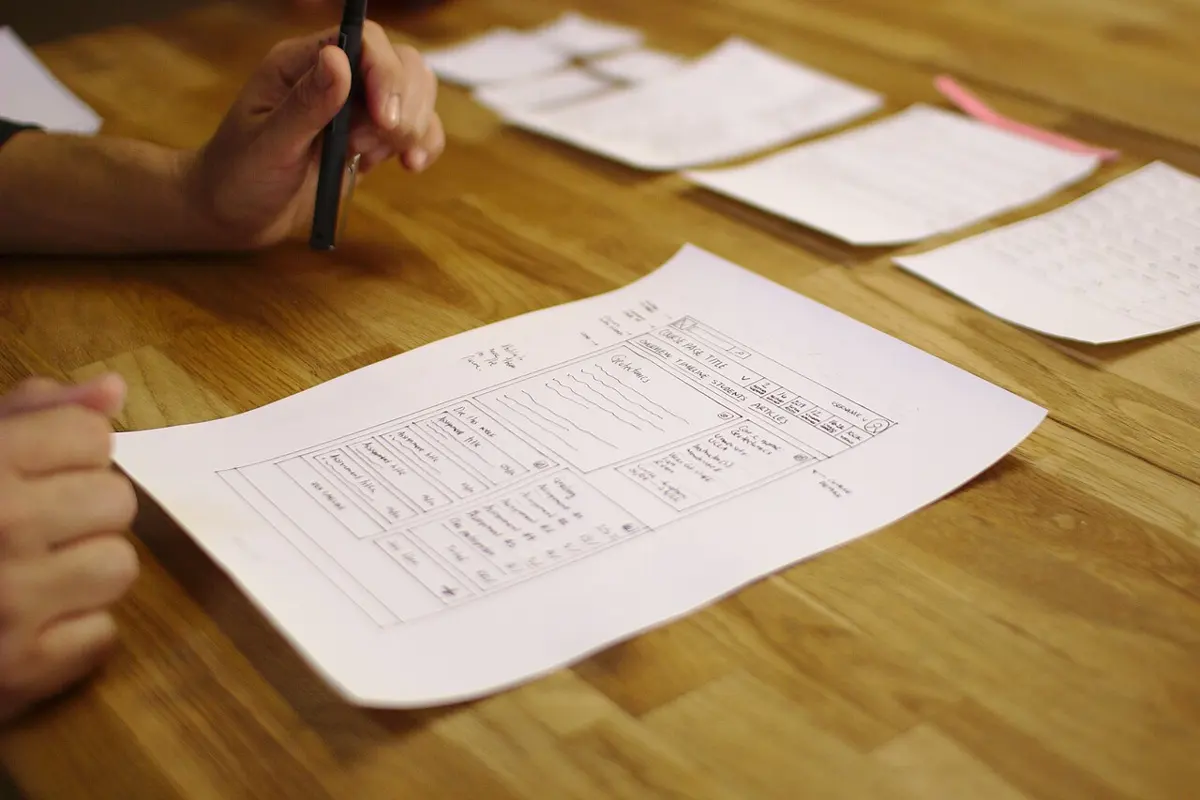
Then sketch the screens on paper before writing any code. A paper sketch takes minutes, and you can show it to a user and ask them to “tap” it with a finger. Changing a sketch is much cheaper than changing a program.
Apps everyone can use
Grade 8’s checklist for pages still holds for apps: the language set, alt text, headings in order, link words, contrast, text big enough, nothing wider than a phone. An app adds a few more, because users do things with it:
| Check | Why |
|---|---|
Every box has a <label> |
a screen reader says what to type; tapping the words puts the cursor in the box |
Anything to tap is a <button> (or a link <a href> that goes to another page), never a <div> with a click listener |
a button can be reached with the Tab key and pressed with Enter or Space, and a screen reader says “button”; a div can do none of these |
Messages go in an element with role="status", in the HTML from the start |
when its words change, a screen reader reads them out, so a blind user hears the answer |
| Buttons and boxes are big, with space between | fingers are bigger than mouse pointers; phone makers advise targets of about 44–48 px |
| A mistake is explained next to the box, in plain words, and what was typed stays | the user can fix it without starting again (Grade 8’s forgiving) |
| Color is never the only signal | “Right!” and “Not quite” in words, not only green and red |
| It works with only a keyboard, in a sensible order | some people can’t use a mouse or a touchscreen; the Tab key follows the HTML’s order |
Responsible design
An app can work perfectly and still do harm. Four questions, asked at the design stage and again when testing, are the values of responsible design:
- Privacy: does it collect only what it needs? Where does that data go, and who can see it? The bill splitter needs no names at all.
- Honesty: does it ever trick people? Hidden costs, a “No thanks” button made hard to find, a countdown that isn’t real: such tricks are called dark patterns, and they are bad design, however well they “work”.
- For everyone: who is left out: older people, people who read only Nepali, people with a cheap phone or a weak signal, people who can’t see, hear or use their hands well?
- Safety: could it hurt someone, for example by showing a child’s marks or address to others, or by giving a wrong answer someone relies on?
A quiz app shows “Correct” in green and “Wrong” in red, with no words, only the colors. Who has a problem?
Pick an answer to see why.
Why should a button be a real <button>, not a <div> with a click listener?
Pick an answer to see why.
Testing and evaluating
How do you know your app is good? Not by looking at it yourself: you know how it works, and you always type sensible things. You test it, and then evaluate it: compare it with what it should be.
Testing: ordinary, edge and wrong inputs
In Grade 8 you tested Python programs with three kinds of input, and an app needs all three:
- Ordinary inputs: what most users will type. Rs 1,200 for 4 friends: Rs 300 each.
- Edge inputs: at the limits of what makes sense. 1 friend; a bill that doesn’t divide exactly; a huge bill.
- Wrong inputs: what the app must refuse politely. 0 friends, an empty box, letters, −4.
Write each test before you run it, with what should happen, then run it and write what did:
| Test | Kind | Should show | Did show | Pass? |
|---|---|---|---|---|
| Rs 1,200, no tip, 4 friends | ordinary | Rs 300 each | Rs 300 each | ✓ |
| Rs 1,000, no tip, 3 friends | edge | Rs 334 each (whole rupees) | Rs 333.3333333333333 | ✗ |
| Rs 1,000, 0 friends | wrong | a message: how many friends? | Rs Infinity | ✗ |
Evaluating: does it do what it should?
To evaluate an app is to judge it against what it should be, in four ways:
- Correct: does it give the right answer, for every test in the table? (A test table finds this.)
- Does its job: does it meet the specification, every line of the design brief? Does it solve the users’ problem better than what they did before? (Only watching users find this.)
- Easy to use: can users do the task without help, quickly, without mistakes? Does it pass the accessibility checklist? This is the user experience.
- Responsible: does it respect privacy, play fair, work for everyone and harm no one?
An app can pass one and fail another. A bill splitter that is always right but needs five taps where a calculator needs two is correct and still doesn’t do its job.
Improving after feedback
Here is the bill splitter’s first version. The team tested it with five people, and every one of them hit a problem. Some problems are in the program’s answers; some are in who can use it at all.
Fixing is not the end. After changing the app, test again: every old test, not only the new ones, because a fix can break something that worked (a test that once passed and now fails is called a regression). Then try the new version with users again, ideally new ones.
Keep a short record of each round, so you, your teacher and anyone who takes over can see why the app is as it is:
| Version | What users found | What we changed | Tested again? |
|---|---|---|---|
| 1 | tip joined as text; answer in paisa; 0 friends gave Infinity; empty bill gave Rs 0; boxes unnamed for a screen reader; Split unreachable by keyboard; answer never read out | Number() on every box, Math.ceil, checks with messages, labels, a <button>, role="status" |
all 7 rows ✓; with Bhim and Sita didi again |
| 2 | Sita didi: “Can it say it in Nepali?” | a Nepali / English switch | … |
After fixing one bug, a team runs only the test for that bug. What is the danger?
Pick an answer to see why.
Project
In short
Exercise
Which line declares a variable that will never change?
Pick an answer to see why.
What is '7' + 2 in JavaScript?
Pick an answer to see why.
Which finds the element with class="score"?
Pick an answer to see why.
A box is empty. What is Number(box.value)?
Pick an answer to see why.
A ticket app has a big “Accept and continue” button in bright color and a tiny pale “No thanks” link that is hard to find. Which value of responsible design does it fail?
Pick an answer to see why.
Which is an edge test for an app that gives a grade from a mark out of 100?
Pick an answer to see why.
Explain, with an example of each: event, listener, the DOM, NaN, a specification.
Answer
Write these Python lines in JavaScript.
marks = [72, 65, 80]total = 0for m in marks: total = total + mif total > 200: print("Well done")else: print("Keep going")Answer
What does this program print in the console?
let word = '';for (const letter of ['a', 'b', 'c']) { word = letter + word;}console.log(word);Answer
A page has <p id="count">0</p> and <button id="plus">Add 1</button>. Write the JavaScript that adds 1 to the number on the page each time the button is pressed.
Answer
A student writes button.addEventListener('click', save());. The page saves once when it opens, and never again when the button is pressed. Explain the bug and fix it.
Answer
An app adds two numbers typed in two boxes, a and b, with answer.textContent = a.value + b.value;. A user types 2 and 3 and gets 23. Explain why, and correct the line.
Answer
Why should a web app show what a user typed with textContent and not innerHTML? Why must a website check a password on its server, not only in the page’s JavaScript?
Answer
List four things that make a web app usable by someone who is blind or who uses only a keyboard. For each, say what it does for them.
Answer
Write a design brief for an app that helps a small shop work out the change to give a customer. Include who it is for, their task now, where it is used, at least four lines of specification, and one question for each of the four values of responsible design.
Answer
Here is a test table for a converter from kilograms to dharni, a measure of weight used in Nepal’s markets (the app takes 1 dharni as 2.4 kg), with its results. Evaluate the app: is it correct, and what should the team do next?
| Test | Should show | Did show |
|---|---|---|
| 24 kg | 10 dharni | 10 dharni |
| 7 kg | 2.92 dharni | 2.916666666666667 dharni |
| empty box | “Type a weight in kg” | 0 dharni |
| −5 kg | “Type a weight in kg” | −2.0833333333333335 dharni |
Answer
Quiz yourself: Creating, Grades 6–12 →
Practice every question in the book, and keep track of the ones you miss →